
Windows Defender Runtime Error Code 1297 is a common issue that can stop Windows Defender from working, leaving your computer vulnerable to threats. This error often appears when there are corrupted system files, software conflicts, or missing permissions. Thankfully, you don’t need advanced skills to fix it—simple solutions like checking for updates, running system scans, or removing conflicting antivirus apps can quickly restore Windows Defender on both Windows 10 and Windows 11. In this blog, you’ll learn easy steps to fix error 1297 and keep your PC protected.
✅ Step-by-Step Fixes for Windows Defender Runtime Error 1297
Try these in sequence. After each, test to see if the error is resolved.
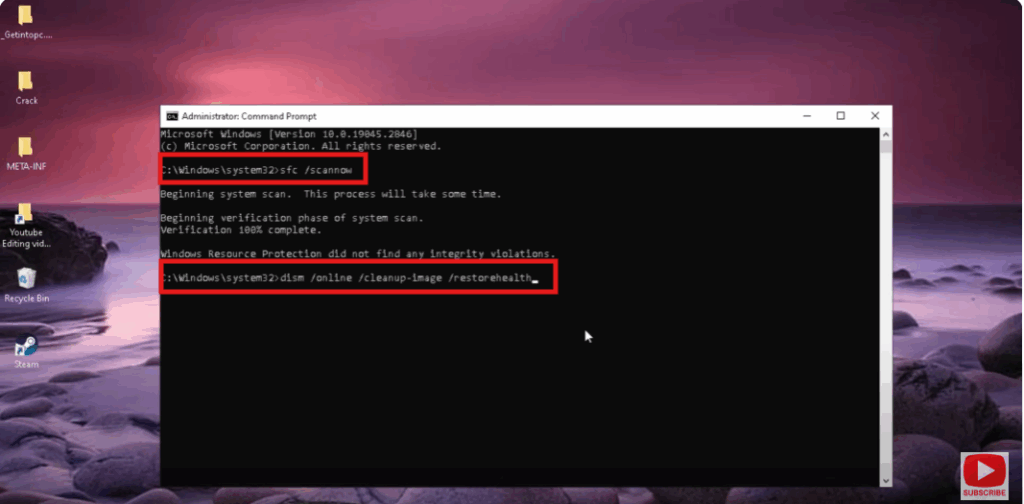
1. Run SFC and DISM to Repair System Files
Corrupted OS files or Defender files can cause runtime errors. Running these system integrity tools may help.
- Open Command Prompt as Administrator.
- Run:
sfc /scannow - After that completes, run:
DISM /Online /Cleanup-Image /ScanHealth DISM /Online /Cleanup-Image /RestoreHealth - Reboot your PC and try Windows Defender again.
2. Uninstall Any Conflicting Third-Party Antivirus Programs
If another security/antivirus program is installed, it may conflict with Windows Defender and cause error 1297.
- Go to Settings → Apps → Installed Apps
- Find any third-party antivirus or security tool
- Uninstall it
- Reboot, then test Windows Defender again
3. Update Graphics / Other Drivers
Some users report that outdated drivers can indirectly cause this error (especially GPU drivers).
- Open Device Manager
- Expand Display adapters
- Right-click your GPU → Update driver → Search automatically
- Also update any other flagged devices
4. Update Windows to the Latest Version
Microsoft often releases patches that fix security or runtime errors.
- Open Settings → Update & Security → Windows Update
- Click Check for updates
- Install all available updates
- Reboot and test again
5. Verify and Fix Service Privileges (Advanced)
Because error 1297 can stem from missing service permissions, you may need to check the service account that Windows Defender uses.
- Press Win + R, type
services.msc, and hit Enter - Locate Microsoft Defender Antivirus Service (or similar name)
- Right-click → Properties → Log On
- Ensure it uses the correct service account (e.g. LocalSystem or default)
- Also check Security / Permissions on folder or registry entries used by Defender
- If permissions are broken, repair them (e.g. via
icaclsor registry tweaks)
This is more advanced and should be done carefully (or with backup / restore point).






