
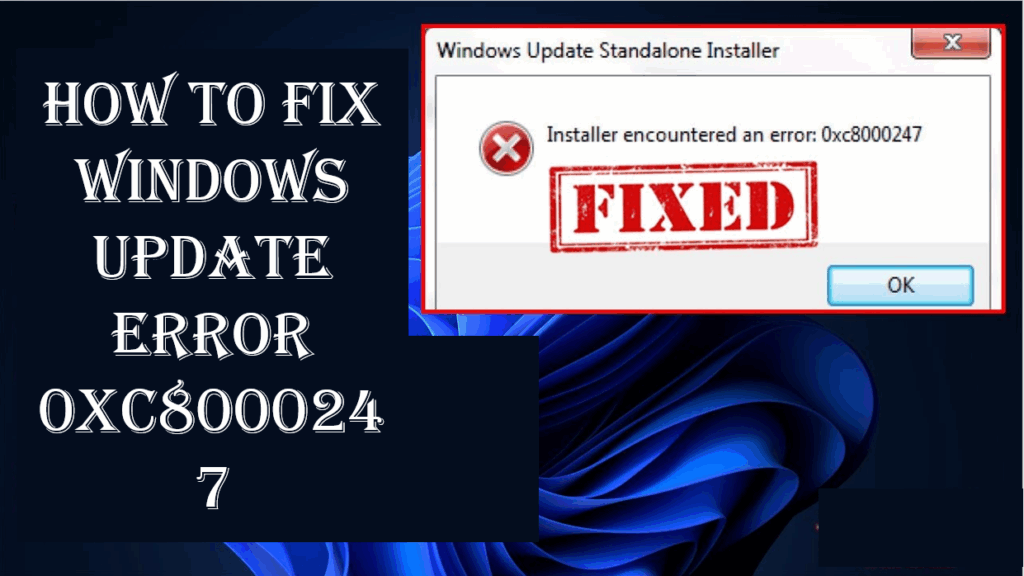
Windows Update Error 0xc8000247 is a common problem that can stop important updates from installing on your computer, leaving your system out of date and less secure. This error is often caused by missing drivers, corrupted files, or interference from antivirus software, and it can be fixed with a few simple troubleshooting steps. In this guide, you’ll learn clear and easy methods to solve the error so your Windows updates work smoothly and keep your PC running safely.
Step 1: Open Services Window
- Press Windows + R on your keyboard to open the Run dialog box.
- Type services.msc and hit Enter.
- This will open the Services window.
Step 2: Stop Windows Update Service
- Scroll down and find Windows Update.
- Right-click on it and select Stop.
- This temporarily stops the update process while you reset the components.
Step 3: Delete SoftwareDistribution Folder
- Open File Explorer and go to the following path:
C:\Windows\SoftwareDistribution - Select all the files and folders inside it and delete them.
(Don’t worry, Windows will recreate these files automatically when you restart the update service.)
Step 4: Restart Windows Update Service
- Go back to the Services window.
- Right-click Windows Update again and select Start.
- Close the Services window once the service is running.
Step 5: Run Windows Update Troubleshooter
- Open Settings → System → Troubleshoot → Other troubleshooters.
- Find Windows Update and click Run.
- Let the troubleshooter detect and fix any underlying issues.
Step 6: Reboot and Check for Updates
Finally, restart your computer and go to:
Settings → Windows Update → Check for updates.
The error 0xc8000247 should now be resolved, and updates should install normally.
✅ Conclusion
The Windows Update Error 0xc8000247 can occur due to corrupted cache or temporary update glitches. By stopping the Windows Update service, deleting the SoftwareDistribution folder, and running the built-in troubleshooter, you can easily fix this problem. Follow these steps carefully, and your system should start updating smoothly again.






