
Is your Windows 10 or 11 PC running slow or lagging during everyday tasks? One way to boost performance is by increasing your RAM (Random Access Memory). More RAM helps your computer handle more apps at once, run smoother, and respond faster. While you can’t always add physical RAM to every device, there are smart tricks to optimize memory usage and improve speed without spending money. In this blog, we’ll show you easy ways to increase or manage RAM and make your PC or laptop perform better 💻👍✔. Let’s speed things up!
Step 1: Check Your Installed RAM
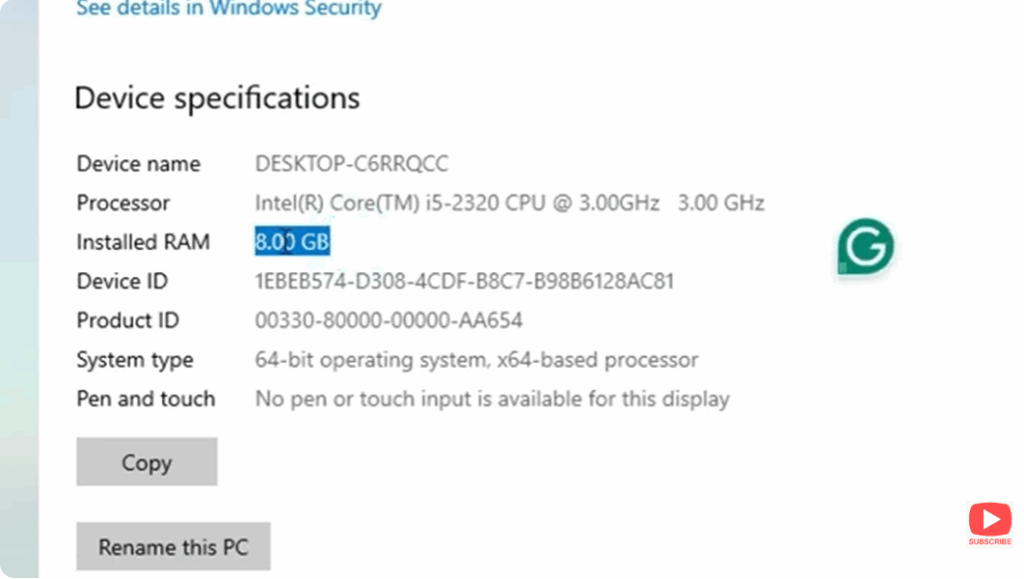
You have to go to your Windows search bar and type About Your PC.
After clicking on it, you will see the Installed RAM in the “About” section.
For example, in my PC, it shows 8 GB — but you can change it to 16 GB or 32 GB.
Step 2: Go to Advanced System Settings
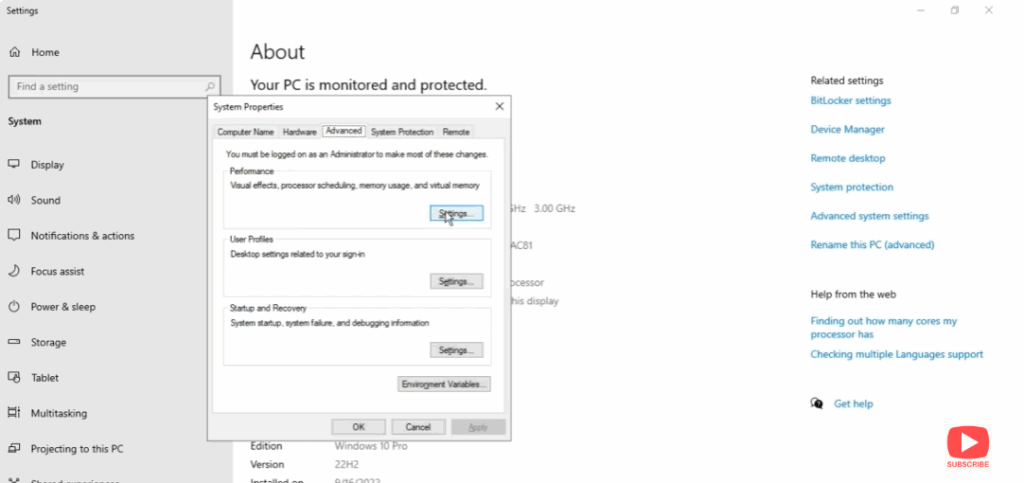
To do this, go to Advanced System Settings.
Here, you will find a box titled System Properties.
Under Performance, click on Settings.
Step 3: Adjust Virtual Memory
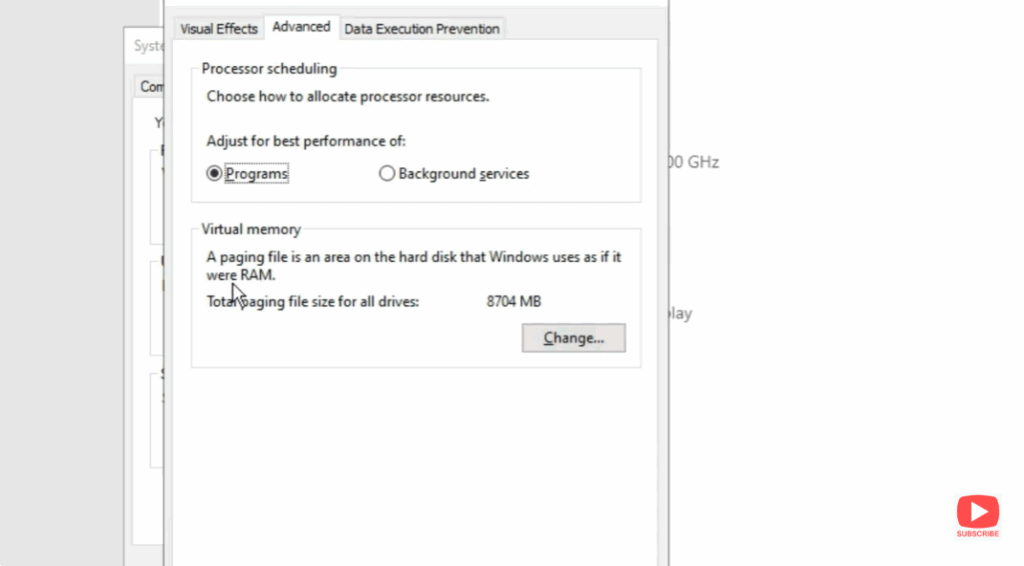
Now go to the Advanced tab from the top menu options.
Here, you’ll see the Virtual Memory option.
Virtual memory acts like RAM — it’s a hidden system file on the hard disk that works as an extension of your physical memory.
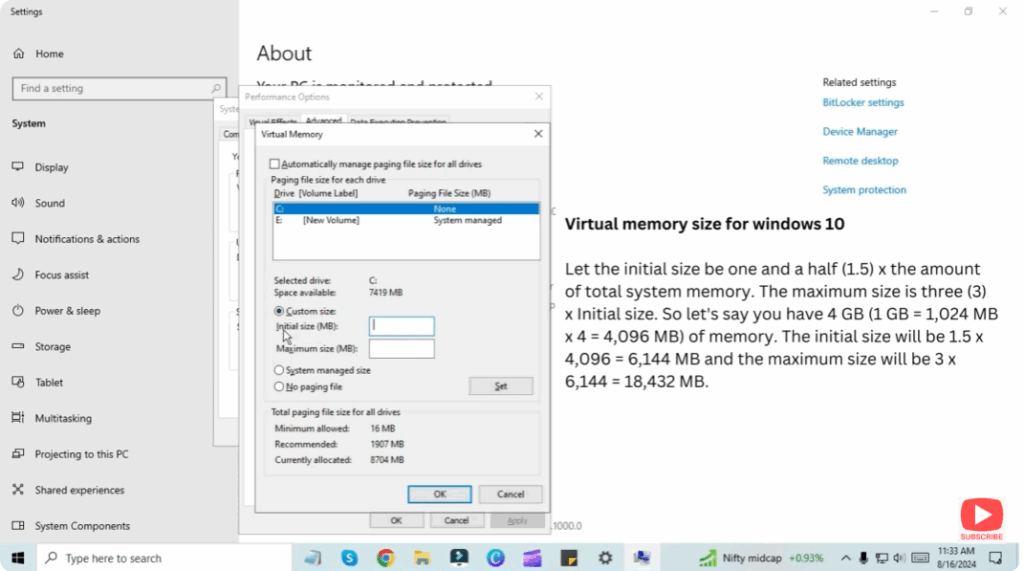
To change it, click on Custom Size. You will see two boxes:
- Initial Size (MB)
- Maximum Size (MB)
Step 4: Calculate the Correct Values
On the screen, you’ll see that the virtual memory size for Windows 10 is calculated as follows:
- Initial Size: 1.5 × total system memory (in MB)
- Maximum Size: 3 × total system memory (in MB)
Let’s say you have 4 GB of RAM:
1 GB = 1024 MB → 4 × 1024 = 4096 MB
- Initial Size: 1.5 × 4096 = 6144 MB
- Maximum Size: 3 × 4096 = 12288 MB
Now suppose you have 8 GB of RAM:
8 × 1024 = 8192 MB
- Initial Size: 1.5 × 8192 = 12288 MB
- Maximum Size: 3 × 8192 = 24576 MB
So, you will type:
- Initial size: 12288
- Maximum size: 24576
Then click Set and OK.
Step 5: Restart Your PC
After setting these values, close the box and restart your PC.
If you are using 16 GB of RAM, then instead of 8, multiply:
- 16 × 1024 × 1.5 → for the Initial Size
- 16 × 1024 × 3 → for the Maximum Size
As you can see, by doing this, your virtual RAM will increase, and your computer performance will also improve.






