
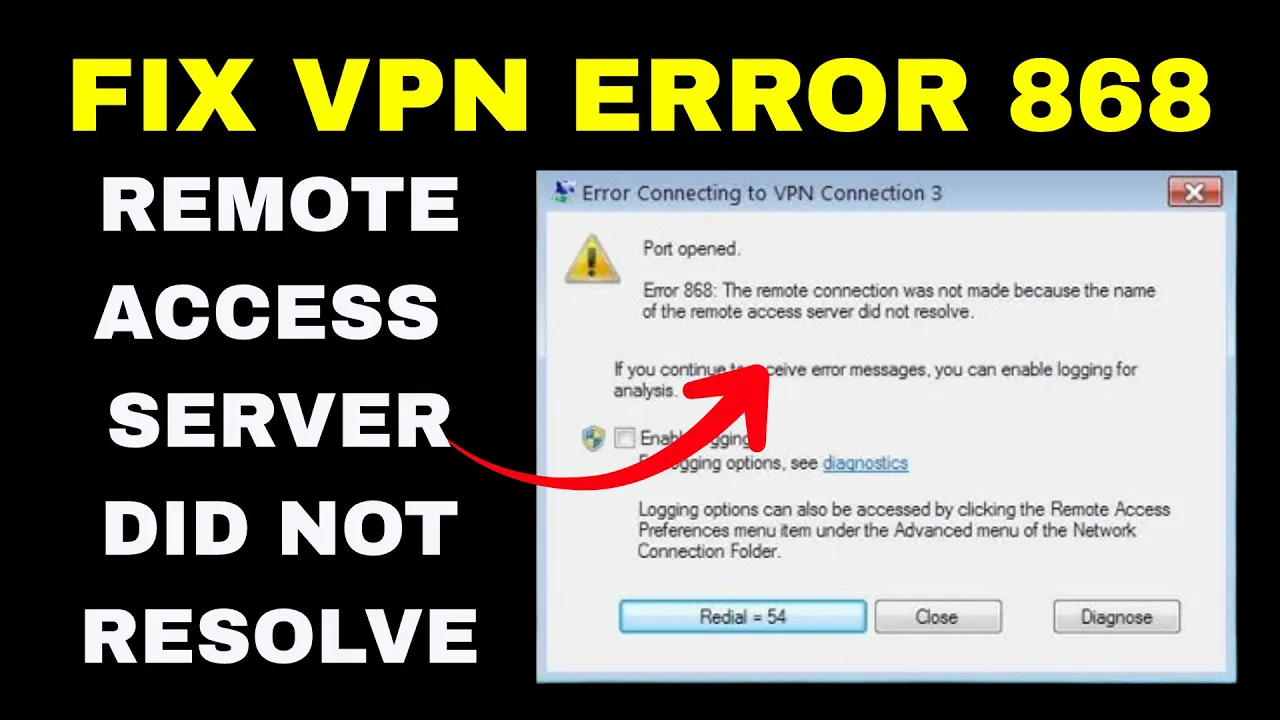
If you’re trying to connect to a VPN and see Error 868, which says “Name of the Remote Access Server Did Not Resolve,” don’t worry—it’s a common issue that can be fixed easily. This error usually means your computer can’t find or connect to the VPN server, often because of a DNS problem, wrong server address, or blocked network ports. In this blog, you’ll discover simple fixes like checking your VPN settings, changing DNS servers, updating your network drivers, and restarting Windows services to help you get your VPN working smoothly again.
🧰 Step-By-Step Fix from the Video
All of these steps use Command Prompt (as Administrator). You must run them with elevated privileges.
- Open Command Prompt as Administrator
- Search for cmd → Right-click → Run as administrator
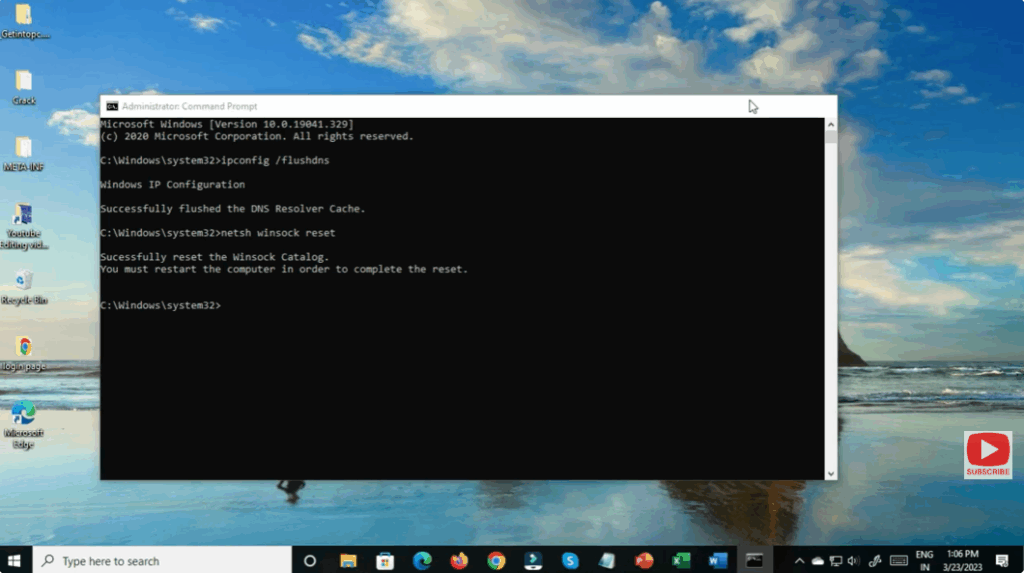
- Flush DNS and register the DNS again
Execute:ipconfig /flushdns ipconfig /registerdnsThis clears out the DNS resolver cache and forces Windows to re-register DNS names. - Release and Renew IP configuration
Run:ipconfig /release ipconfig /renewThis drops your current network lease and requests a new one, refreshing your IP settings. - Reset Winsock catalog
Then run:netsh winsock resetThis resets the Winsock (Windows Sockets) interface, clearing out corrupt socket settings or network stack issues. - Restart your computer
After performing these commands, reboot your PC so all changes fully take effect.
Once you boot back, try connecting the VPN again. If everything succeeds, the error should be resolved.






