

Installing the Disney Plus app on your Windows 10 or 11 device is a simple process that lets you stream your favorite movies and shows easily. You can do this either through the Microsoft Store or by installing it as a web app in your browser. The Microsoft Store method is quick and straightforward, allowing you to download the official app directly onto your PC. Alternatively, you can create a shortcut for Disney Plus on your desktop or taskbar for quick access. In this guide, you’ll learn easy steps to install Disney Plus on your Windows PC so you can enjoy unlimited entertainment right from your computer.

🛒 Steps to Install Disney+ App
- Open Microsoft Store
- Click on the Microsoft Store app from your Start menu or taskbar.
- If it’s not pinned, you can search for “Microsoft Store” and open it.
- Search for “Disney+”
- In the Microsoft Store search bar, type “Disney Plus” or “Disney+”.
- The app should appear in the search results.
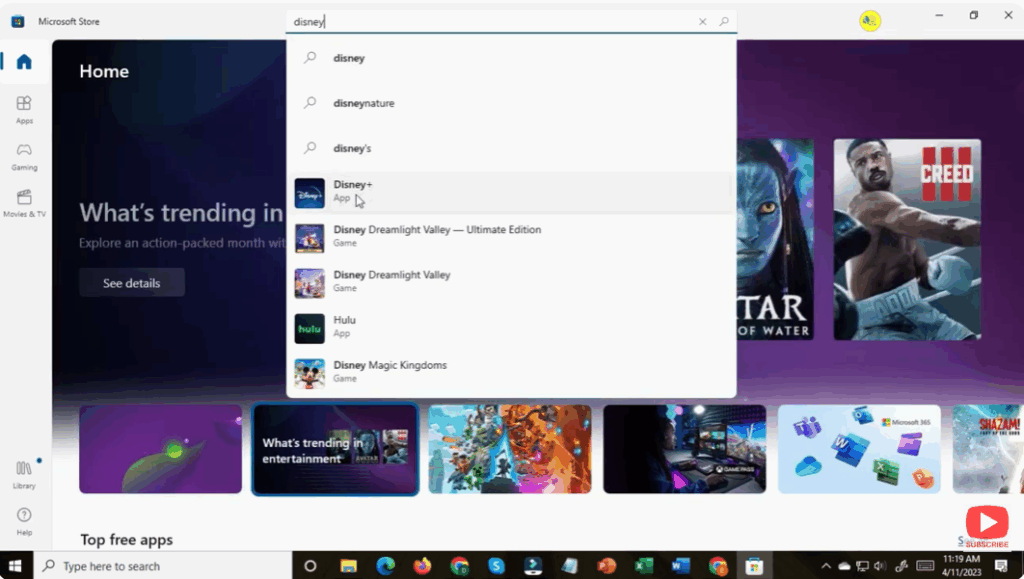
- Select the Disney+ app
- Click on the Disney+ app entry (the official one).
- Ensure it’s from the official source (Disney / Disney+), not a third-party replica.
- Install / Get the App
- Click the Install (or Get) button in the Store page for Disney+.
- The app will begin downloading and installing on your system.
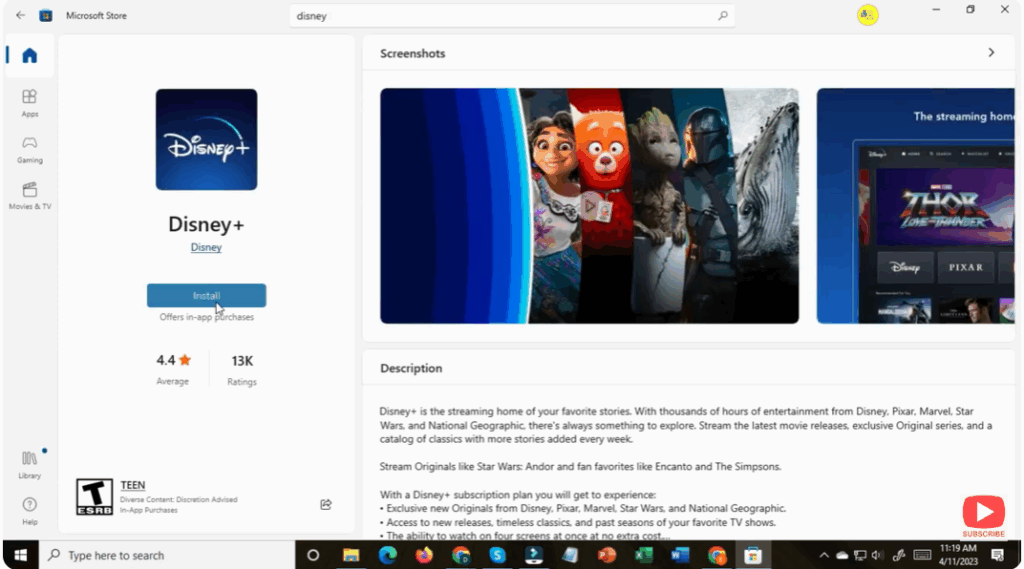
- Launch Disney+
- Once installed, click Open from the Store, or find the Disney+ app in your Start menu.
- You’ll need to sign in with your Disney+ account credentials.
- Enjoy Disney+ on the App
- After logging in, you can browse, stream, and watch content just like on the website or other platforms.
- The app gives a more native experience (often smoother, easier full screen, better integration) than just using a web browser.






