
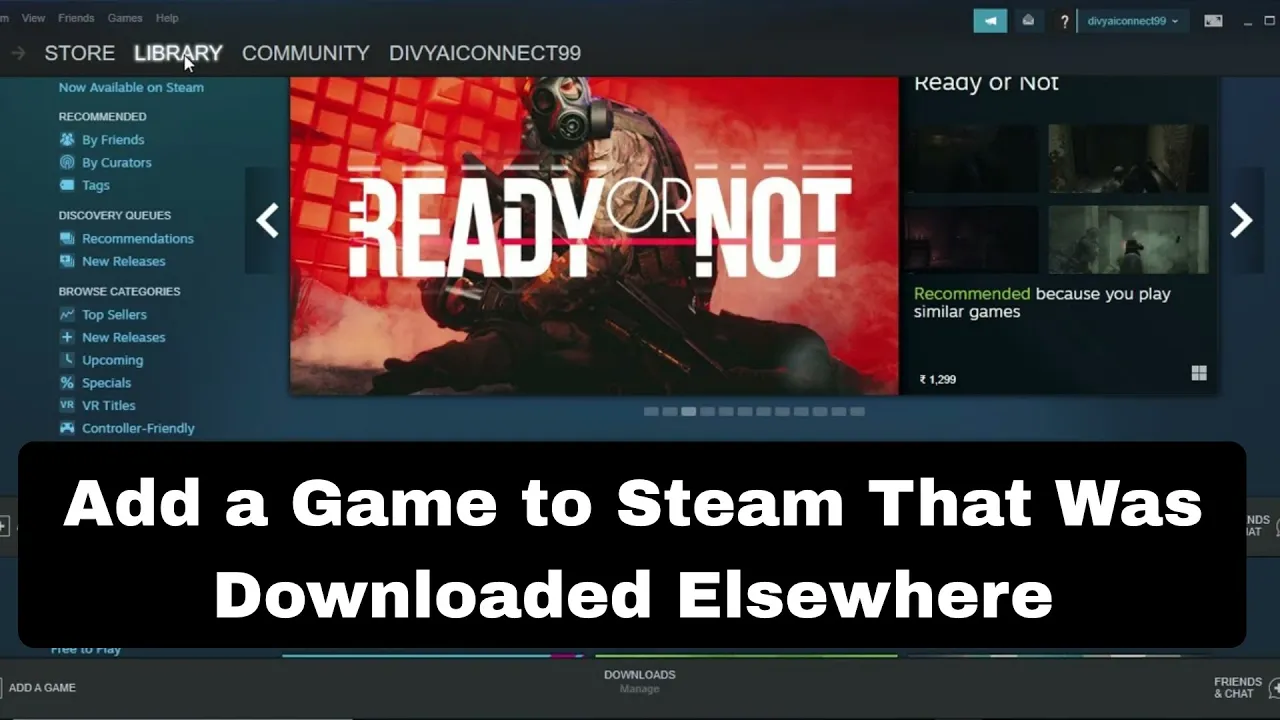
Have a game installed on your computer but didn’t download it from Steam? No problem—you can still add it to your Steam library! This lets you launch the game from Steam, use the Steam overlay, and even show your friends what you’re playing. It’s a handy way to keep all your games in one place, even if they came from other sources like Epic Games, GOG, or a DVD. In this blog, we’ll show you how to add a non-Steam game to Steam in a few easy steps. Let’s get started!
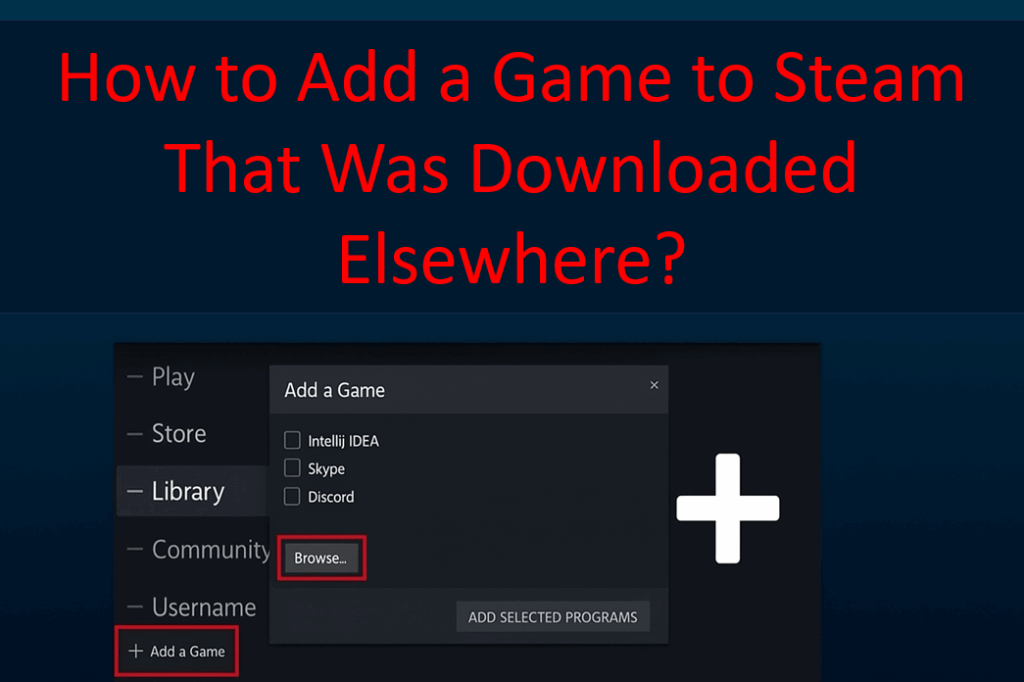
📥 Step-by-Step: Adding a Non-Steam Game to Steam
- Open the Steam client
- Launch Steam as you normally would (make sure you’re logged into your account).
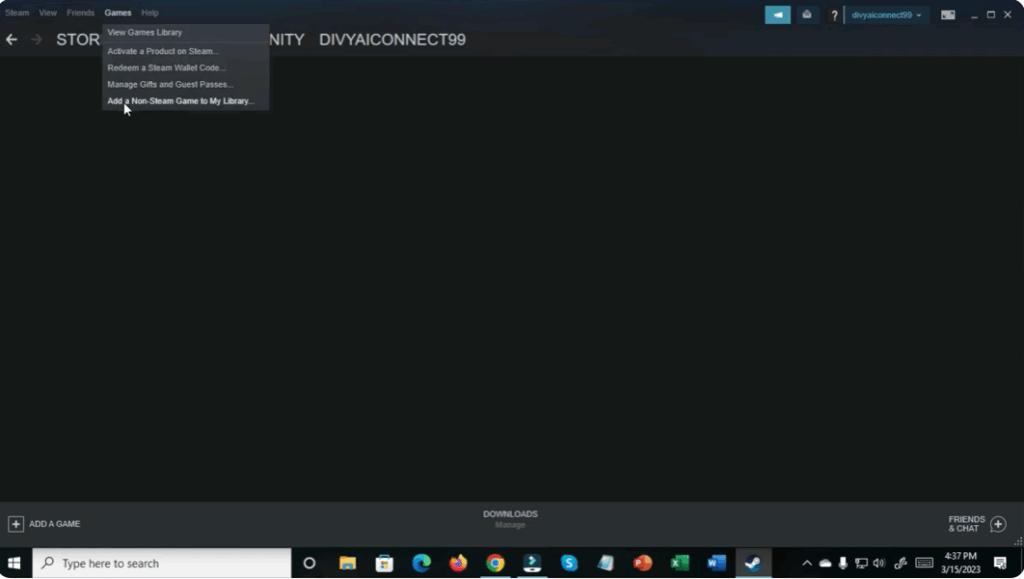
- Go to “Add a Game” menu
- In the bottom-left corner (or somewhere along the bottom), click “+ Add a Game” (or the “Add” menu).
- From the options, choose “Add a Non-Steam Game…”.
- Browse for the game’s executable
- A dialog box opens listing programs Steam detects on your system.
- If the game you want is in that list, check its box and click “Add Selected Programs”.
- If it’s not listed, click “Browse” (or “Browse…” button).
- Locate the game’s .exe file
- In the file dialog, navigate to the installation folder of the game that you downloaded elsewhere.
- Find the game’s main .exe or launcher file (for example,
GameName.exe). - Select that .exe and click “Open” (or “Select”).
- Confirm addition
- After selecting, Steam will add that game entry into your Library, usually under the “Non-Steam” section or Mixed with others.
- You’ll now see the game listed in your Steam library (though it’s just a shortcut to launch it).
- Optionally customize name / properties
- You can right-click the newly added game in your Steam library → Properties.
- There you can rename the game (as it appears in Steam), add launch options, or set compatibility settings.
- You can also hide it or move it in categories, etc.
- Launch the game via Steam
- Click “Play” from within Steam, and it will launch the external game via the .exe you linked.
- You should now have access to Steam’s overlay features (if compatible) and tracking within Steam.






