
Do you hear a beep or sound every time Steam sends a notification and want to change that? Whether it’s getting annoying or you simply prefer silence while gaming, you can easily enable or disable Steam’s notification sound in just a few clicks. Steam gives you control over these alerts so you can customize your experience the way you like. In this blog, we’ll show you how to turn the notification sound on or off step by step. Let’s make Steam sound just right for you!
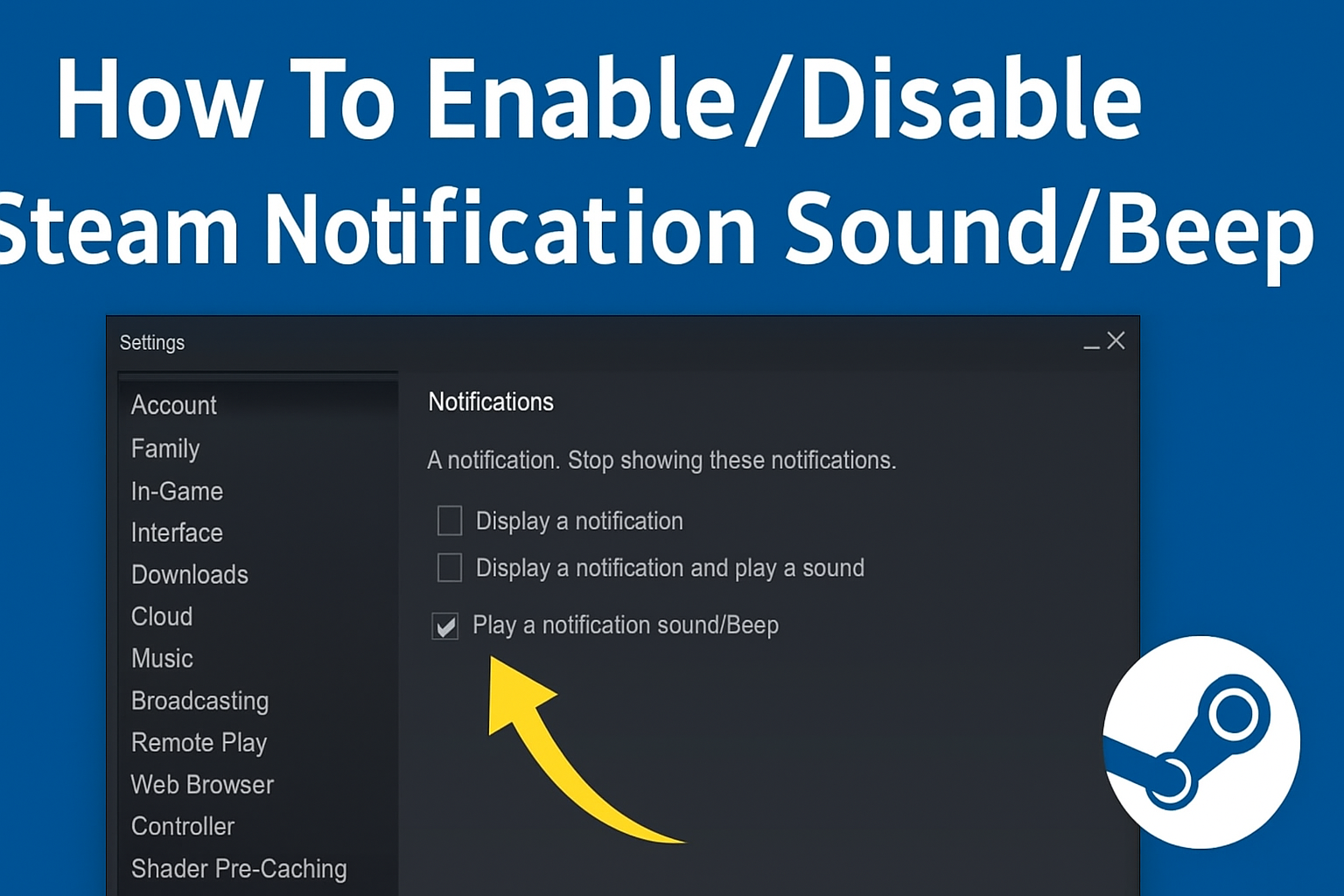
🔧 Steps to Enable or Disable Steam Notification Beep
- Open Steam client
- Launch the Steam desktop application and log in, if required.
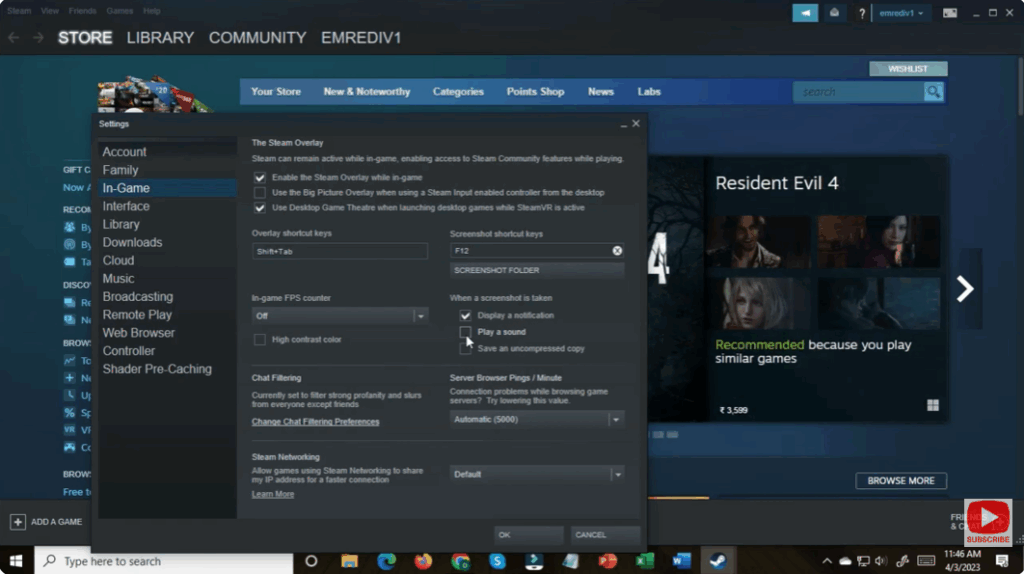
- Go to Steam Settings
- In the top menu, click Steam → then Settings (on Windows).
- If you’re on macOS, it may be under Steam → Preferences.

- Navigate to the Interface / Notifications section
- In the Settings dialog, locate the Interface tab (or a tab similar like “In-game / Notifications / Interface”).
- The video shows that the option for the notification sound is within that section.
- Find the “Play notification sound / beep” option
- In that section, look for a checkbox labeled something like “Play Steam notification sound”, “Enable notification beep”, or “Beep when notifications arrive”.
- It may be described as “Play sound when a notification is received.”
- Enable or disable the sound
- To turn off the beep, uncheck that box (disable).
- To turn on, check the box (enable).
- After toggling, click OK or Apply to save your change.
- Test it
- You can trigger a Steam notification (e.g. new message, friend online) to see if the sound is playing or muted.
- If it works as desired, you’re done.






