

Want to change your Steam account name but not sure how it works? You’re not alone—many users get confused between their login name, profile name, and Steam ID. While you can’t change the original account name you use to sign in, you can easily update your profile name, which is what friends and other players see. In this blog, we’ll explain the difference and show you how to change your Steam display name step by step, using simple and clear instructions. Let’s give your Steam profile a fresh new look!

📝 Steps to Change Steam Profile Name
- Open Steam and Log In
Make sure you’re logged into your Steam account via the Steam client or in a web browser. - Go to Your Profile / Account Page
- In the Steam client, click on your username or profile icon (typically at the top).
- Select “View Profile” (or similar) to go to your Steam profile page.

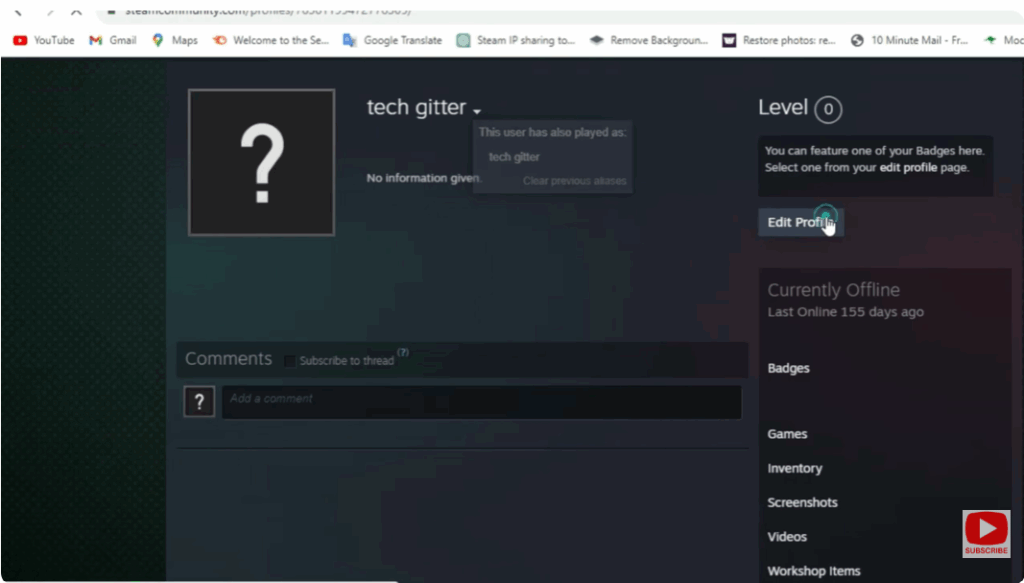
- Click “Edit Profile”
On your profile page, look for an Edit Profile button (usually located to the right side). Click it.
- Change the Profile Name Field
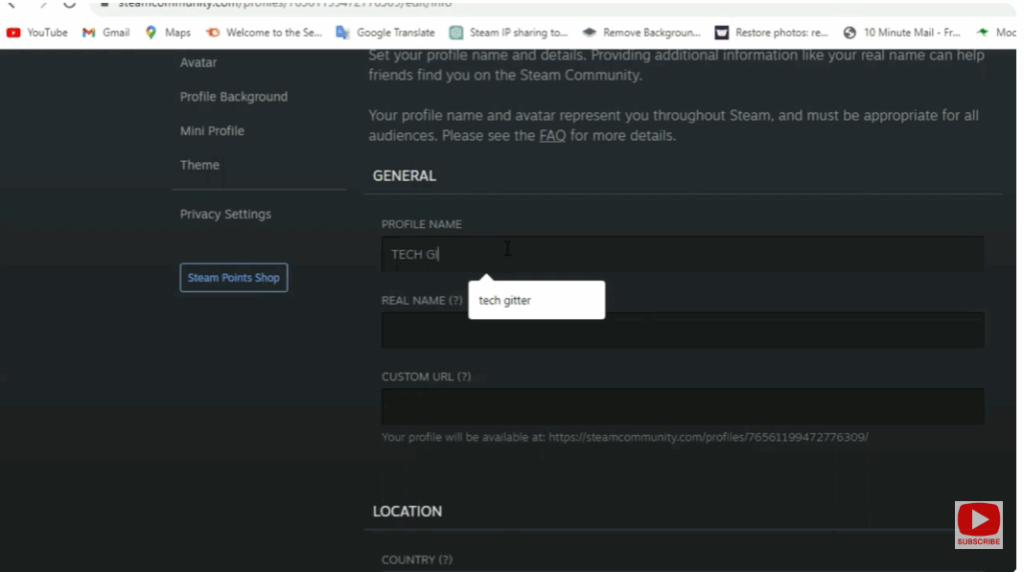
In the Edit Profile settings, find the field labeled something like “Profile Name” (or “Profile Name / Persona Name”).
Replace the current name with your desired new name.
- Save / Apply Changes
After entering your new name, scroll down (if needed) and click Save or Save Changes.
The new name will be reflected on your Steam profile shortly after.






