
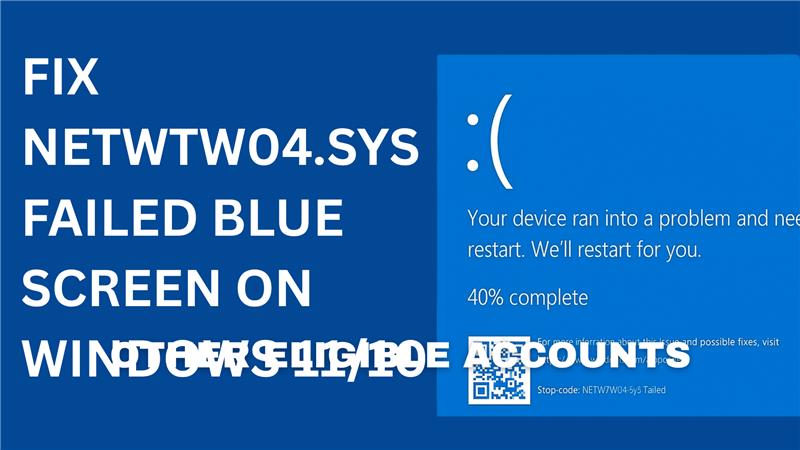
If your computer suddenly crashes and shows a blue screen with the message “Netwtw04.sys failed,” it usually means something is wrong with your Wi-Fi or network driver. This error often appears with stop codes like DRIVER_IRQL_NOT_LESS_OR_EQUAL or SYSTEM_THREAD_EXCEPTION_NOT_HANDLED, and it’s mostly caused by outdated, corrupted, or incompatible Intel wireless drivers. The good news is that you can fix it easily by updating, reinstalling, or rolling back your network drivers. In this blog, you’ll learn step-by-step methods to fix the Netwtw04.sys blue screen error on Windows 11 or 10 and get your system running smoothly again.
🛠 Step by Step Fixes
Below are steps — including those directly from the video — that can help resolve the Netwtw04.sys blue screen error. Try them in order, and see if the issue is resolved at any point.
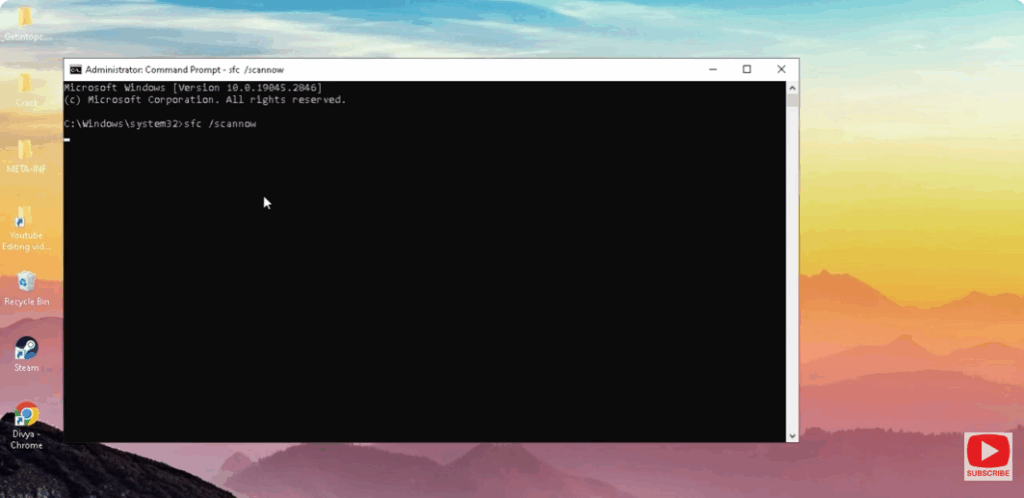
1. Run System File Checker (SFC)
- Open Command Prompt as Administrator.
- Enter:
sfc /scannow - This will scan system files and repair corrupted ones.
- Let it finish fully, then restart the PC.
2. Run DISM to Repair the Windows Image
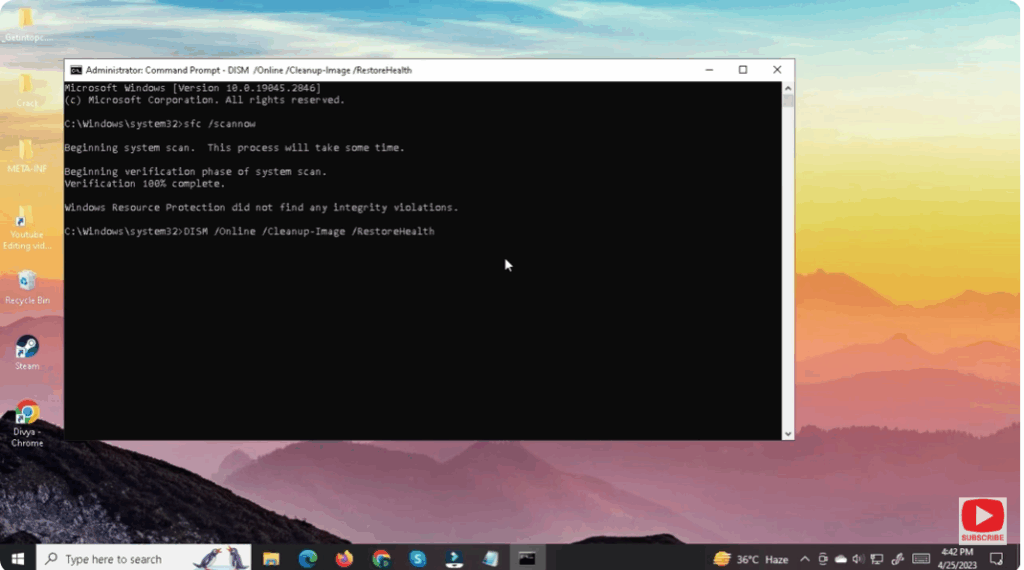
- In the same elevated Command Prompt, run:
DISM /Online /Cleanup-Image /RestoreHealth - This checks the Windows component store and repairs any corrupted image files.
- After it completes, reboot and test again.






