
Need to restart your Windows 10 PC but not sure how? Rebooting your computer is a simple way to fix small issues, refresh the system, or apply updates. It’s like giving your PC a quick nap so it can work better when it wakes up! In this blog, we’ll show you easy ways to reboot your Windows 10 computer, whether you’re using a mouse, keyboard, or even facing a frozen screen. Let’s get your PC running smoothly again!
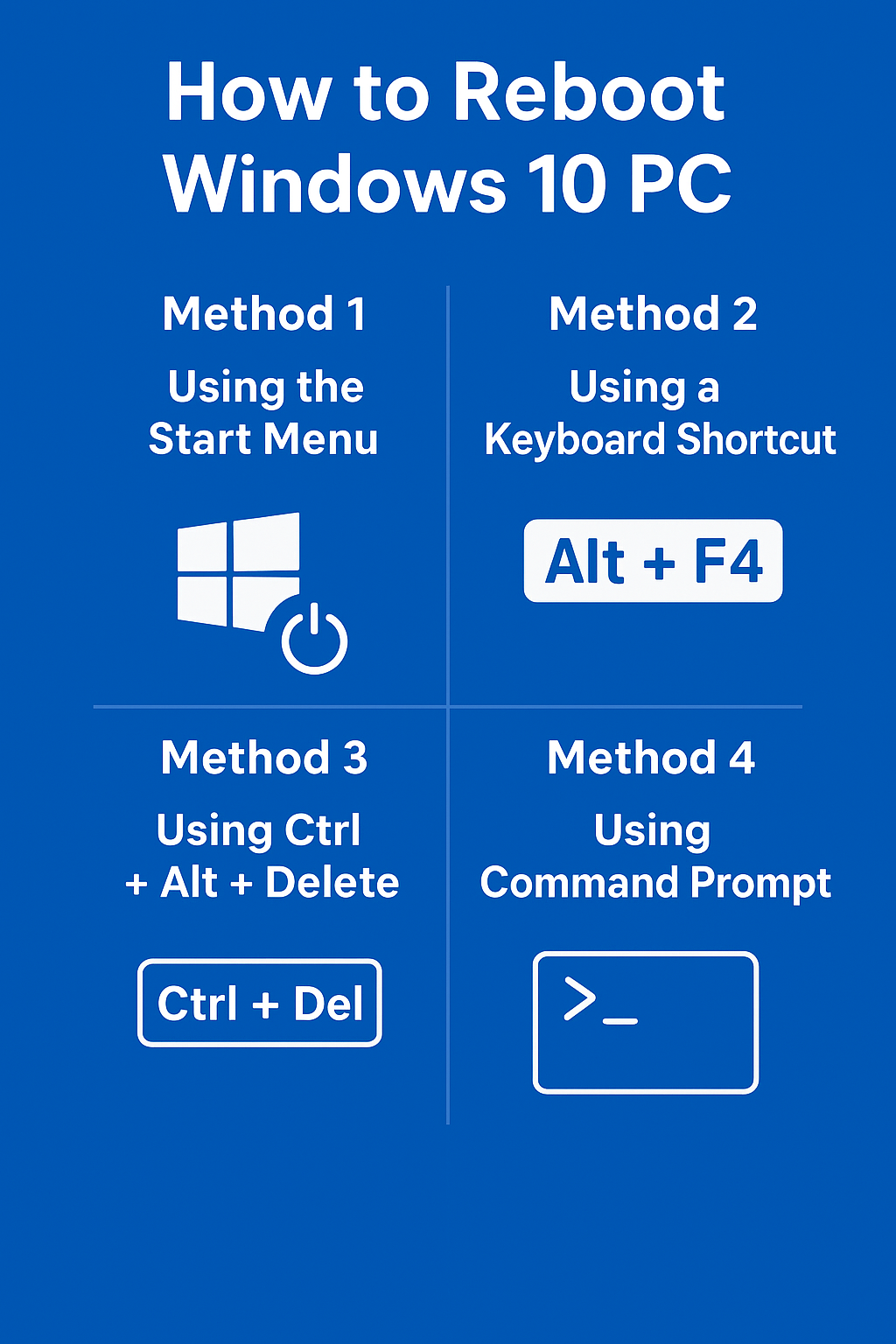
Method 1: Using the Start Menu
- Click the Start button (the Windows logo) in the bottom-left corner of your screen.
- Select the Power icon.
- Choose Restart from the options.
- Wait for your computer to shut down and power back up.
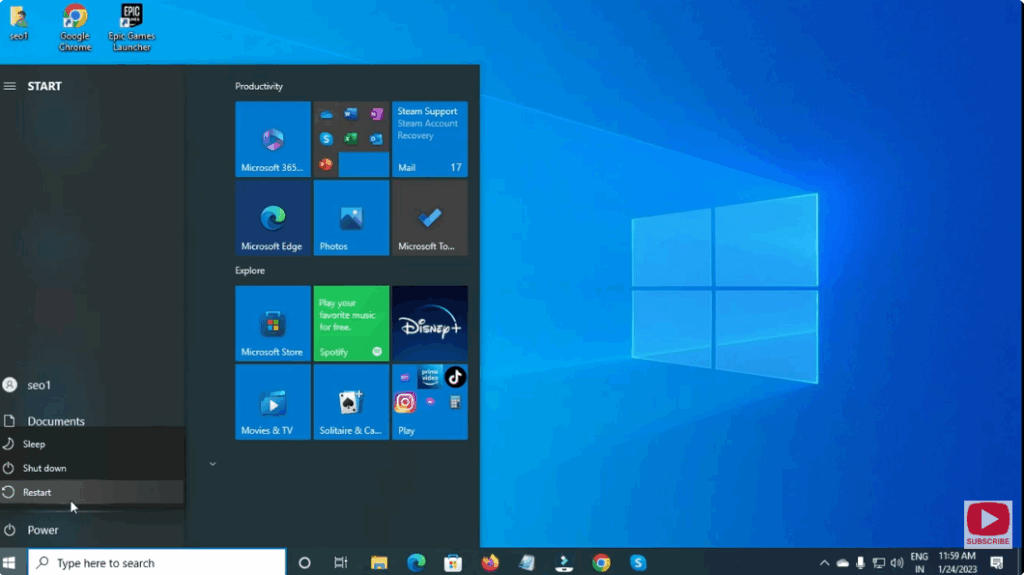
This is the easiest and most common method to reboot your PC.
Final Thoughts
Rebooting your Windows 10 PC is a simple but effective way to solve many common issues. Whether you use the Start Menu, Command Prompt, or keyboard shortcuts, knowing how to restart your computer properly keeps your system running smoothly and efficiently.






