
Is Microsoft Excel not opening or freezing when you try to start it on your Windows 11 PC? This can be frustrating, especially when you need to work on something important. Sometimes Excel gets stuck or stops responding due to add-ins, outdated software, or system issues. But don’t worry—there are simple ways to fix it! In this blog, we’ll guide you through easy steps to solve Excel not responding or starting problems, so you can get back to your work without stress. Let’s fix it together!
🛠 Step-by-Step Fixes
Follow these methods one by one. Test Excel after each to see if the issue is resolved.
1. Start Excel in Safe Mode
Safe Mode launches Excel without add-ins, startup items, or customizations, which helps isolate the cause.
- Press Win + R, type
excel /safe, and press Enter. - If Excel opens fine in Safe Mode, then the problem likely involves add-ins or custom startup files.
2. Disable Add-ins
If Excel works in Safe Mode, disable add-ins one by one to find the culprit.
- Open Excel (normal mode) → File → Options → Add-ins.
- At the bottom, choose “COM Add-ins” then Go. Uncheck all, click OK, restart Excel.
- If problem goes away, enable add-ins one-by-one to identify the faulty one.
- Also check “Excel Add-ins” in the Manage dropdown and disable similarly.
3. Clear / Rename Startup Files & Templates
Excel automatically opens workbooks in certain “startup” folders, and bad files can cause hangs.
- Move any files from the XLStart folder (e.g.:
%appdata%\Microsoft\Excel\XLSTART) to a safe folder. - Also check for “Alternate startup file locations” in Excel Options → Advanced → General.
- Rename or remove custom Excel toolbar files (e.g. *.xlb) if present.
4. Repair / Reset Office Installation
Sometimes the installation is corrupted.
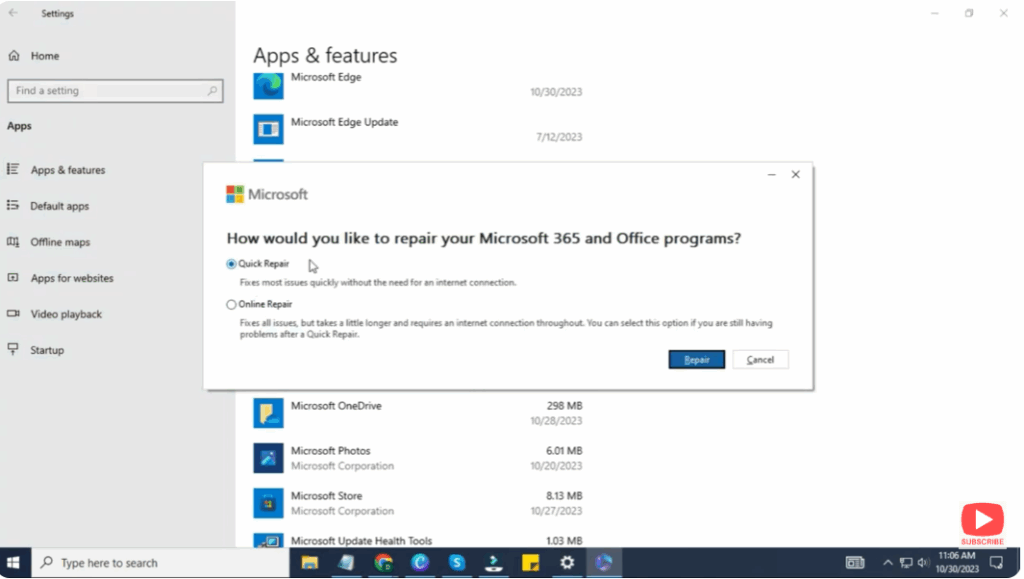
- Go to Settings → Apps → Installed Apps (or Control Panel → Programs) → find Microsoft Office / Excel.
- Choose Modify / Change → then select Quick Repair. If that fails, try Online Repair (which is more thorough).
- After repair, restart the PC and test Excel.
5. Update Excel / Windows
Ensure you have the latest updates, which often fix known bugs.
- In Excel → File → Account → Update Options → Update Now.
- In Windows Settings → Windows Update → Check for updates.
6. Check for External Conflicts
Often other software interferes.
- Disable or temporarily uninstall third-party antivirus or firewall software and test Excel.
- Printer drivers and display drivers can also cause Excel to hang; update them.
- Free up system RAM and ensure no heavy background tasks are hogging resources.
7. Move the Problematic Workbook / Start Fresh
If Excel opens but fails only with a specific workbook:
- Move the workbook out of its current folder and open it separately.
- If opening works then, the original folder or linked files may be problematic.
- Consider copying the data into a fresh workbook if the original file is corrupted or too large.






