
Need to open or read PDF files on your computer? Adobe PDF Reader is one of the most popular and trusted tools for viewing PDFs. Whether you’re checking a document, filling out a form, or printing a file, Adobe Reader makes it easy. In this blog, we’ll guide you through how to download and install Adobe PDF Reader on your Windows PC, step by step, using simple instructions. Let’s get your PDF reader up and running!
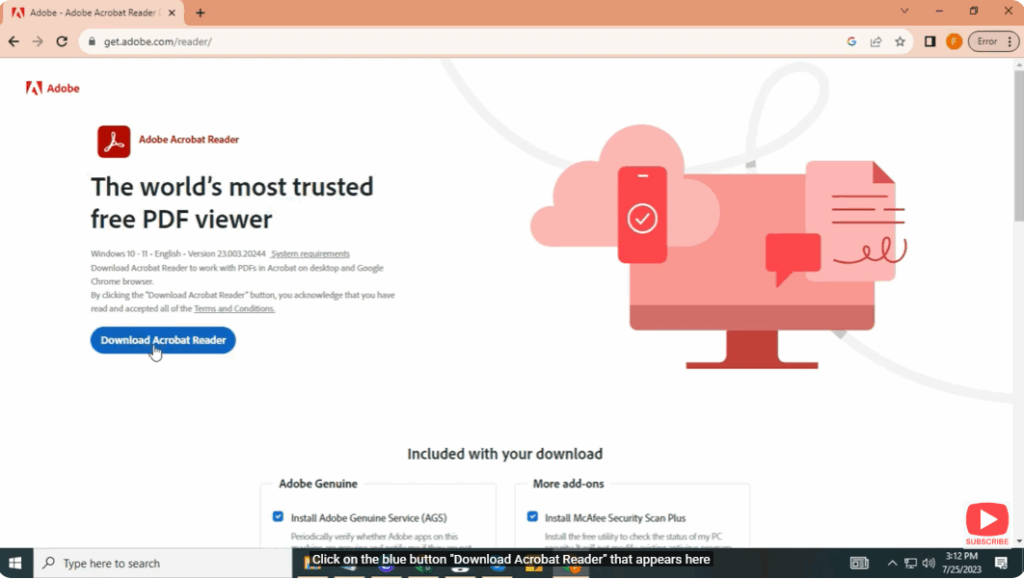
First of all, open Chrome on your Windows PC.
Search Adobe Reader on Google Chrome.
Click on the blue button “Download Acrobat Reader” that appears there.
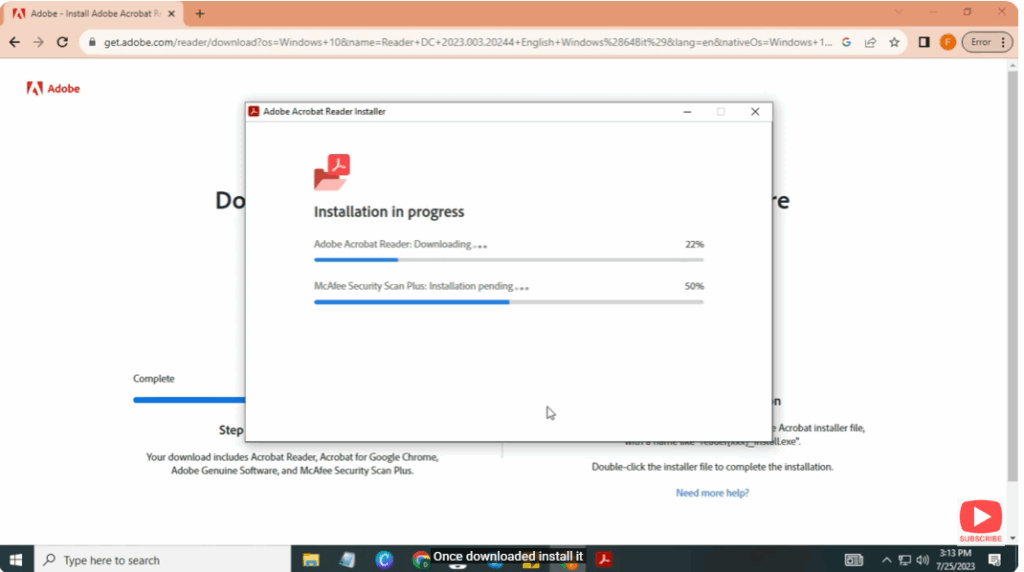
Once downloaded, open Adobe Reader.
Here it is already downloaded in my PC, so it is asking to uninstall.
Once downloaded, install it.
This free PDF reader app lets you view, comment, fill out and sign PDF forms to help your workflow move quickly and efficiently.






