
If you see the error “COM Surrogate Has Stopped Working” on your Windows computer, it usually means there’s a problem with the dllhost.exe process, which helps show thumbnails and previews in File Explorer. This error can pop up when you browse folders with photos or videos, print documents, or try to view certain files—often because of corrupted codecs, outdated drivers, or a system glitch. The good news is it can be fixed easily with simple steps like running system checks, updating graphics drivers, or adjusting system settings. In this blog, you’ll learn quick ways to fix the COM Surrogate error and get your computer working smoothly again.
How to Fix: COM Surrogate Has Stopped Working
Follow the steps below one-by-one.
✅ 1. Update Your Graphics Driver
- Right-click Start Menu → Select Device Manager
- Expand Display Adapters
- Right-click your GPU (Intel/NVIDIA/AMD) → Update Driver
- Select Search automatically for drivers
After updating, restart your PC.
✅ 2. Disable Thumbnail Previews (Temporary Fix)
- Open File Explorer
- Click on View → Options
- Go to the View Tab
- Check: Always Show Icons, Never Thumbnails
- Click Apply → OK
This prevents Windows from generating corrupted thumbnails.
✅ 3. Re-register DLL Files Using Command Prompt
- Press Windows + S, type CMD
- Right-click Command Prompt → Run as Administrator
- Run these commands one by one:
regsvr32 vbscript.dll
regsvr32 jscript.dll
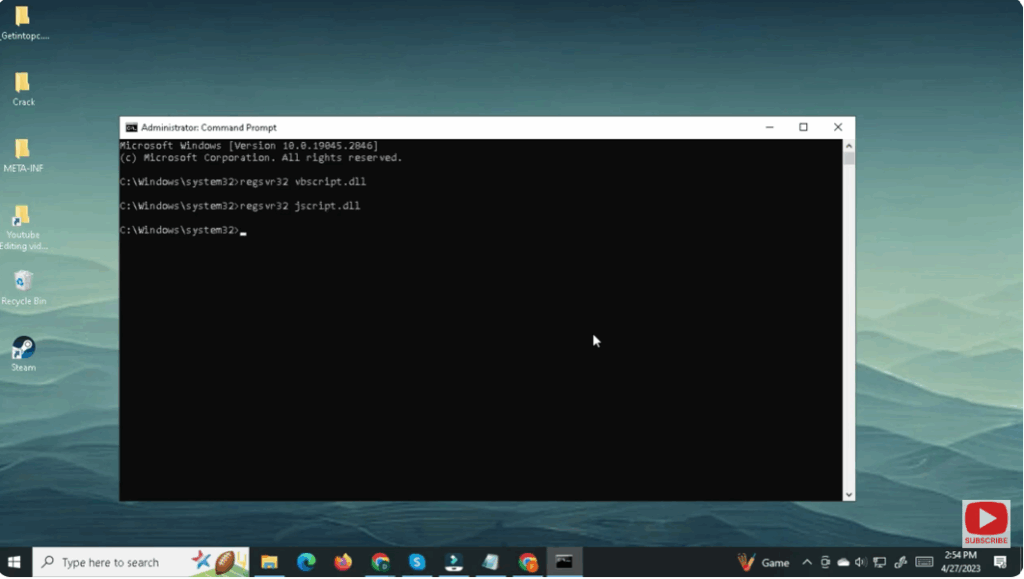
After completion, restart the PC.
✅ 4. Run System File Checker and DISM Repair
- Open Command Prompt as Administrator
- Run:
sfc /scannow
- After scan completes, run:
DISM /Online /Cleanup-Image /RestoreHealth
Restart your PC when done.
✅ 5. Install Latest Codecs
If your PC uses damaged codecs for media preview, install the K-Lite Codec Pack:
Download from official site:
After installation, restart & try opening your files again.
✅ 6. Check for Malware
Run a full scan using:
- Windows Security
- Or Malwarebytes
Malware can sometimes target system processes like dllhost.exe.






