
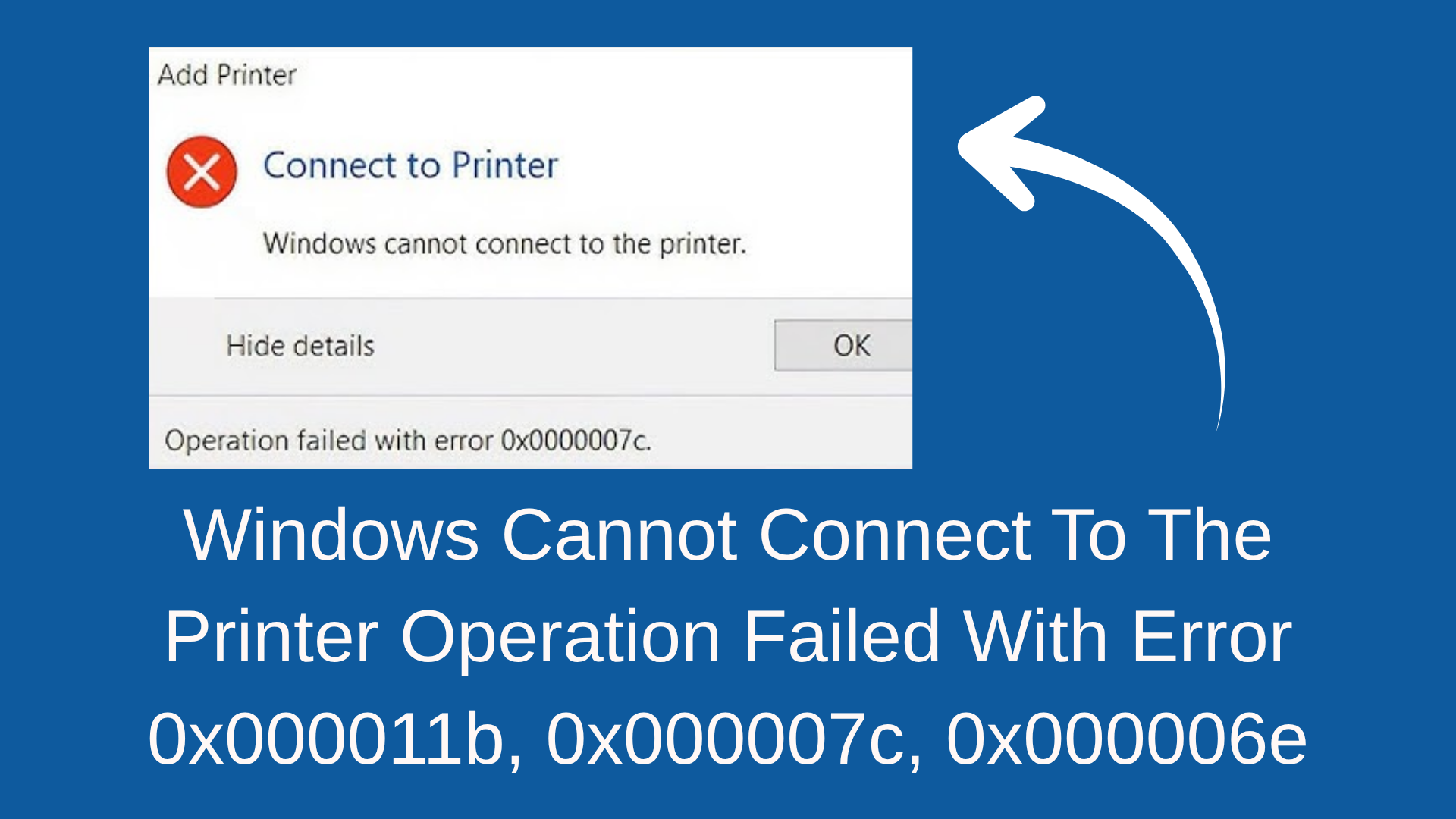
Trying to print something, but getting an error like 0x000011b, 0x000007c, or 0x000006e on your Windows 10 or 11 PC? You’re not alone—these printer errors are common and can stop your computer from connecting to the printer properly. It usually happens after a Windows update or due to network issues. But don’t worry! In this blog, we’ll explain what these errors mean and show you easy steps to fix them, so you can get back to printing without any trouble. Let’s solve it together!
🛠 How to Fix Error 0x0000011B / 0x000007C / 0x000006E
Follow these methods one by one until your printer connection is restored.
Method 1: Install Windows Updates on All Devices
- On both the printer host (the PC with the USB connected printer) and the client PC (the PC trying to connect):
- Open Settings → Windows Update
- Click Check for updates
- Install all available updates, then restart.
- After rebooting, attempt to add or connect the printer again.
Updating ensures the latest patches resolving shared printer issues are applied.
Method 2: Apply Registry Fix to Disable New RPC Encryption Requirement
This method targets the underlying change in how Windows handles network print driver authentication.
On the Printer Host (and optionally on Client):
- Press Windows + R, type
regedit, and press Enter to open Registry Editor. - Navigate to:
HKEY_LOCAL_MACHINE\SYSTEM\CurrentControlSet\Control\Print - In the right pane, create a DWORD (32-bit) Value named:
RpcAuthnLevelPrivacyEnabled - Set its Value data to:
0(Hexadecimal base is fine.) - Close the Registry Editor.
- Open Services (Windows + R →
services.msc), find Print Spooler, right-click → Restart. - Reboot the PC.
- On client PC, after reboot, try to connect to the shared printer again.
This registry change disables the new encryption requirement that caused the error.
Warning: Since this tweak reduces security around printing, use it in trusted networks only.
Method 3: Reinstall or Update Printer Driver Manually
- On the printer host, open Control Panel → Devices and Printers.
- Right-click the shared printer → Printer properties → Sharing → Additional Drivers, ensure both x86 and x64 drivers (if applicable) are installed.
- On the client PC:
- Visit the printer manufacturer’s website and download the latest driver.
- Install the driver manually via Add a printer → The printer that I want isn’t listed → Add a local printer or network printer with manual settings.
- Use the driver’s
.inffile if automatic install fails.
- Attempt to connect to the shared printer again.
Method 4: Remove Problematic Recent Updates (If Necessary)
If the issue started after a specific Windows update, and updates alone didn’t fix it:
- Open Settings → Update & Security → View installed updates.
- Locate recent updates such as KB5005565, KB5005568 (related to printing security) and uninstall them.
- Reboot PC and test printer connectivity.
This is a fallback solution when updates themselves introduced the problem.
📌 Final Thoughts
The error “Windows cannot connect to the printer. Operation failed with error 0x0000011B / 0x000007C / 0x000006E” is often network-shared printer related and caused by driver/authentication changes in Windows. By:
- Keeping devices updated
- Applying the registry fix
- Installing correct drivers
- Rebooting properly
you will most likely restore network printing successfully.
If after all steps the printer still fails to connect, consider using a USB direct connection from the host PC, or check for advanced network policies and printer hardware faults.






