
Want to enjoy your favorite music, movies, and podcasts on your Windows PC? Apple iTunes makes it easy! Even though it’s made by Apple, iTunes works smoothly on Windows and gives you access to the full iTunes Store, your media library, and device syncing. In this blog, we’ll show you how to download and install iTunes on your PC step by step, so you can start listening, watching, and organizing your media in no time. Let’s get started! 🎵💻
Step 1: Open Microsoft Store
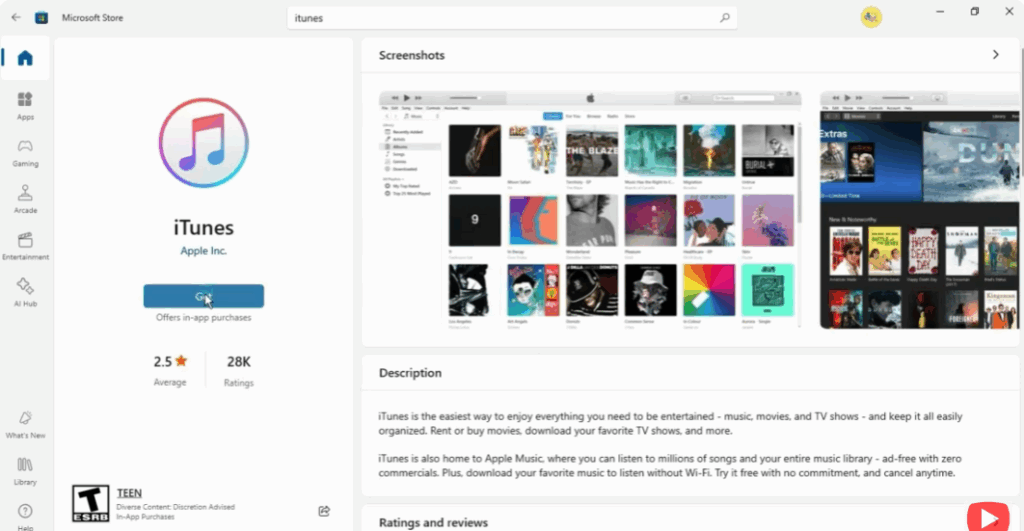
Go to the search menu bar of your PC and open Microsoft Store.
Step 2: Search for iTunes
Type iTunes in the search bar and open it.
Click on the app that appears on the screen.
Step 3: Download iTunes
Click on the Get button and it will start downloading.
Wait for some time and let it download.
Step 4: Install and Open iTunes
Open it after downloading.
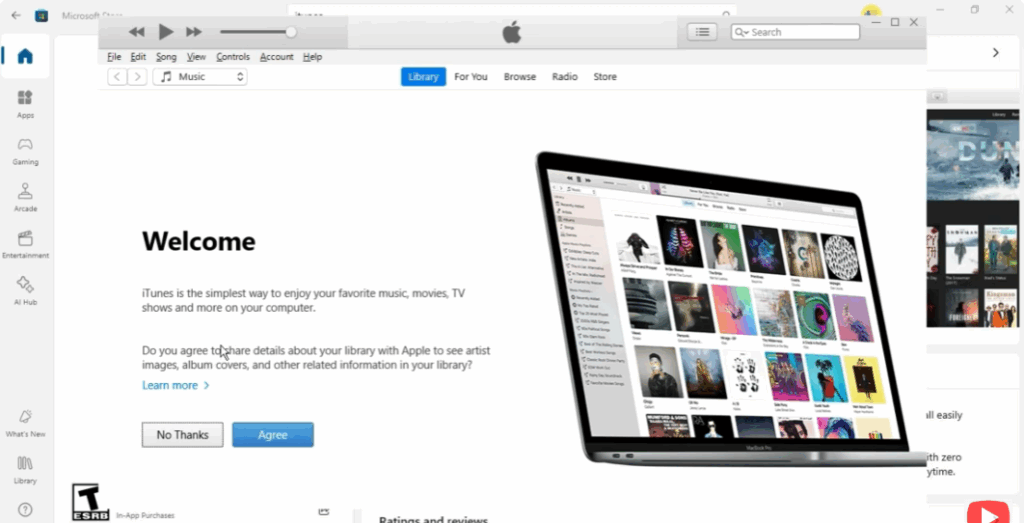
Next, you have to read some terms and conditions and click on the Agree button.
Here, you will be asked to share details about your library with Apple to see artist images, album covers, and other related information in your library. Click Agree if you want.
Step 5: Sign in to Your Apple Account
You will now need to sign in to the iTunes Store.
Enter your Apple ID and password and click on Sign In.
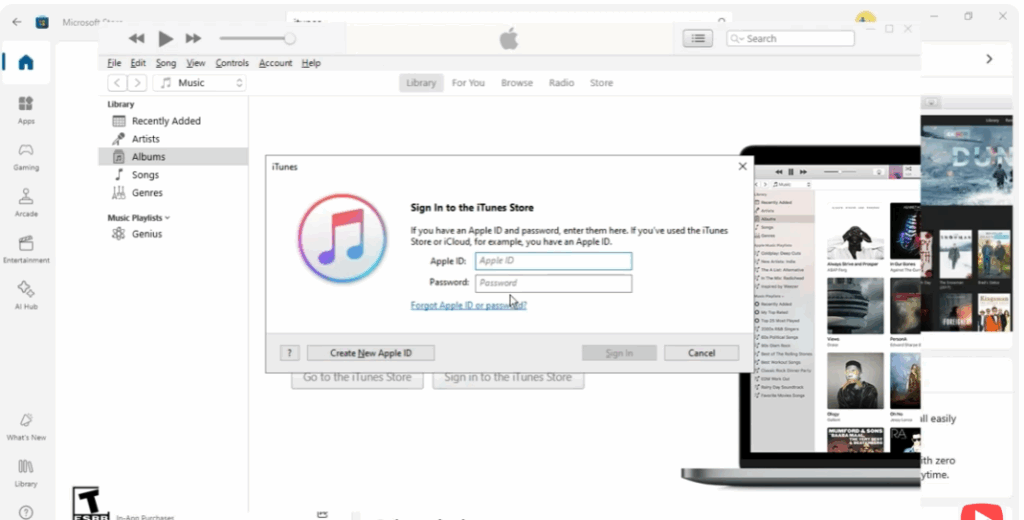
iTunes is now installed on your device. You can now sync music, movies, and more to iTunes.






