
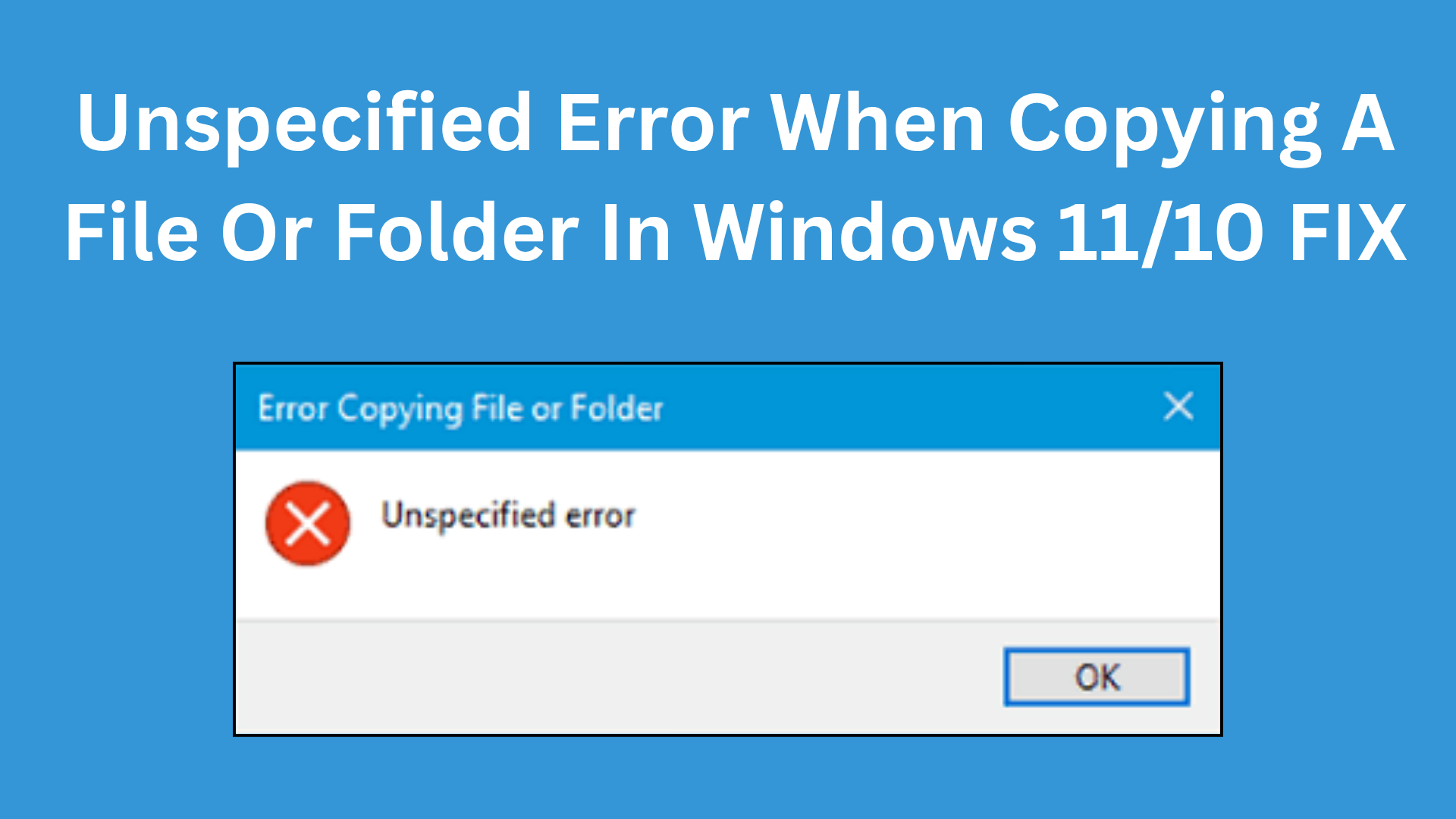
When you try to copy a file or folder in Windows 11 or 10 and get an “Unspecified Error,” it can be very confusing and frustrating. This error stops you from moving or copying your important files and can happen for different reasons like full storage, file permission issues, or incompatible file systems. But don’t worry, this problem can be fixed with some easy steps. In this blog, you’ll learn the best ways to fix the “Unspecified Error” so you can copy your files without any problem again.
1. Check File or Folder Permissions
Many times, the file or folder may not have the correct permission levels, preventing copying.
Steps:
- Right-click the problematic file or folder.
- Select Properties.
- Go to Security tab.
- Click Edit → Select your User Account.
- Ensure Full Control is allowed.
- Click Apply and OK.
2. Unblock the File (If Downloaded from Internet)
If the file came from another PC or was downloaded online, Windows may block it.
Steps:
- Right-click the file.
- Click Properties.
- Under the General tab, if Unblock appears at bottom, enable it.
- Click Apply > OK.
3. Remove File Encryption
If the file is encrypted, other systems or accounts may not access it.
Steps:
- Right-click the file.
- Select Properties → Click Advanced.
- Uncheck Encrypt contents to secure data.
- Click OK > Apply.
4. Remove Read-Only Attribute
Read-only files cannot be edited or modified.
Steps:
- Right-click the file.
- Select Properties.
- Uncheck Read-only.
- Click Apply.
5. Use Command Prompt to Clear Attributes
This works if the file system attributes are corrupted.
Steps:
- Press Windows + S, type cmd, right-click Command Prompt, select Run as administrator.
- In Command Prompt, type:
attrib -r -a -s -h X:\path\to\file /S /DReplace X:\path\to\file with your actual file or folder path. - Press Enter.
6. Check Storage Drive for Errors
The error may also come from drive corruption.
Steps:
- Press Windows + E and open This PC.
- Right-click the drive where file is located.
- Select Properties → Tools tab.
- Under Error Checking, click Check.
Conclusion
The Unspecified Error while copying files usually occurs due to restricted permissions, blocked files, encryption issues, or corrupted attributes. By following the above steps, you should be able to resolve the issue and move or copy files without interruption. If the problem continues, consider checking your storage device health or scanning for system file corruption.






