
Is PowerShell not opening or crashing on your Windows 10 or 11 PC? This can be frustrating, especially when you need it for important tasks like running commands or fixing system issues. Sometimes, PowerShell stops working due to corrupted files, system glitches, or missing updates. But don’t worry—there are easy ways to fix it! In this blog, we’ll guide you through simple steps to get PowerShell working again, so you can use it without any trouble. Let’s dive in and solve the problem!
✅ Method 1: Run System File Checker (SFC Scan)
- Press Windows + R to open Run.
- Type:
cmdand press Ctrl + Shift + Enter to run as Administrator. - In the Command Prompt window, type:
sfc /scannow - Wait for the scan to complete and restart your PC.
This will repair corrupted system files and may restore PowerShell functionality.
✅ Method 2: Run DISM Command to Repair System Image
If the SFC scan doesn’t fix the issue:
- Open Command Prompt as Administrator again.
- Type these commands one by one, pressing Enter after each:
DISM /Online /Cleanup-Image /CheckHealth DISM /Online /Cleanup-Image /ScanHealth DISM /Online /Cleanup-Image /RestoreHealth - Restart your computer.
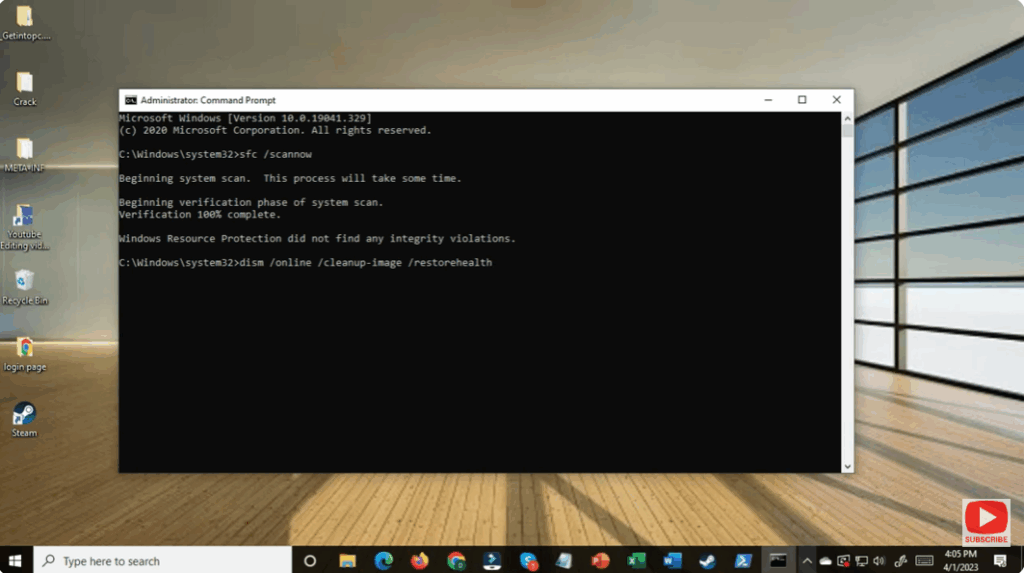
This restores missing or damaged Windows components required by PowerShell.
✅ Method 3: Re-Enable PowerShell from Windows Features
- Press Windows + R > type:
optionalfeaturesand press Enter. - Scroll down and find:
Windows PowerShell 2.0 - Check the box → Click OK.
- Restart your PC.
Or if it’s already enabled, uncheck → restart → enable again to refresh the component.
✅ Method 4: Reset PowerShell Profile
- Press Windows + R → type:
%UserProfile%\Documents\WindowsPowerShell - If you see a file named:
Microsoft.PowerShell_profile.ps1Rename it to:Microsoft.PowerShell_profile_old.ps1 - Try opening PowerShell again.
If the profile file was corrupted, this should fix it.
✅ Method 5: Reinstall PowerShell Using Command Prompt
- Open Command Prompt (Admin).
- Type:
powershell -ExecutionPolicy Unrestricted - Then reinstall PowerShell by entering:
Get-WindowsCapability -Online | ? Name -like 'Microsoft.PowerShell*' | Add-WindowsCapability -Online
Restart your computer once the process completes.
✅ Method 6: Scan for Malware
Sometimes malware blocks PowerShell intentionally.
- Open Windows Security.
- Go to Virus & threat protection.
- Run a Full Scan.
If malware is removed, restart and try opening PowerShell again.
Conclusion
PowerShell is a powerful tool, and when it stops working, it can interrupt many administrative and troubleshooting tasks. By following the steps mentioned above — such as SFC scan, repairing system image, resetting profile, and reinstalling PowerShell, you can quickly restore it to normal. These methods are safe and effective for both Windows 10 and Windows 11 users.






