
Is your Windows 10 PC running slow or showing display problems while playing games or using apps? It might be time to update your graphics driver! The graphics driver helps your computer show images, videos, and animations smoothly. Keeping it up to date can improve performance, fix bugs, and even boost game quality. In this blog, we’ll show you easy steps to update any graphics driver on Windows 10—no tech skills needed. Let’s make your screen work better and faster!
Now you need to download this driver support assistant for Intel graphic card.
Download the graphics card and it will automatically update the graphics for you.
If you use an AMD graphic card, then you can install it by Auto Detect Tool.
It will be in the description box. Make sure you run it and install the latest graphics card.
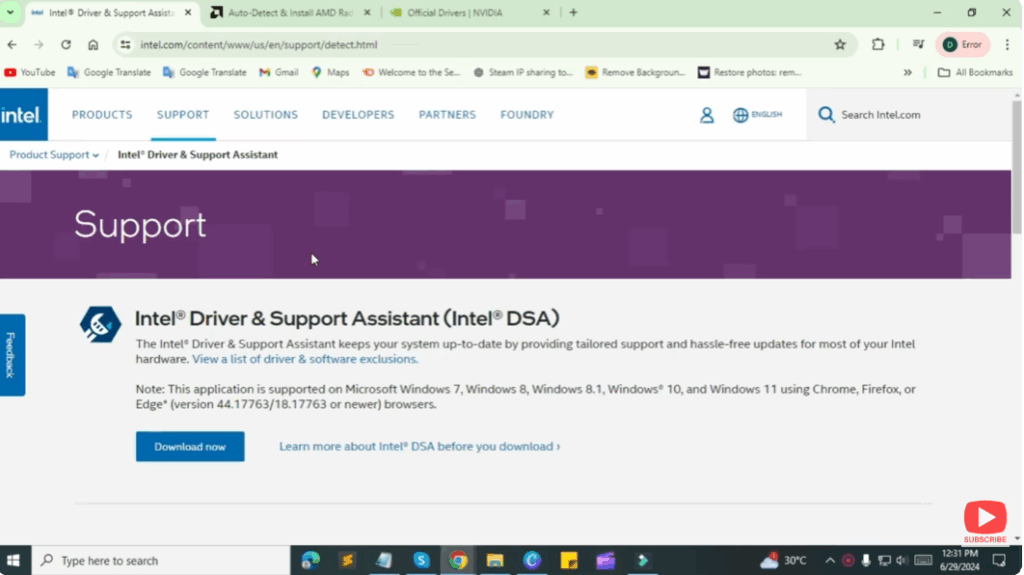
For NVIDIA, you need to go to this website and it will ask you to run Java and it will detect the graphics GPU and you will be able to install it.






