
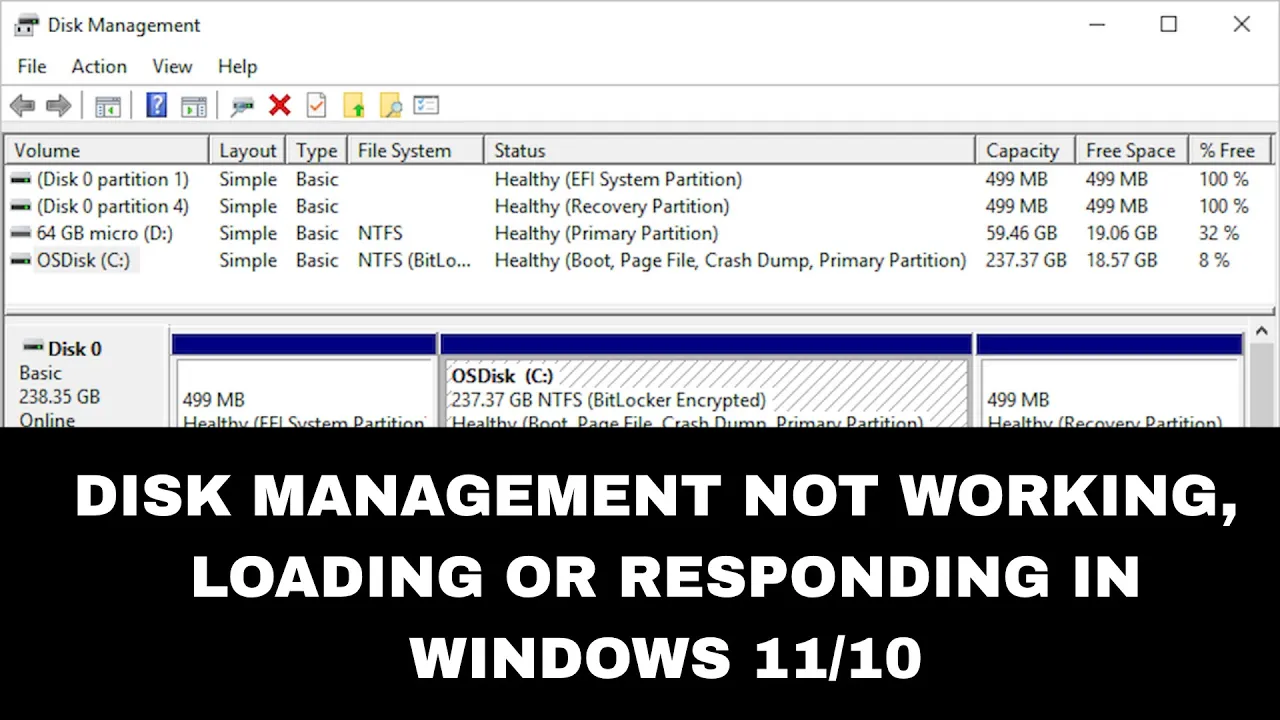
If Disk Management in Windows 11 or 10 is not working, loading, or responding, it can stop you from managing your hard drives and partitions properly. This issue may happen due to corrupted system files, stopped services, driver problems, or conflicts with other software. The good news is you can fix it by restarting important services, running system checks, updating drivers, or other simple methods. In this blog, you will learn easy and effective ways to solve Disk Management problems and get back to organizing your storage without any hassle.
✅ Solution 1: Restart the Required Windows Services
- Press Windows + R keys.
- Type:
services.msc→ Press Enter - Look for the following services:
- Virtual Disk
- Remote Procedure Call (RPC)
- Plug and Play
- Make sure:
- Startup Type: Automatic
- Status: Running
- If not, right-click → Start or Restart
✅ Solution 2: Use Computer Management Instead
- Press Start Menu
- Search for Computer Management
- Open Storage → Disk Management
If Disk Management opens here, then the standalone console has problems.
✅ Solution 3: Run System File Checker (SFC Scan)
- Press Windows + R
- Type:
cmd, then press Ctrl + Shift + Enter (Run as administrator) - Run the command:
sfc /scannow - Wait for the scan to complete → Restart your PC.
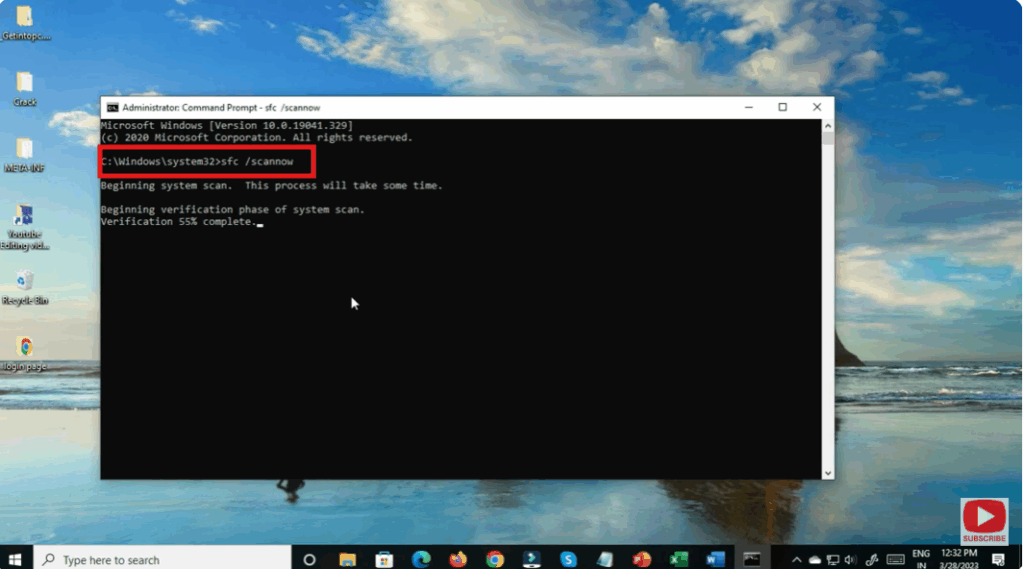
This repairs corrupted system files.
✅ Solution 4: Run DISM Command
If SFC didn’t fix it, run:
DISM /Online /Cleanup-Image /RestoreHealth
Restart PC after completion.
✅ Solution 5: Use Diskpart (Alternative to Disk Management)
- Press Windows + R
- Type:
cmd→ Enter - Run:
diskpart list disk list volume
This allows you to manage disks via command line.
✅ Solution 6: Check Your Disk for Errors
Run the following command in Command Prompt:
chkdsk /f /r
Restart system to allow scan & repair.
🟢 Final Tips
- Remove unknown third-party disk software
- Make sure Windows is updated
- Restart PC after each fix
🎯 Conclusion
These methods will help you fix Disk Management Not Working issues on Windows 11/10.
If Disk Management still doesn’t respond, consider using third-party partitions managers like AOMEI Partition Assistant or MiniTool Partition Wizard.






