
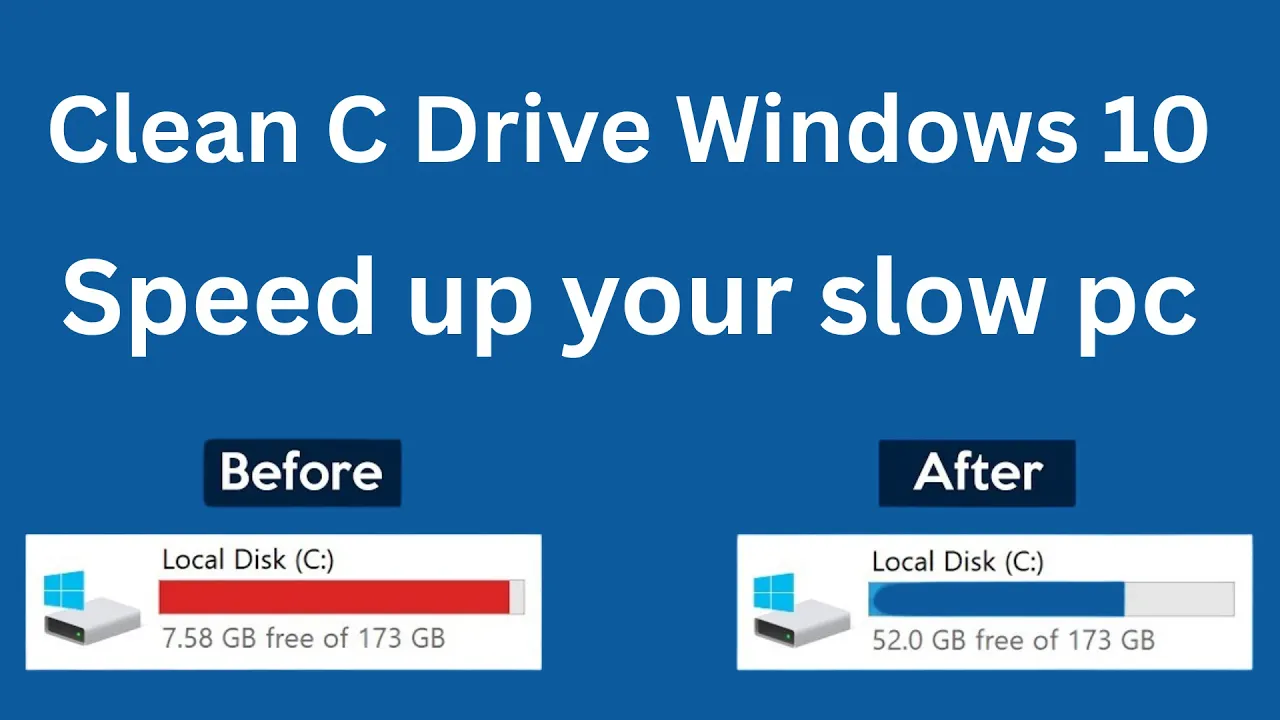
Is your Windows 10 PC running slow or low on space? A cluttered C drive could be the reason! Over time, your computer collects junk files, unused apps, and temporary data that can slow things down. The good news is—you can clean your C drive easily and give your PC a nice speed boost. In this blog, we’ll show you simple steps to free up space and improve performance, so your computer feels faster and smoother. Let’s get started and clean things up!
Method 1: Use Disk Cleanup (Built-in Windows Tool)
- Press Windows Key + R to open Run.
- Type: cleanmgr and press Enter.
- Select C: Drive and click OK.
- Now, click on “Clean up system files”.
- Check the boxes such as:
- Temporary Files
- Recycle Bin
- Thumbnails
- Delivery Optimization Files
- Click OK → Delete Files.
This will remove unnecessary temporary files and clear space.
Method 2: Uninstall Unwanted Programs
- Press Windows Key + I to open Settings.
- Go to Apps → Apps & Features.
- Sort by Size to see largest programs.
- Click on any unwanted software and choose Uninstall.
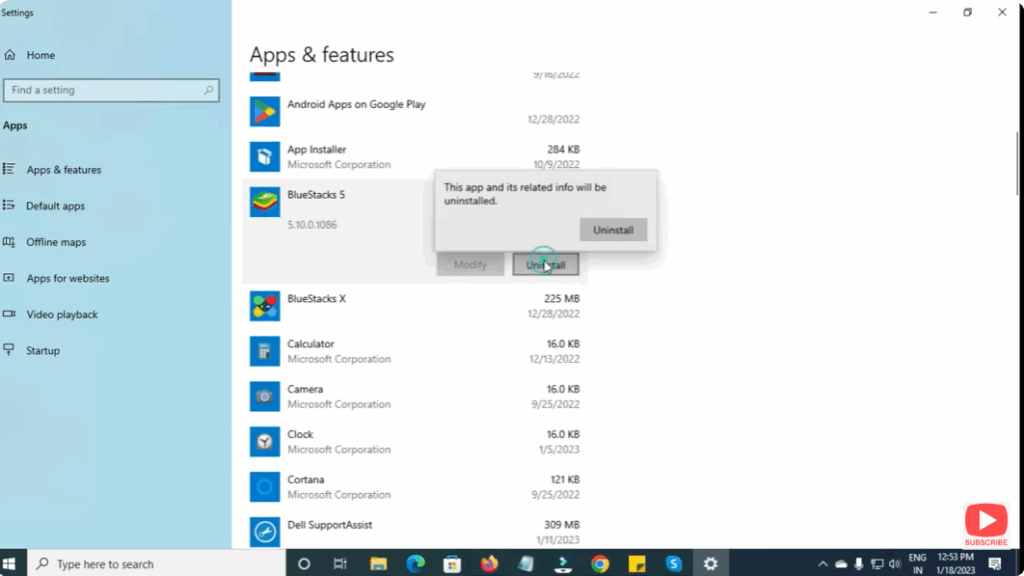
Removing unused applications can free a lot of space quickly.
Method 3: Delete Temporary Files Manually
- Press Windows Key + R.
- Type %temp% and press Enter.
- Select all files (Ctrl + A) → Delete.
- Again open Run and type: temp
- Delete all files inside it.
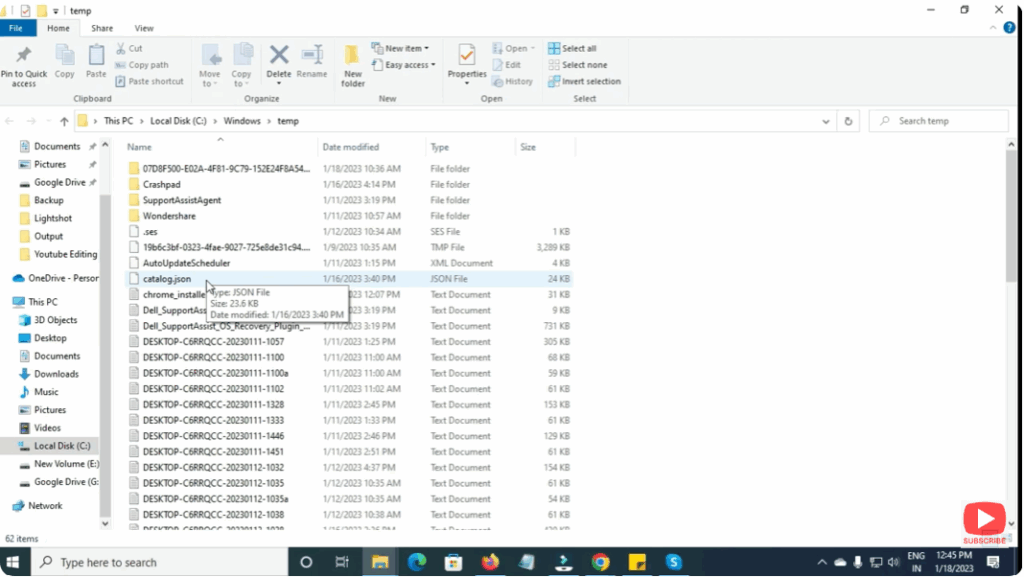
These files are safe to delete and often take up GBs of space.
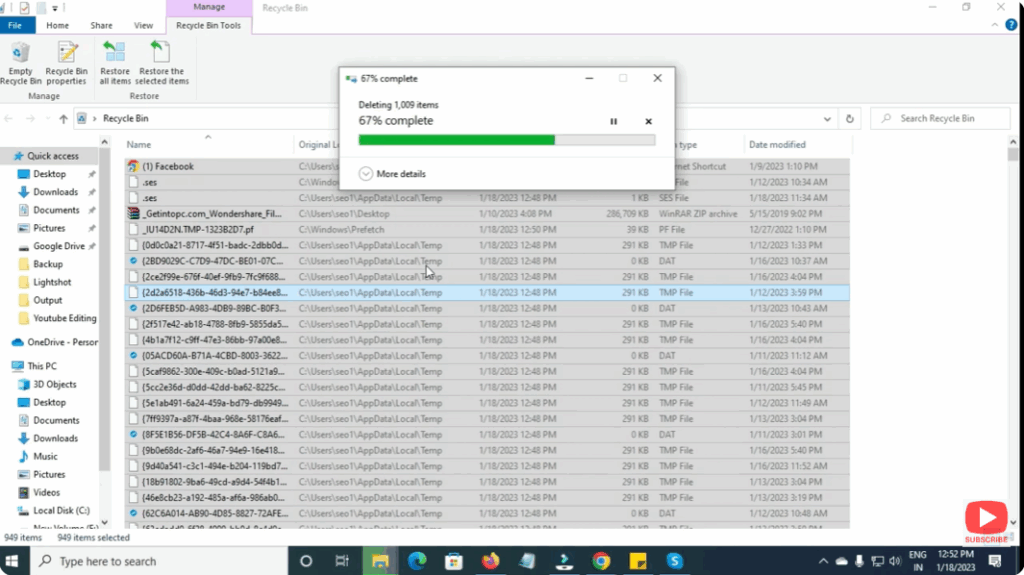
Method 4: Empty the Recycle Bin
Sometimes deleted files are still stored in Recycle Bin.
- Right-click Recycle Bin
- Click Empty Recycle Bin
- Confirm
Method 5: Disable Hibernation (Optional but Saves GBs)
Hibernation keeps a system state file which is usually 3–6 GB.
To disable it:
- Search Command Prompt
- Right-click → Run as administrator
- Type:
powercfg -h off - Press Enter
This will remove the hiberfil.sys file and free space.
Method 6: Move Large Files to Other Drive
Your Downloads, Videos, Pictures, and Documents folders may contain large files.
- Open File Explorer
- Check file sizes and Move heavy files to D: / E: Drive or external storage
Conclusion
Cleaning the C drive is one of the best ways to speed up your slow Windows 10 PC. By removing temporary files, uninstalling unused apps, and using disk cleanup tools, you can improve performance and free valuable storage space. If your PC still feels slow, consider upgrading to an SSD — that can make a huge difference in speed.






