
If Microsoft Edge on your Windows 10 or 11 computer has no sound, it can be frustrating when videos or music play silently. This problem could be caused by muted tabs, incorrect volume settings, or the wrong audio device selected. Luckily, there are simple steps you can follow like checking mute options, adjusting volume mixers, selecting the right sound device, running the Windows audio troubleshooter, and updating drivers. In this blog, you’ll find easy solutions to fix Microsoft Edge sound issues and get your audio working again quickly.
Step-by-Step Instructions
- Open Microsoft Edge on your computer.
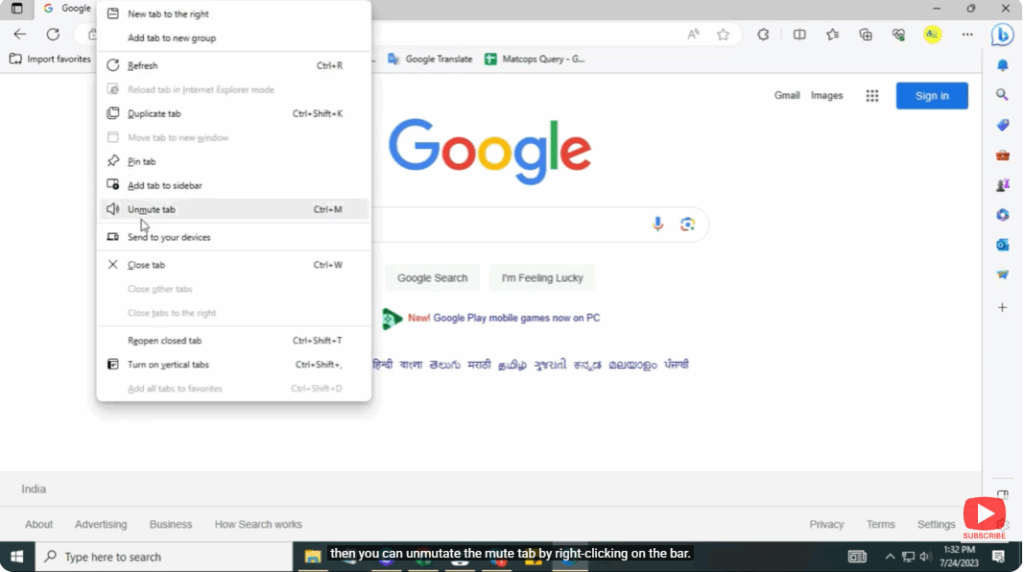
- If a tab is muted, you can unmute it:
- Right-click on the tab at the top.
- Click on Unmute Tab.
- You can also mute and unmute the speaker from here.
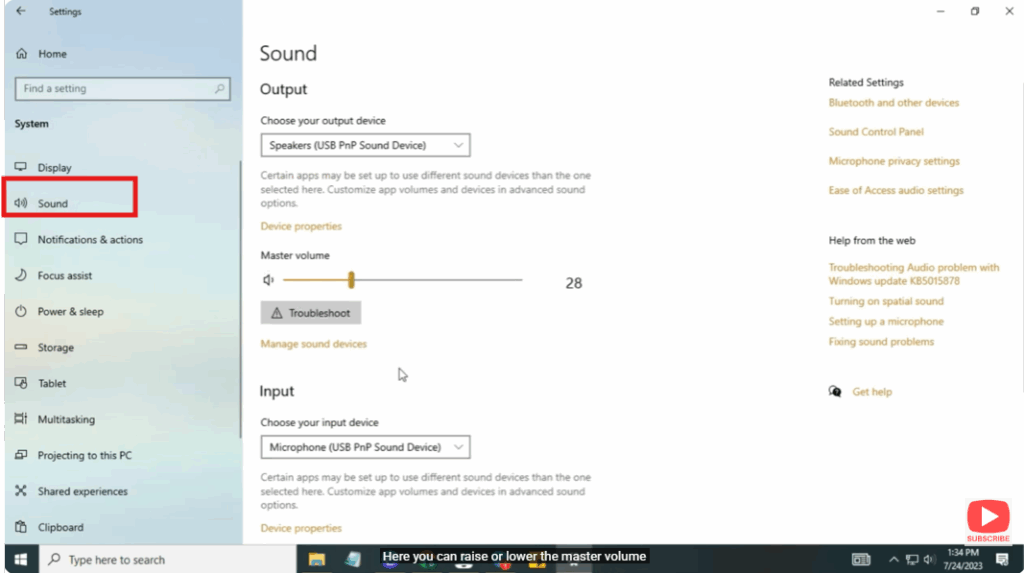
- Now, open the Windows Search Bar and type Settings, then open it.
- Click on System.
- Next, click on Sound.
- Here you can:
- Increase or decrease the master volume.
- Enable or disable your speakers by selecting Device Properties.
- Now, scroll and Find Troubleshoot Settings.
- Click on Additional Troubleshooters.
- Select Play Audio or Audio Troubleshooter.
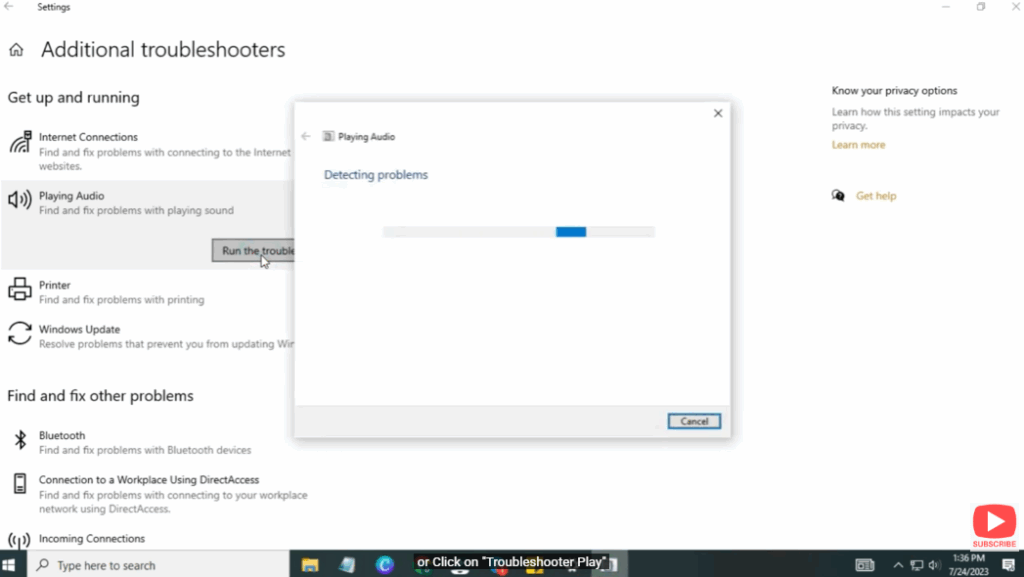
- Click Next and allow the troubleshooter to detect issues.
- When finished, click Close the Troubleshooter.
Your audio issue should now be resolved.






