
Tired of staring at a bright white screen while working in Google Docs? Switching to dark mode can make things easier on your eyes, especially at night or in low-light settings. Whether you’re using a PC or mobile device, Google offers simple ways to enable dark mode for a more comfortable writing experience. In this blog, we’ll show you how to turn on dark mode in Google Docs step by step, so you can work smarter and more comfortably.
1. Enable Google Docs Dark Mode on Mobile (Android & iPhone)
Google Docs on mobile does have built-in dark mode. Just follow:
Steps:
- Open the Google Docs app on your phone.
- Tap the three-line menu (☰) at the top left.
- Go to Settings.
- Tap on Theme.
- Choose Dark.
Your entire app, including documents, will now appear in dark mode.
2. Enable Dark Mode for Google Docs on PC/Laptop
Currently, Google Docs does not provide a direct dark mode toggle on desktop. But you can still enable it using the Chrome browser settings or extensions.
Method 1: Force Dark Mode via Chrome Settings
- Open Google Chrome.
- In the address bar, type:
chrome://flags - Search for:
Force Dark Mode for Web Contents - Change it to Enabled.
- Click Relaunch.
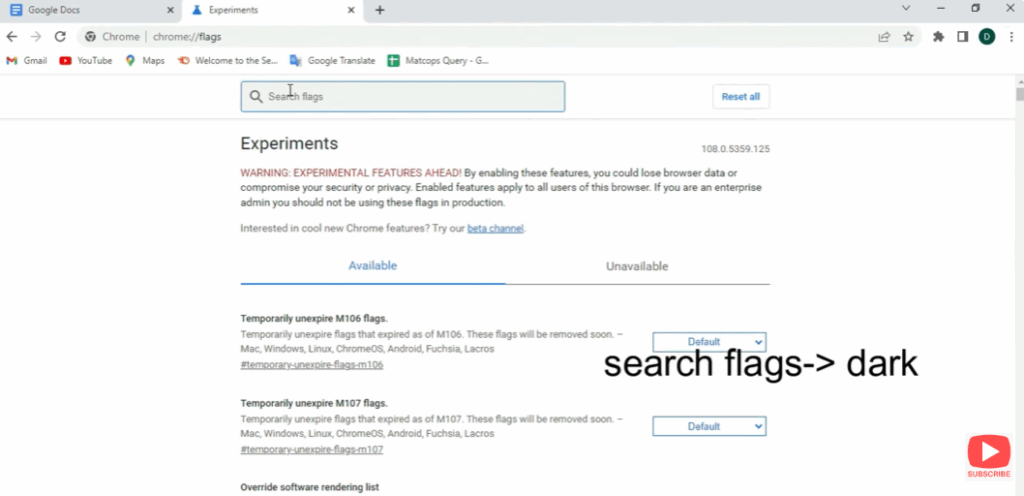
Now all websites, including Google Docs, will appear in Dark Mode.
Method 2: Use Chrome Extension (Recommended)
There are several extensions that enable Dark Mode smoothly:
Best Extension:
Dark Reader (Free & Safe)
Steps:
- Open Chrome and visit the Chrome Web Store.
- Search for Dark Reader.
- Click Add to Chrome.
- Turn it ON while using Google Docs.
This extension gives a true dark theme without distorting colors.
Method 3: Turn on Windows / Mac System Dark Mode
Sometimes, Google adapts the app theme to the system appearance.
Windows 10/11:
- Go to Settings
- Click Personalization
- Select Colors
- Choose Dark
Mac:
- Go to System Preferences
- Select General
- Choose Dark mode
3. Compare Light Mode vs. Dark Mode in Google Docs
| Feature | Light Mode | Dark Mode |
|---|---|---|
| Screen Brightness | High | Reduced |
| Eye Comfort | Less | Better for eyes |
| Battery Usage | Higher | Lower on mobile |
| Ideal Usage | Daytime | Night / Late working |
Conclusion
Switching to Dark Mode in Google Docs is helpful for reducing eye strain and working comfortably — especially in low-light environments.
Whether you’re using Mobile or PC, you can easily activate dark mode using the steps outlined above.






