

Want to make sure your Firefox browser is running smoothly and securely? Keeping it updated is the key! Updates bring new features, fix bugs, and protect you from online threats. The best part? Updating Firefox is super easy and takes just a minute. In this blog, we’ll show you how to check for updates and install them on your Windows or Mac computer, so you can browse faster and safer.

How to Check & Install Updates in Firefox
Follow these steps to update Firefox manually:
Step 1: Open Mozilla Firefox
Click on the Firefox icon on your desktop or Start menu.
Step 2: Open the Menu
In the top-right corner, click the three horizontal lines (Menu icon).
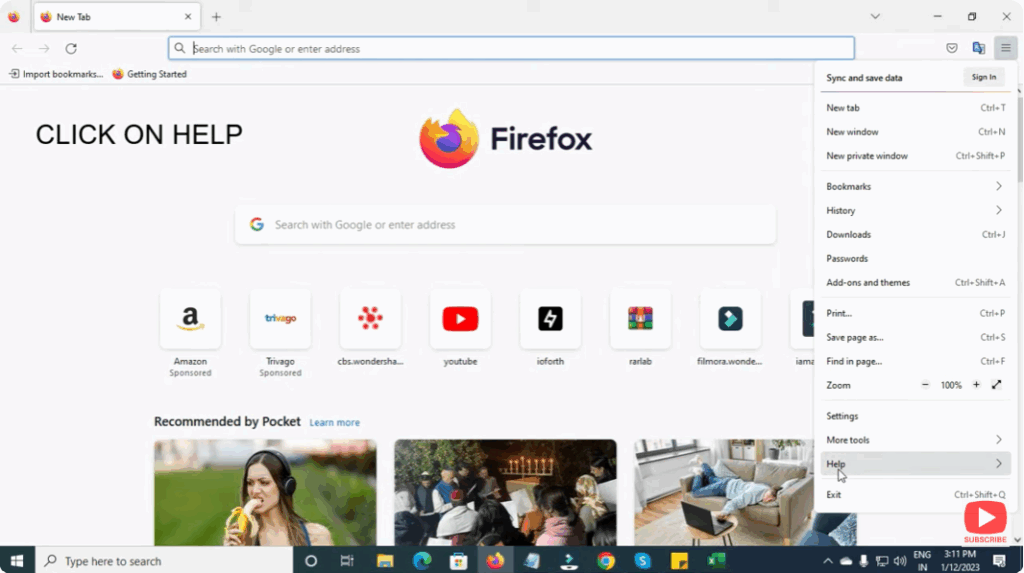
Step 3: Go to Help
Scroll down and click on Help.
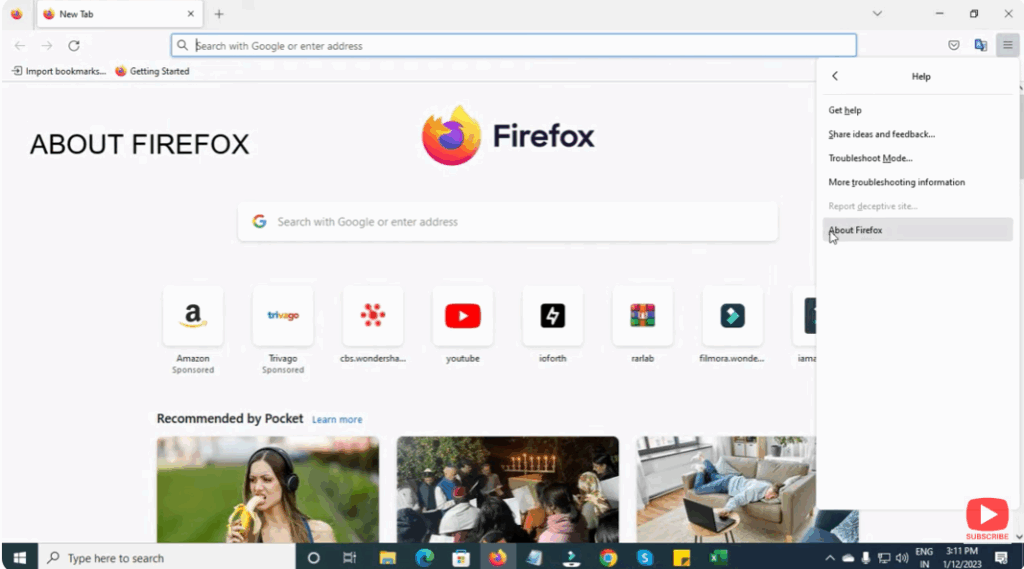
Step 4: Select About Firefox
Click About Firefox from the help menu.
Step 5: Firefox Will Search for Updates
A new window will open. Firefox will automatically start checking for updates.
Step 6: Download & Install Update
If an update is available, Firefox will begin downloading it.
Once downloaded, click Restart to Update Firefox.






