
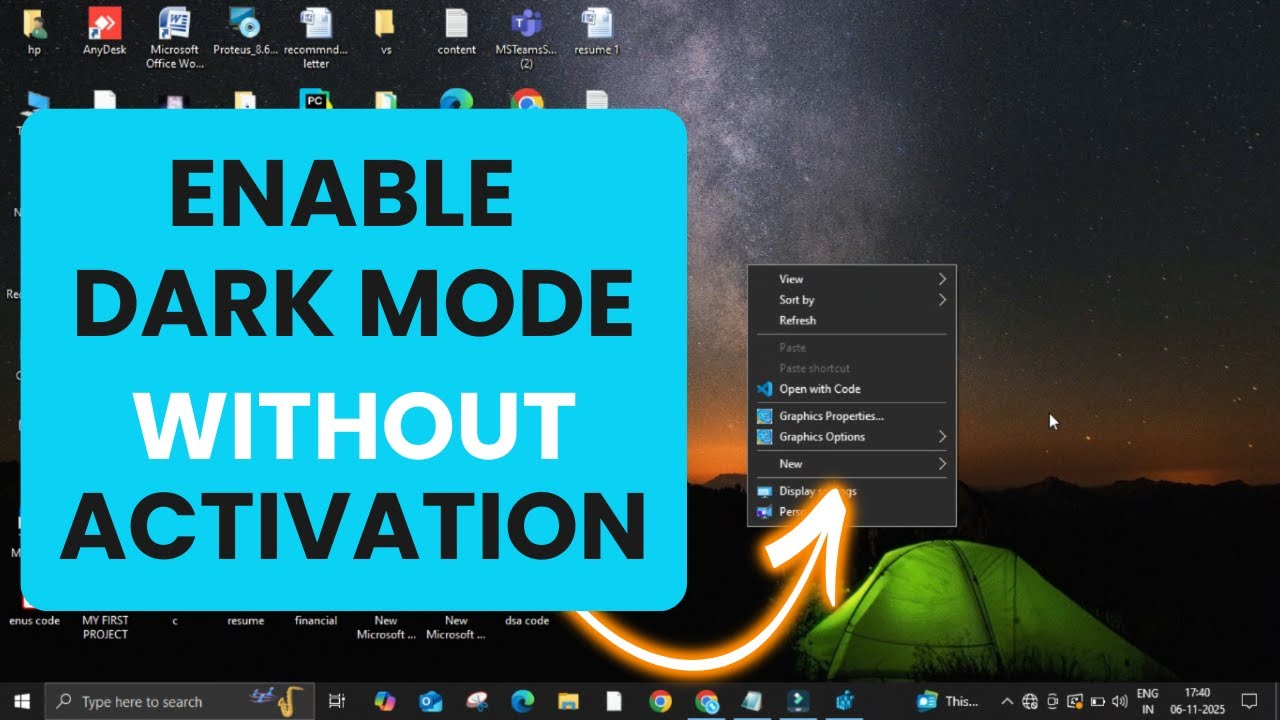
You can easily enable Dark Mode without activation using a quick Registry Editor tweak. This simple trick lets you enjoy the elegant dark interface across your taskbar, File Explorer, and system menus — no product key needed! Dark Mode not only looks stylish but also reduces eye strain and improves focus, especially in low light. With just a few easy steps, you can transform your desktop into a professional and comfortable workspace, making your unactivated Windows feel premium and personalized.
Step 1: Open Registry Editor
- Click on the Search bar in your taskbar.
- Type Registry Editor or simply regedit.
- When it appears, click on it to open the Registry Editor window.
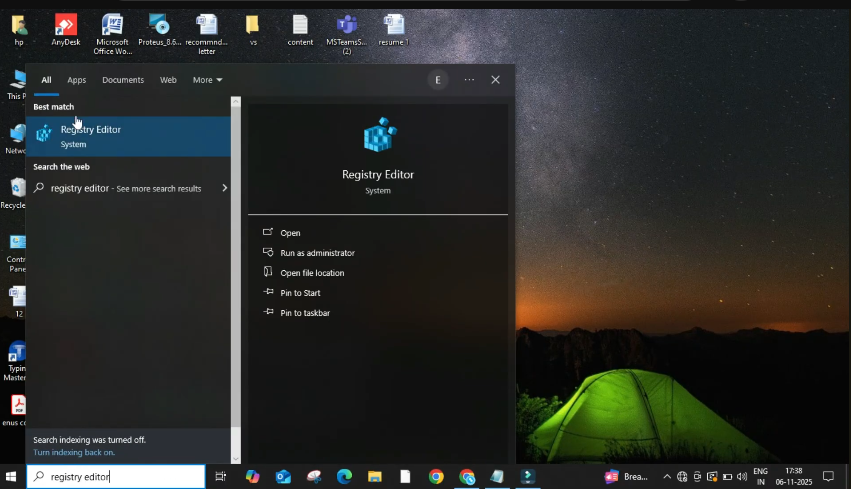
- The Registry Editor is where Windows stores system configuration settings — and this is where we’ll make a small change to enable dark mode.
Step2: Navigate to the Personalize Folder
- Once the Registry Editor is open, you’ll see a list of folders on the left side. Follow these steps carefully:
- Click on HKEY_USERS.
- Open the Software folder.
- Scroll down and click on Microsoft .
- Open Windows → then CurrentVersion.
- Find and select the folder named Themes.
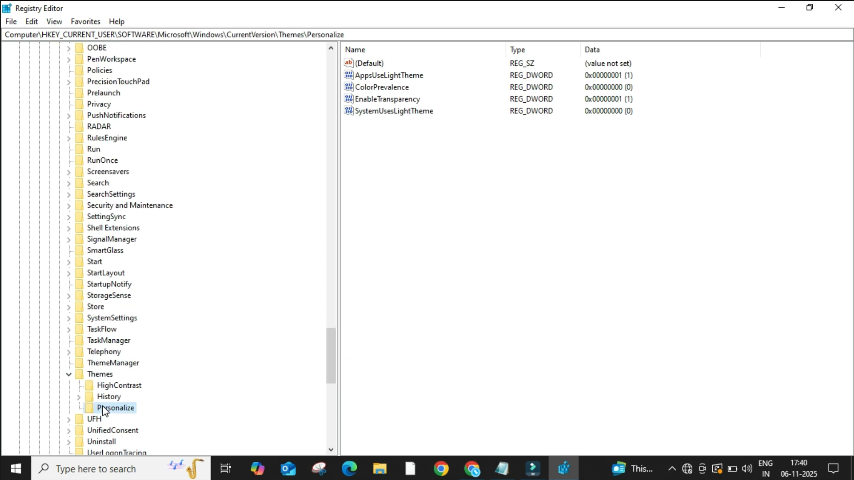
- Inside Themes, click on Personalize.
- This is where Windows stores your appearance and theme setting
Step 3: Edit the “AppsUseLightTheme” Value
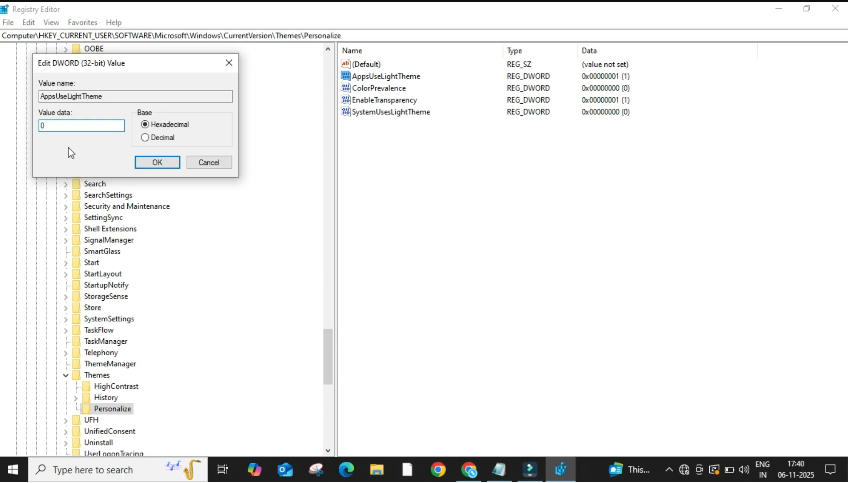
- On the right side of the Personalize folder, look for a file named AppsUseLightTheme.
- Double-click it — a small box will pop up.
- You’ll see the Value data set to 1.
- The value 1 means Light Mode is active.
- Change that 1 to 0, then click OK to save the change.
Step 4: Close the Registry Editor
- Once you’ve changed the value to 0, close the Registry Editor window.
- Now, minimize everything and check your desktop. You’ll notice that dark mode is instantly applied.
- Your Taskbar, File Explorer, and System Menus will now appear in dark mode — even though your Windows isn’t activated.
Conclusion
Dark Mode not only gives your Windows a stylish, modern appearance but also makes long screen time easier on your eyes. With just a quick registry edit, you can unlock this feature even without activating Windows. It’s a simple yet effective way to personalize your PC, enhance comfort, and enjoy a professional look — all without needing a product key.






