
If you have many contact numbers stored in an Excel sheet and want to add them to your smartphone, doing it one by one can be slow and tiresome. Since phones don’t directly support Excel files for contacts, you need to convert the Excel file into a contact-friendly format like vCard (VCF). After that, you can easily import all contacts to your phone in just a few simple steps. In this blog, you’ll learn easy ways to import multiple contact numbers from an Excel sheet to your smartphone quickly and safely.
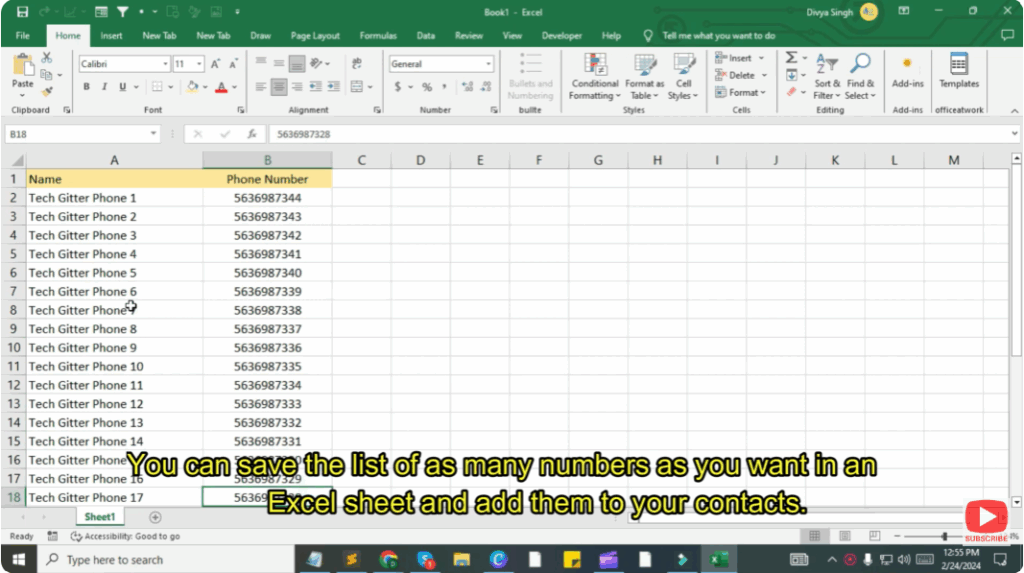
Excel Sheet Data
Here I have an Excel sheet where I have saved the names of customers in one column and their phone numbers in the other column. You can save the list of as many numbers as you want in an Excel sheet and add them to your contacts. Here I have created a list of only 30 contacts. Here we will see how to move these contacts to your phone’s contact list.
Google Chrome
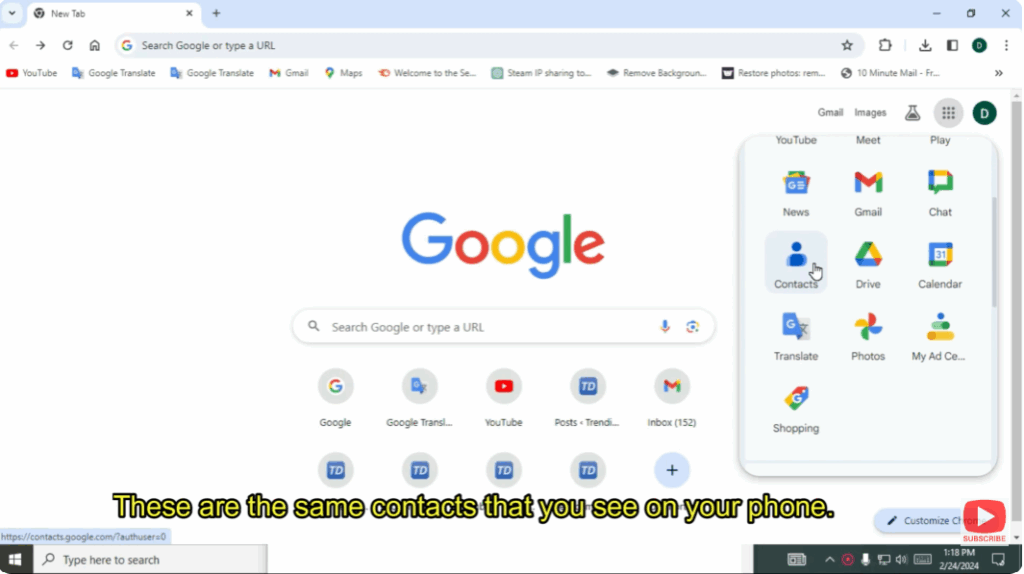
Browser open your Google Chrome.
After this you will see the menu button. Click on it.
You will see a lot of options here which will also include Contacts.
These are the same contacts that you see on your phone.
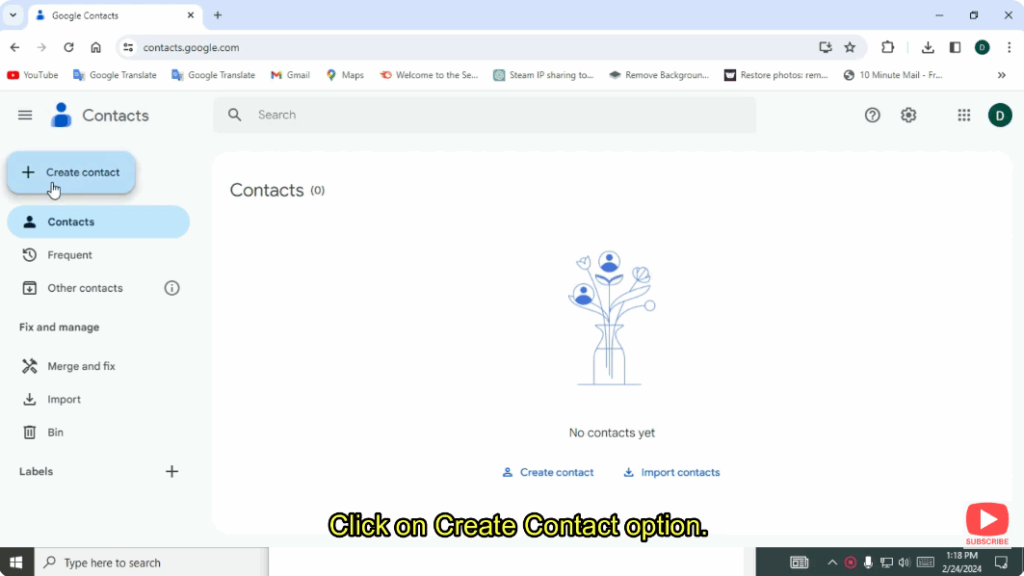
After opening the contact, you will see a screen like this in which you will see Create Contact and Other Contacts options.
Click on Create Contact option.
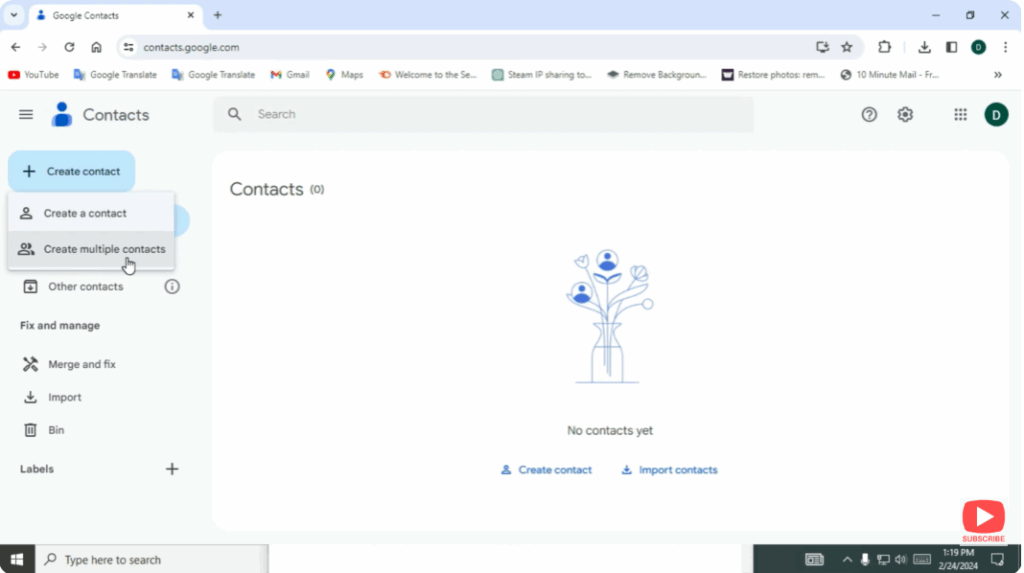
Here you will see the option to Create one contact and Create multiple contacts.
You can save numbers in bulk by creating multiple contacts.
Save One Contact First
First of all, we will see how we can save one number with Create Contact and then we will learn to save multiple contacts with its help.
- You will see a screen where you have to save your contact.
- First type the name. If there is any surname, then type it.
- If you want to save the company name or job title, you can.
- If you have an email address, please enter it.
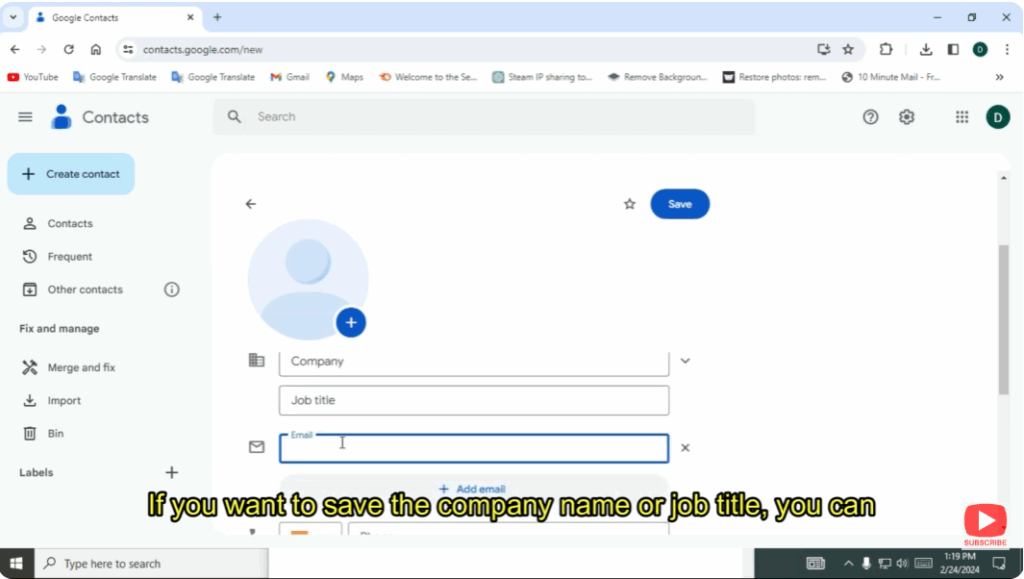
- I am adding phone number from Excel sheet.
- You can also add date of birth.
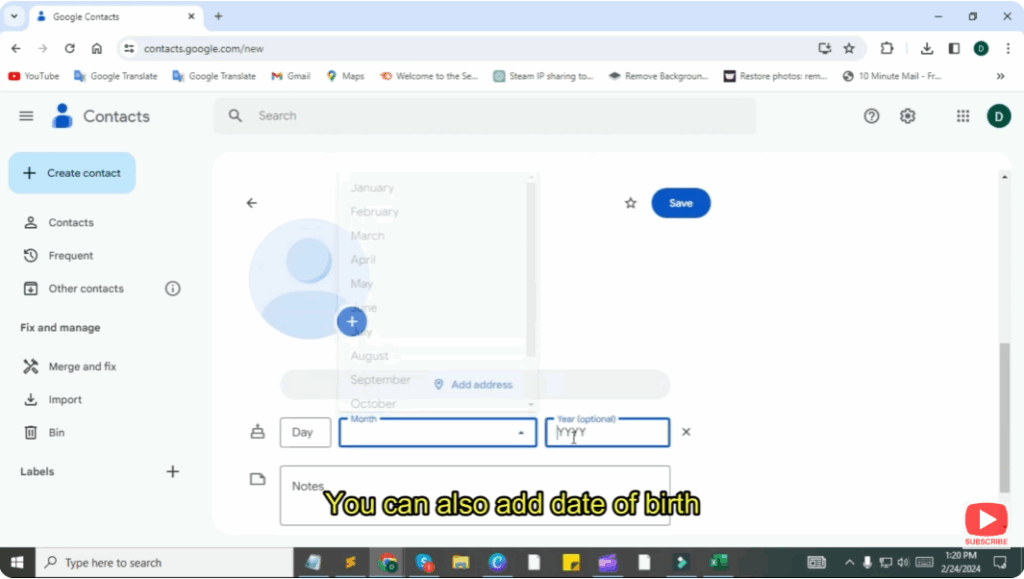
- By adding all this, you can save the number.
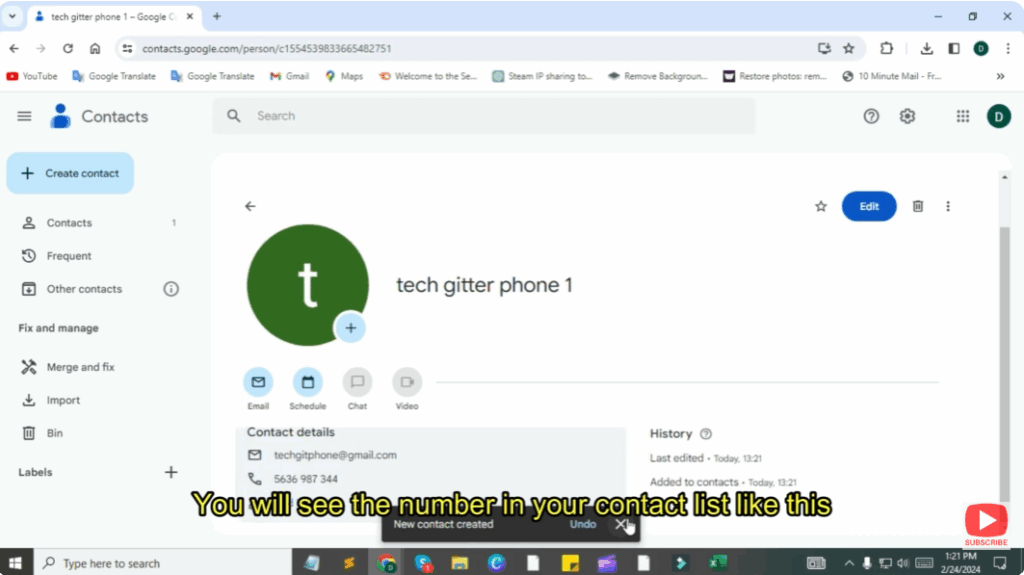
- You will see the number in your contact list like this.
Convert Excel File to CSV File
We need to create an Excel CSV file to save multiple contacts.
- First click on Multiple Contact List option.
- Here you will see that it imports only CSV file or vCard file.
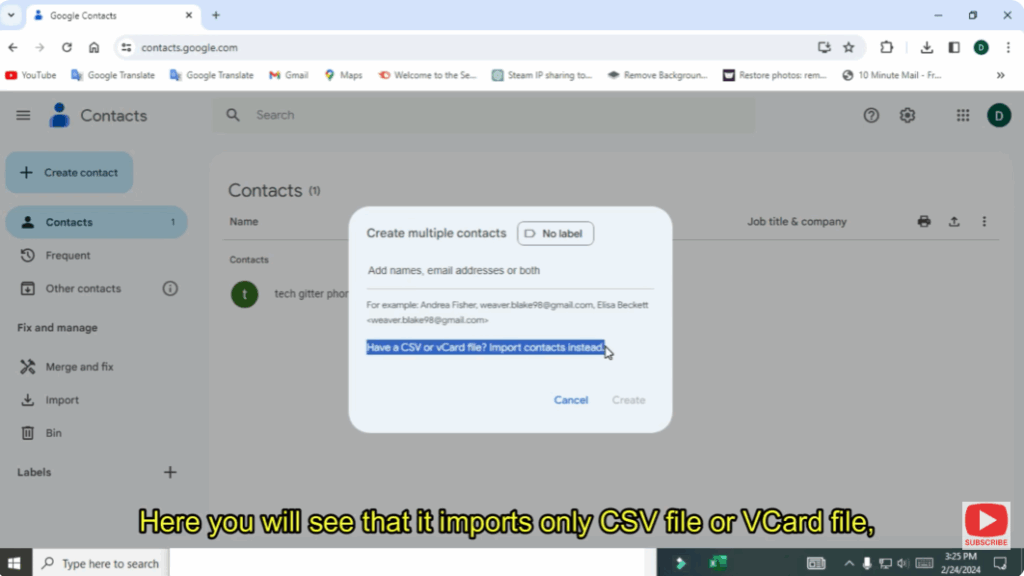
To save contacts from Excel file, you have to convert the Excel file to CSV file.
- Click on the previously saved number to create a CSV file.
- Now click on the three-dot button visible on the screen.
- Here you have to click on Export.
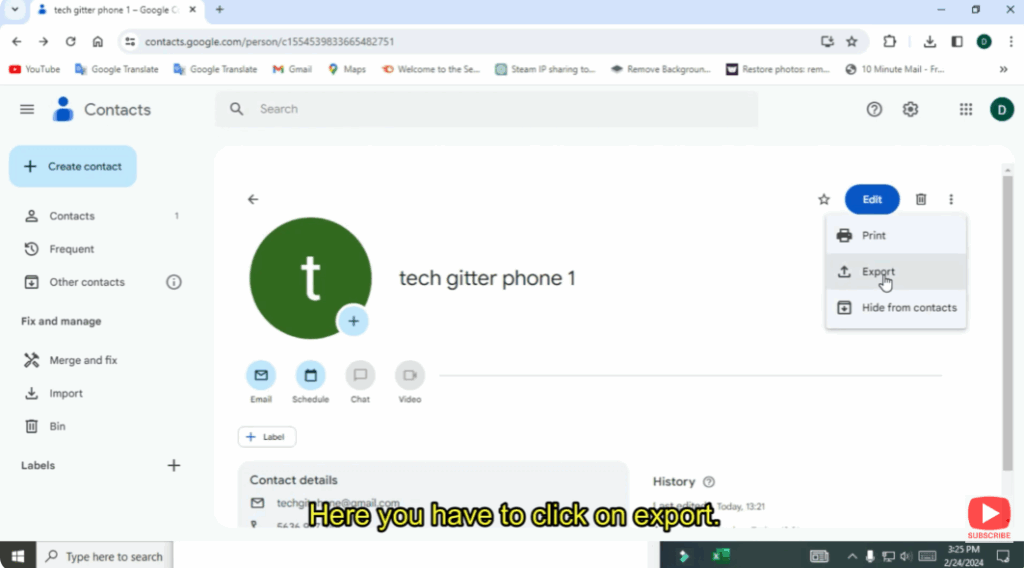
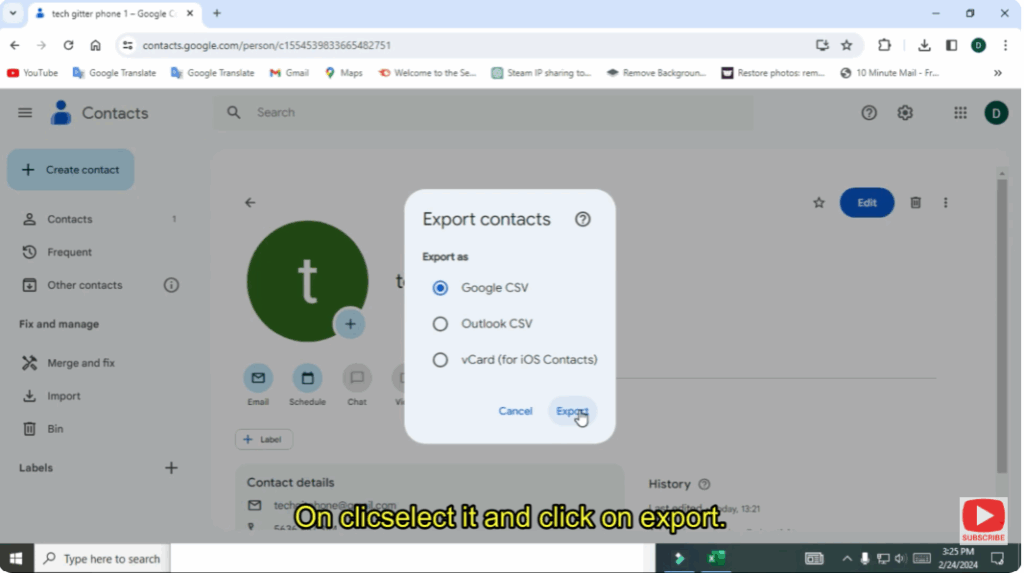
On clicking export you will see the option of Google CSV File.
Select it and click on Export.
- You will see an Excel file on the screen which will be in CSV format. Open it.
- Once the file is opened, your data will appear in a contact form.
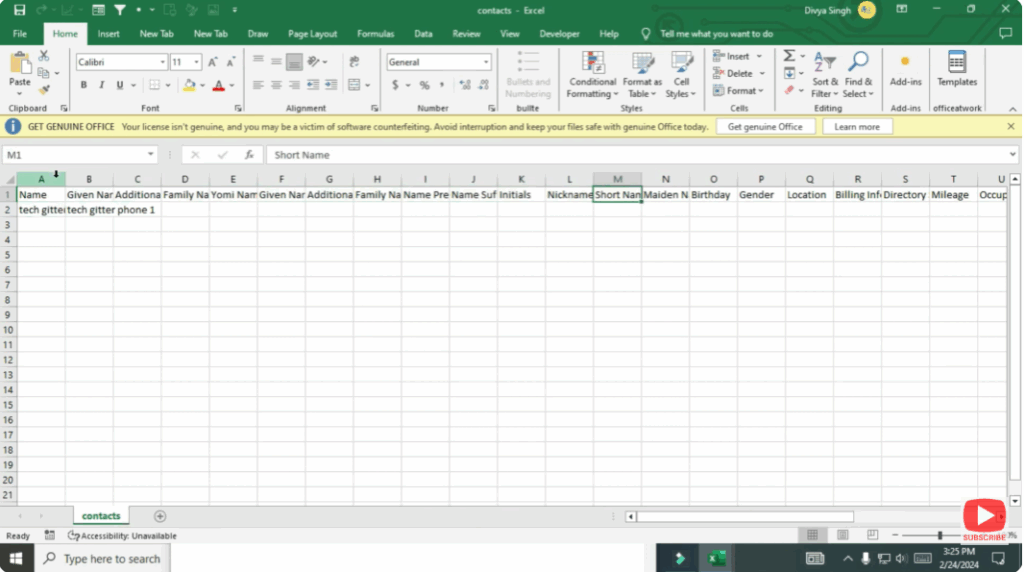
- You have to copy the names from your old Excel file and paste it into the Excel CSV file.
- And copy the numbers from the old file and paste it into the CSV file.
- If you have an email ID, you can copy it also.
- Now go to group membership and scroll down to the contacts till where your data is.
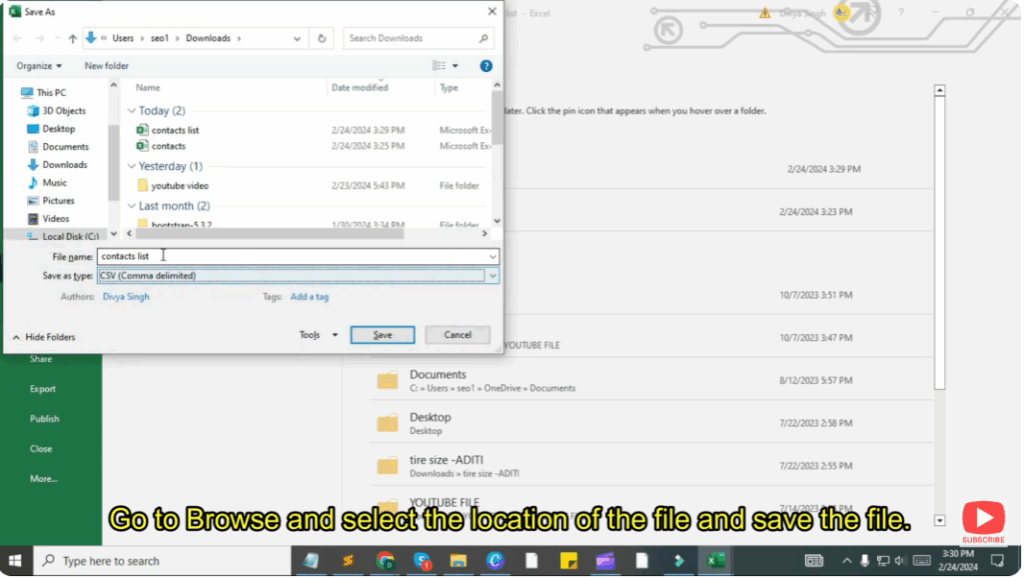
- Now this file has to be saved.
- To save the file, go to the File option and click on Save As option.
- Go to browse and select the location of the file and save the file.
Add Bulk Contacts to Your Contact List
- To save contacts from your Excel file, go to Create Multiple Contacts.
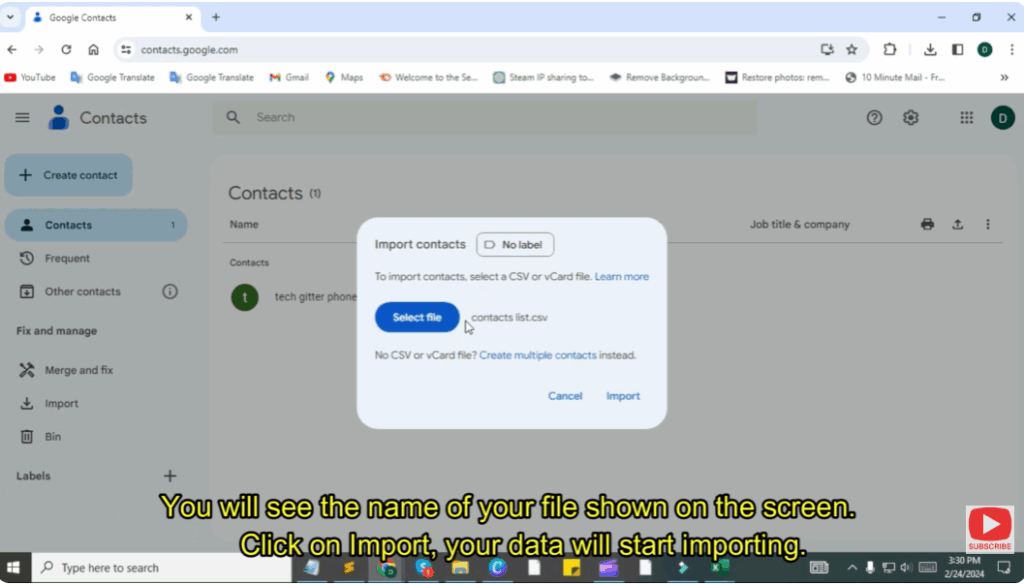
- Select the same file that you have converted into your CSV file.
- If you already have a CSV file whose contacts you want to import, then you can do that also.
- You will see the name of your file shown on the screen.
- Click on Import.
- Your data will start importing.
After some time, you will see that the contacts of your Excel file will start showing in your contact list.
- The contacts will be shown in your phone’s contact list.
- All you have to do is use the same email ID on your phone and PC.
- The contacts will be automatically stored in your phone.
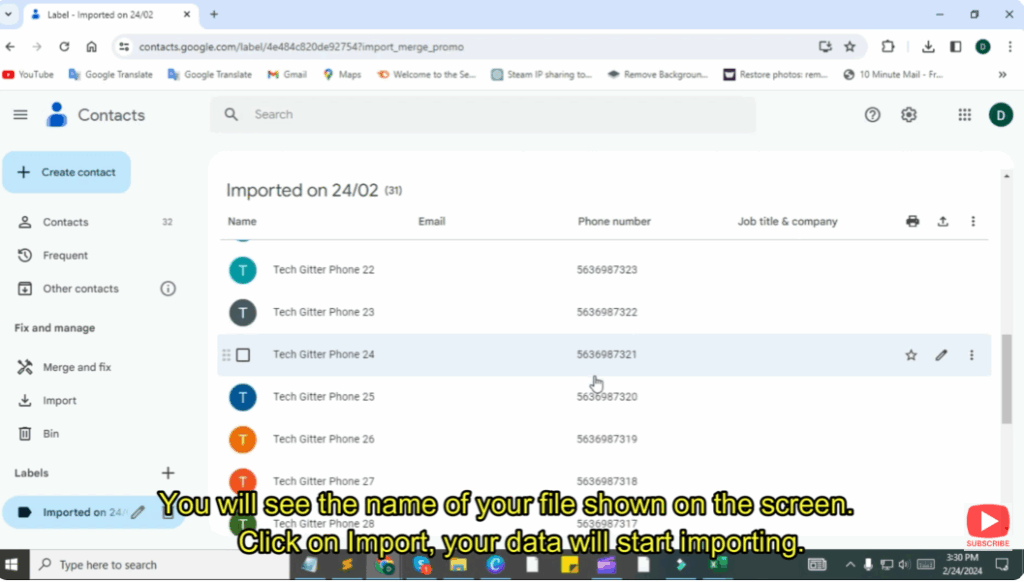
Similarly, no matter how many contacts data you have, you can save all the contacts in your phone in one click instead of saving each number one by one.






