
Blocking any app from going online on your Windows PC is useful when you want to control data usage, protect your privacy, or stop apps from sending or receiving unwanted information. Windows has built-in tools like the Windows Defender Firewall that let you easily block apps from accessing the internet. In this blog, you will learn step-by-step how to block any application from going online to keep your PC more secure and under your control.
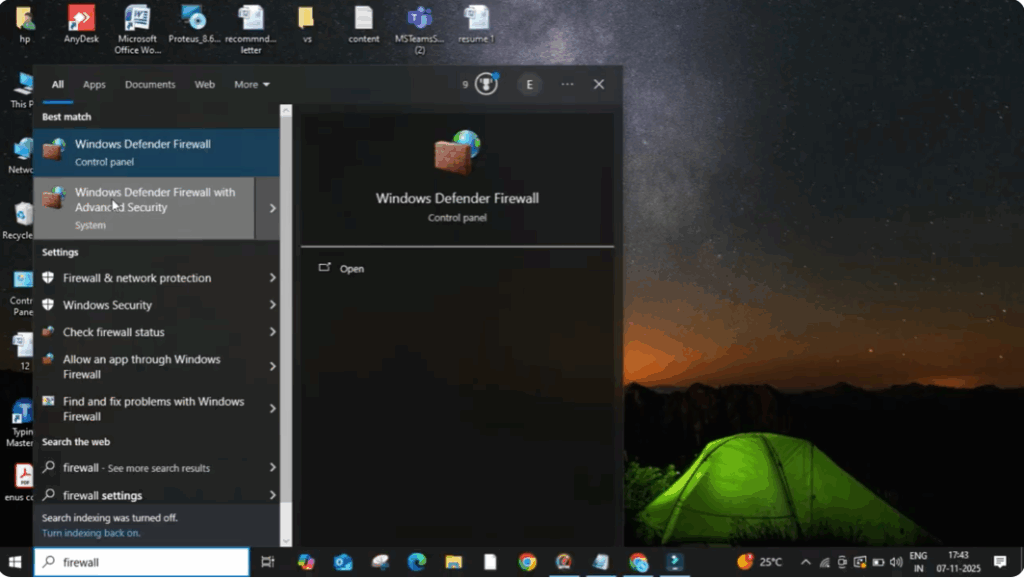
First, click on the search bar and type Firewall. From the results, select Windows Defender Firewall with Advanced Security and open it.
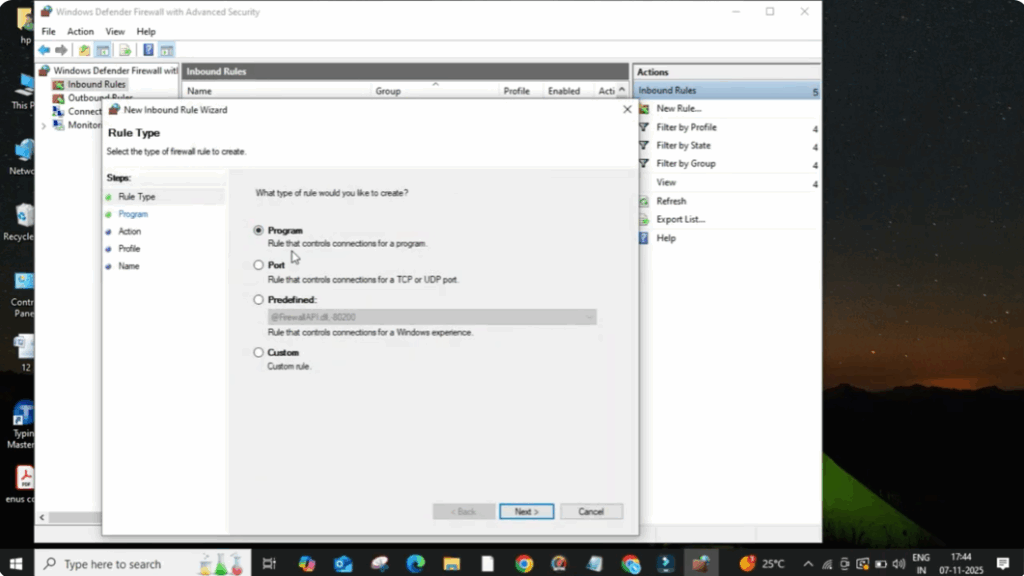
Once the window opens, look at the left-hand side. Here, click on Inbound Rules. Now, on the right-hand side, click on New Rule. A new window will appear here. Choose the Program option and click Next.
Now click on Browse and it will open a window where you can navigate through your files. Open your C Drive. Then go to Program Files. From here, find the app that you want to block from accessing the internet.
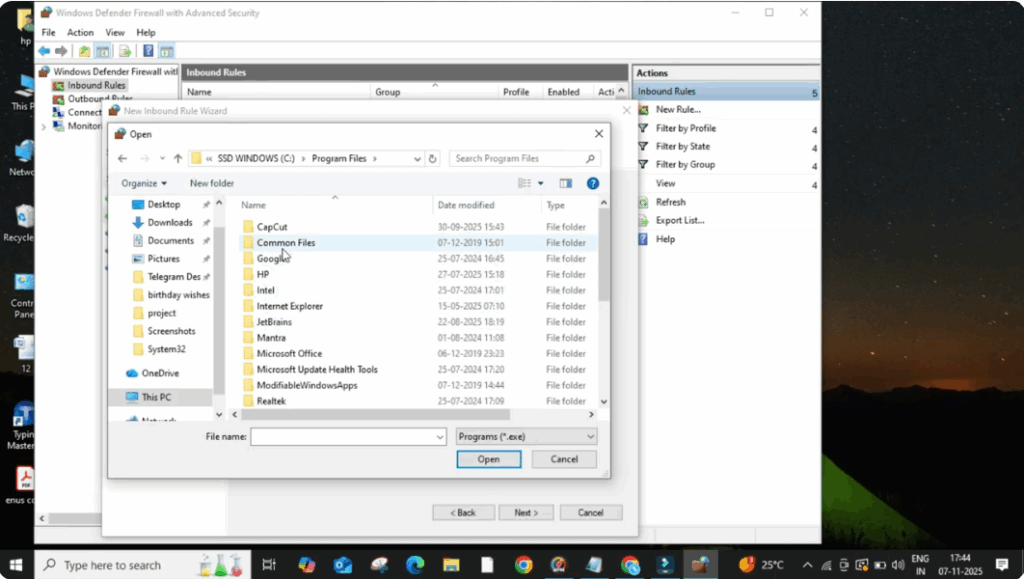
For example, let’s say we want to block Google Chrome. So, open the Google folder, then Chrome, and then Application.
Select chrome.exe and click on Open.
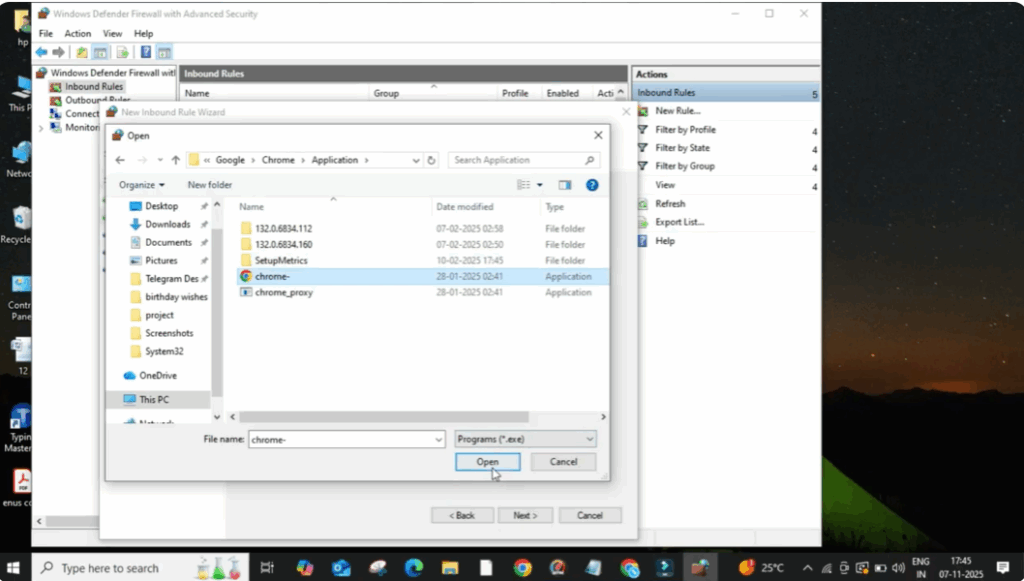
Now click Next.
On the next screen, select the option Block the Connection and click Next.
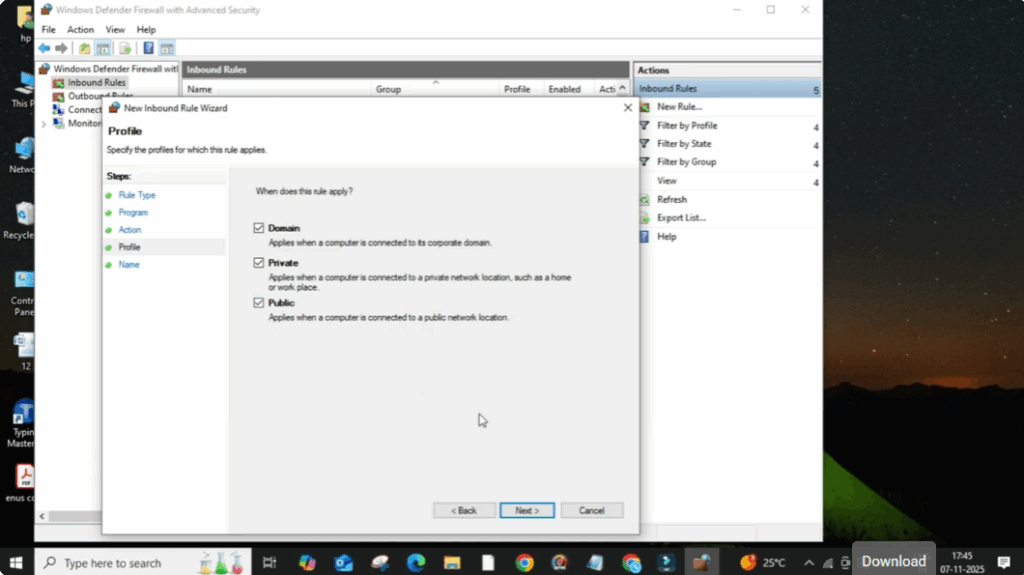
Keep the default boxes checked (Domain, Private, Public) and again click Next.
Now give your rule a name. For example, type Google Block, and then click Finish.
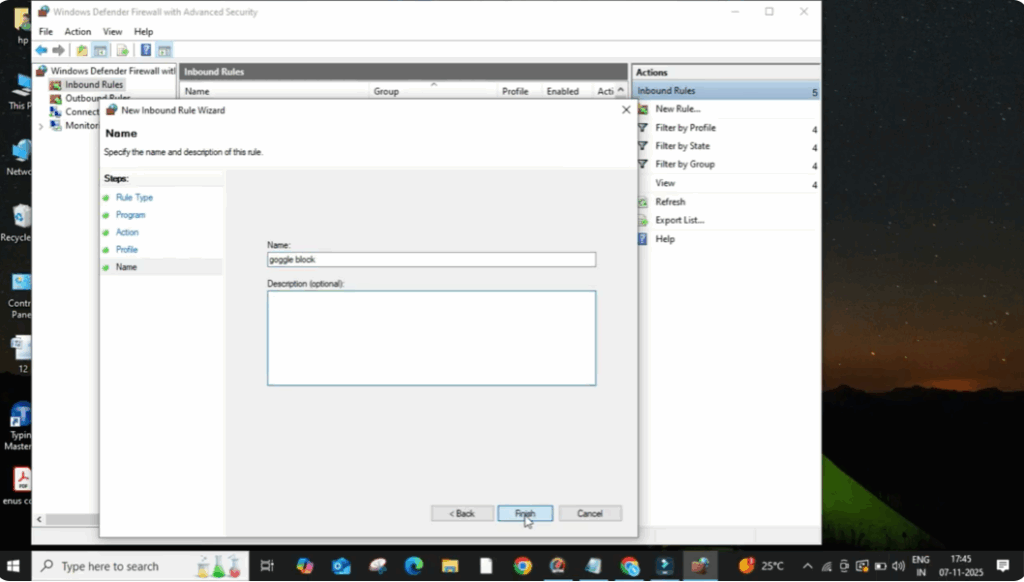
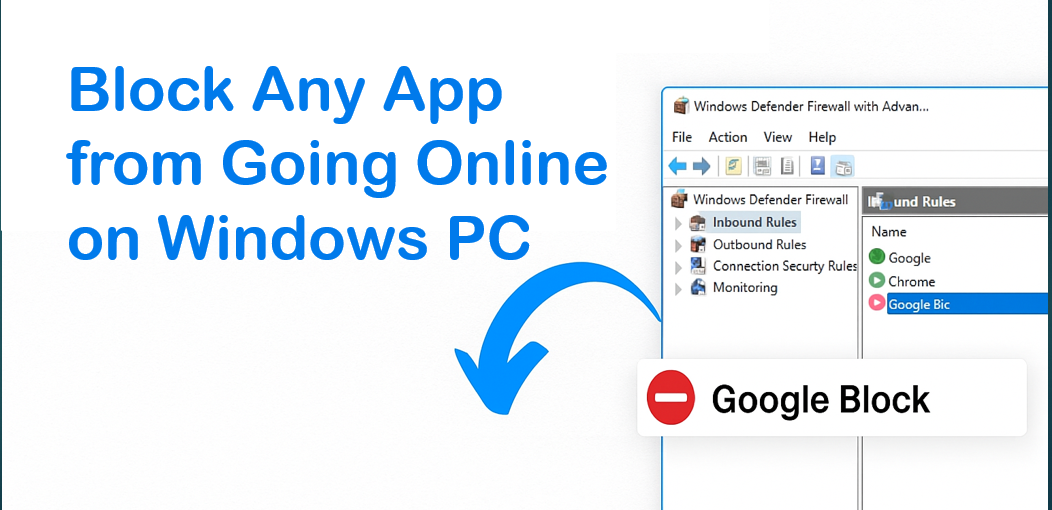
After this, you’ll see your new rule appear in the list showing Google Block with a small red sign, meaning the app is now blocked from using the internet.






