
Want to share quick videos on YouTube but don’t know how to upload Shorts from your PC? Good news—it’s simple! YouTube Shorts are short, vertical videos that help you reach more viewers and grow your channel fast. While most people upload them from mobile, you can also do it easily on your computer. In this blog, we’ll guide you step by step on how to upload Shorts on YouTube using your PC, so you can create and share content anytime.
Step 1: Open YouTube Studio
- Go to YouTube.com and sign in with your Google account.
- Click on your profile picture at the top-right corner.
- Select YouTube Studio from the drop-down menu.
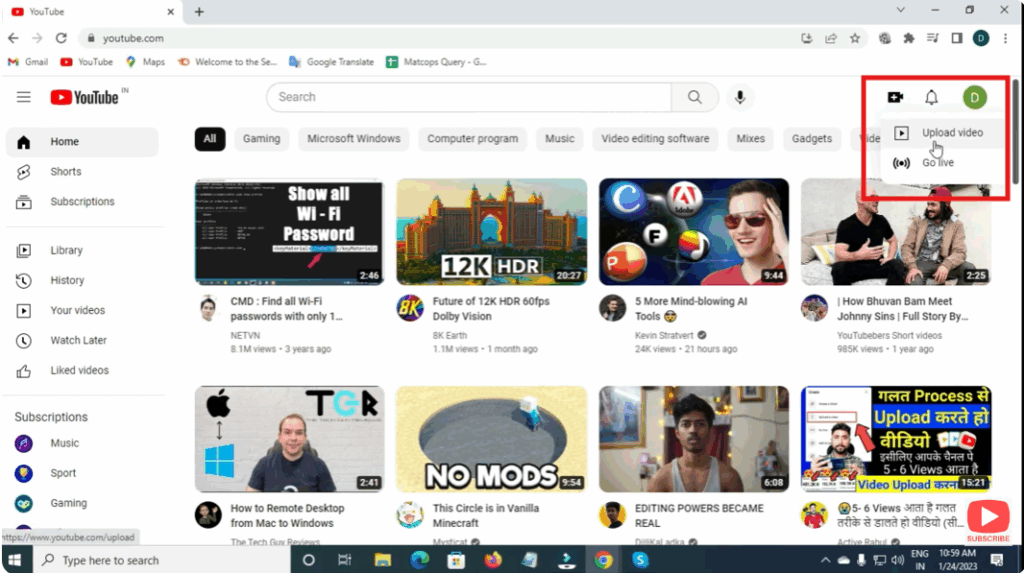
Step 2: Click on Create → Upload Video
- Once inside YouTube Studio, click the Create (+) icon at the top-right corner.
- Choose Upload Video from the options.
- A new upload window will open where you can drag and drop your video file or browse to select it manually.
Step 3: Add #Shorts in the Title or Description
To ensure your video is recognized as a Short, make sure:
- The video length is 60 seconds or less.
- The aspect ratio is vertical (9:16).
- Add #Shorts in the title or description of your video.
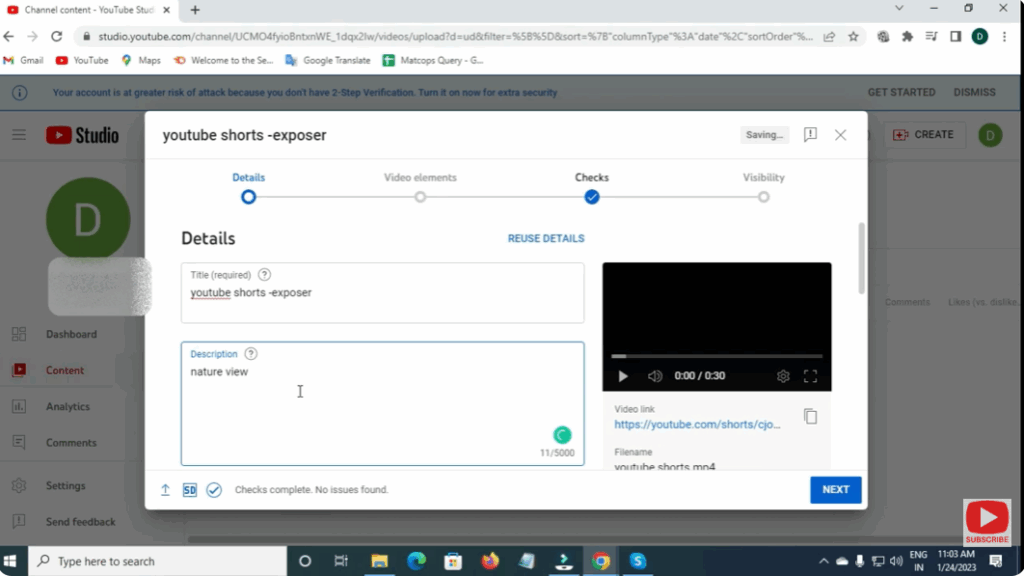
Example:
Title: “My Morning Routine #Shorts”
or
Description: “Watch this 30-second clip of my daily setup! #Shorts”
Step 4: Optimize Video Details
- Enter an attractive title to grab attention.
- Write a clear and engaging description.
- Choose the right thumbnail for better visibility.
- Add tags and select your audience (made for kids or not).
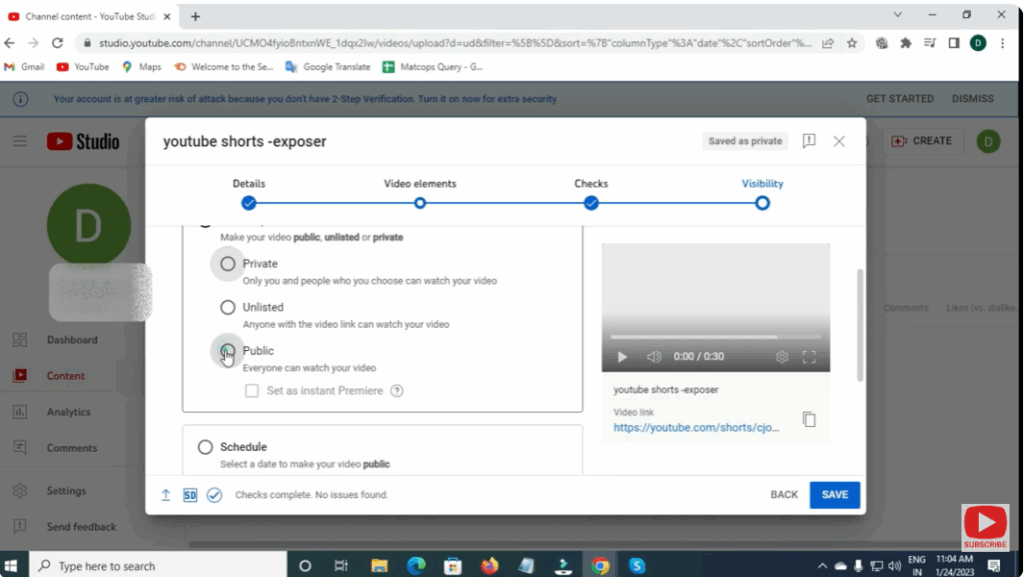
Step 5: Choose Visibility Settings
- Decide whether your video should be Public, Unlisted, or Private.
- For instant publishing, choose Public and click Publish.
- You can also schedule the upload for later.
Step 6: Verify in the Shorts Section
After uploading:
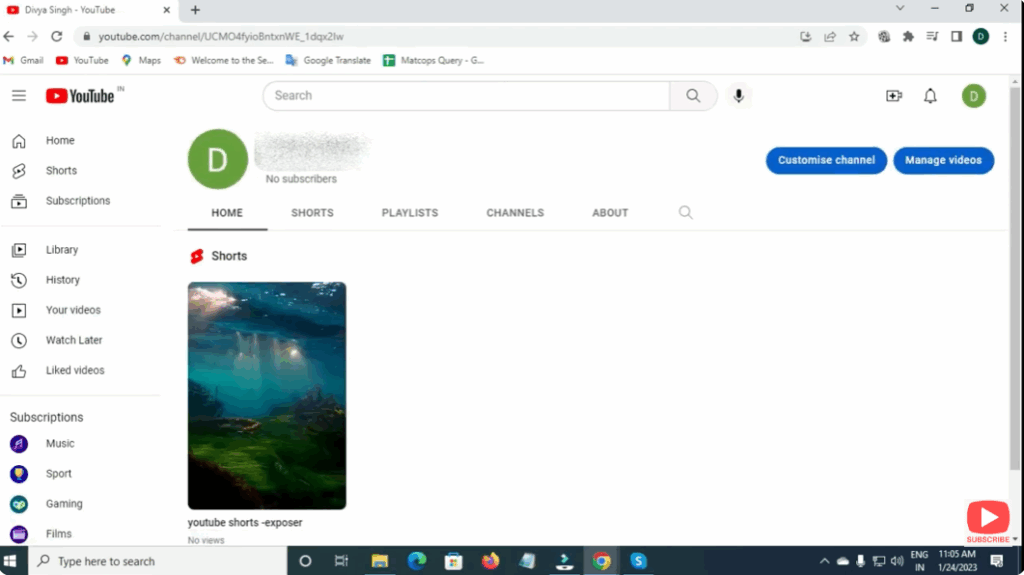
- Go to your channel homepage.
- Check the Shorts tab to confirm if your video is listed there.
If it doesn’t appear immediately, give it a few minutes for YouTube to process.
Conclusion
Uploading YouTube Shorts from your PC is quick and convenient. It gives you the flexibility to edit professionally and manage uploads more effectively. Follow these simple steps and start sharing your creative Shorts with the world right from your computer!






