
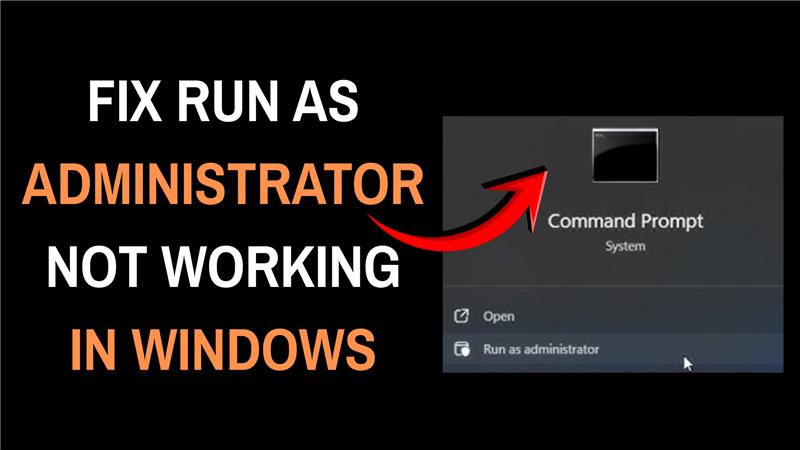
If the “Run as Administrator” option is not working on your Windows PC, it can stop you from running important programs with the needed permissions. This issue happens due to reasons like corrupted system files, user account problems, or incorrect settings. The good news is there are easy fixes like checking your account type, adjusting User Account Control settings, running system scans, or resetting shortcuts. In this blog, you’ll learn simple steps to troubleshoot and fix the “Run as Administrator” not working problem in Windows so you can run apps smoothly and securely.
1. Check the User Account Control (UAC) Settings
The User Account Control feature prevents unauthorized changes to your system. If it’s disabled, administrator functions may not work properly.
Steps:
- Press Windows + S and type UAC.
- Click Change User Account Control settings.
- Move the slider to the second-highest level (“Notify me only when apps try to make changes to my computer”).
- Click OK and restart your PC.
Now, try running the program as an administrator again.
2. Enable the Hidden Administrator Account
Windows includes a built-in Administrator account that sometimes helps fix permission-related problems.
To enable it:
- Open Command Prompt as Administrator.
- Type the command:
net user administrator /active:yes - Press Enter, then log out and sign in to the Administrator account.
- Try running your application again.
To disable it later, run:
net user administrator /active:no
3. Modify Local Security Policy Settings
If your system policy blocks administrative privileges, you can change it using the Local Security Policy editor.
Steps:
- Press Windows + R, type
secpol.msc, and press Enter. - Navigate to:
Local Policies → Security Options - Find User Account Control: Admin Approval Mode for the Built-in Administrator account.
- Double-click it and set it to Enabled.
- Restart your PC.
4. Check Group Policy Settings
In some cases, the “Run as Administrator” function is disabled by Group Policy (especially in organizational systems).
Steps:
- Press Windows + R, type
gpedit.msc, and hit Enter. - Go to:
User Configuration → Administrative Templates → Start Menu and Taskbar - Locate and disable any policy that prevents users from running applications as administrators.
5. Reset File and Registry Permissions
Corrupted registry or permission settings may cause this issue.
Steps:
- Open Command Prompt as Administrator.
- Type the following commands one by one:
sfc /scannow DISM /Online /Cleanup-Image /RestoreHealth - Once completed, restart your system and try again.
6. Re-register Windows Explorer
If the right-click context menu isn’t showing the Run as Administrator option, re-registering Explorer can help.
Steps:
- Press Ctrl + Shift + Esc to open Task Manager.
- Find Windows Explorer, right-click, and select Restart.
If that doesn’t work, open Command Prompt and type:
taskkill /f /im explorer.exe
start explorer.exe
7. Create a New User Account
If none of the above works, your profile might be corrupted.
Steps:
- Press Windows + I → Accounts → Other users.
- Click Add account → create a new local user.
- Log in to the new account and check if “Run as Administrator” works there.
Conclusion
The “Run as Administrator” feature is essential for managing Windows applications and system utilities. If it’s not working, the issue is usually linked to UAC settings, permissions, or system policies. By following the above solutions, you can easily restore full administrator functionality on your Windows 10 or Windows 11 computer.






