
Experiencing a delay between pressing a key and seeing the action happen in your game? That’s called keyboard input lag, and it can make gaming really frustrating—especially in fast-paced titles where every second counts. The good news is, this problem is usually caused by simple settings, outdated drivers, or background processes, and you can fix it without much hassle. In this blog, we’ll walk you through easy steps to reduce or eliminate keyboard input lag in games, so you can enjoy smoother and more responsive gameplay.
🛠 Step-by-Step Fixes to Reduce Keyboard Input Lag
1. Use a Wired Keyboard or Improve Wireless Signal
- If you’re using a wireless keyboard, try switching to wired, or move the dongle closer and away from interference.
- Test a different USB port (preferably USB 3 with full bandwidth) to eliminate port latency issues.
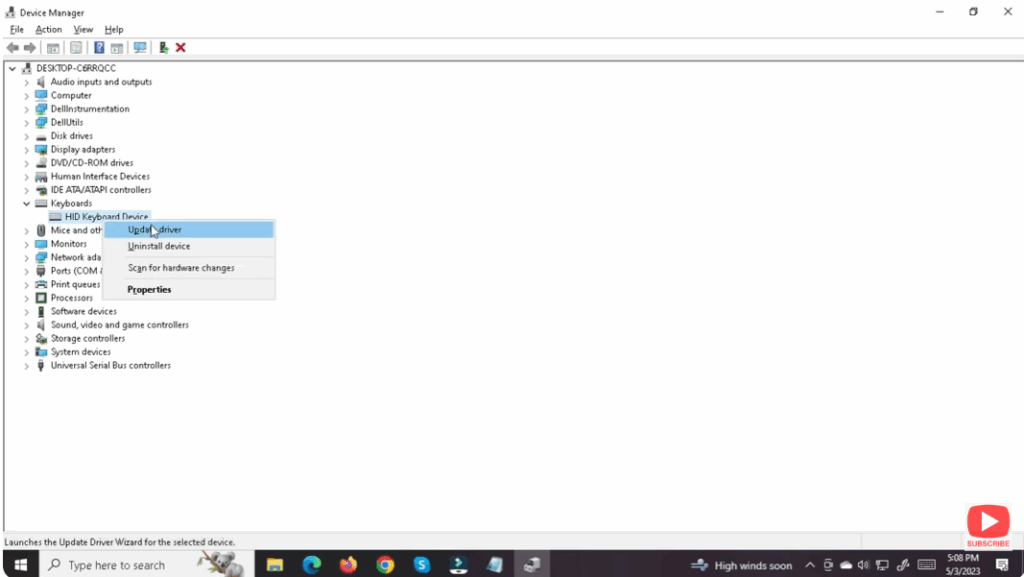
2. Update Keyboard & USB Drivers
- Go to Device Manager → Keyboards and Universal Serial Bus controllers, update drivers.
- Some gaming keyboards may require firmware updates; check manufacturer’s utility.
3. Disable Unnecessary Background Apps & Overlays
- Overlay software (Discord, Steam, GeForce Experience, Razer Cortex) can introduce input lag. Disable or close these while gaming.
- Use Task Manager to check for CPU or memory spikes by other apps during gameplay.
4. Adjust Game & Display Settings
- In your game settings, consider turning off Global V-Sync or use Adaptive Sync/G-Sync instead to reduce input latency.
- Ensure your monitor’s refresh rate is set correctly (e.g., 144 Hz or 240 Hz) and resolution is optimized.
- In advanced keyboard settings (if available), adjust your polling rate (1000Hz or 500Hz) to a setting that your system handles smoothly.
5. Optimize USB Power & System Performance
- Open Device Manager, navigate to USB Hubs, open Properties → Power tab → Uncheck “Allow the computer to turn off this device to save power”.
- Set your system’s Power Plan to “High performance”.
- Close other resource-intensive software while gaming or consider streaming to a second PC.
6. Try a Clean Boot to Identify Conflicts
- Press Windows + R, type
msconfig, go to Services tab → check “Hide all Microsoft services” → disable all → Startup tab → open Task Manager → disable all startup items → restart. - Launch your game and test. If input lag disappears, enable services/apps one by one to locate the conflict.
7. Monitor Hardware Utilization & Temperatures
- During gameplay, use Task Manager or other monitoring tools to watch CPU, GPU, RAM, and disk usage. If one component is maxed out, it may be causing input delay.
- Ensure your system isn’t overheating or throttled—thermal throttling can affect input responsiveness.
🎮 Final Thoughts
Keyboard input lag in games is often the result of hardware latency, software conflicts, or display mis-settings. By using a good quality keyboard/port, updating drivers, disabling overlays, optimizing display/game settings, and checking system performance, you can significantly reduce or eliminate delayed keys and improve your gaming responsiveness.






