
Chrome Remote Desktop is a free and easy tool from Google that lets you access and control your computer from anywhere using another device. Whether you want to check files, help someone with tech problems, or work remotely, this tool makes it simple and secure. In this blog, you’ll learn how to set up and use Chrome Remote Desktop step-by-step so you can connect to your computer screen from your phone, tablet, or another PC with ease.
Download Chrome Remote Desktop
To make a remote connection to your computer, open your Chrome browser and search for Chrome Remote Desktop in the search bar.
Open the first website that appears on the screen and click on the Download button.
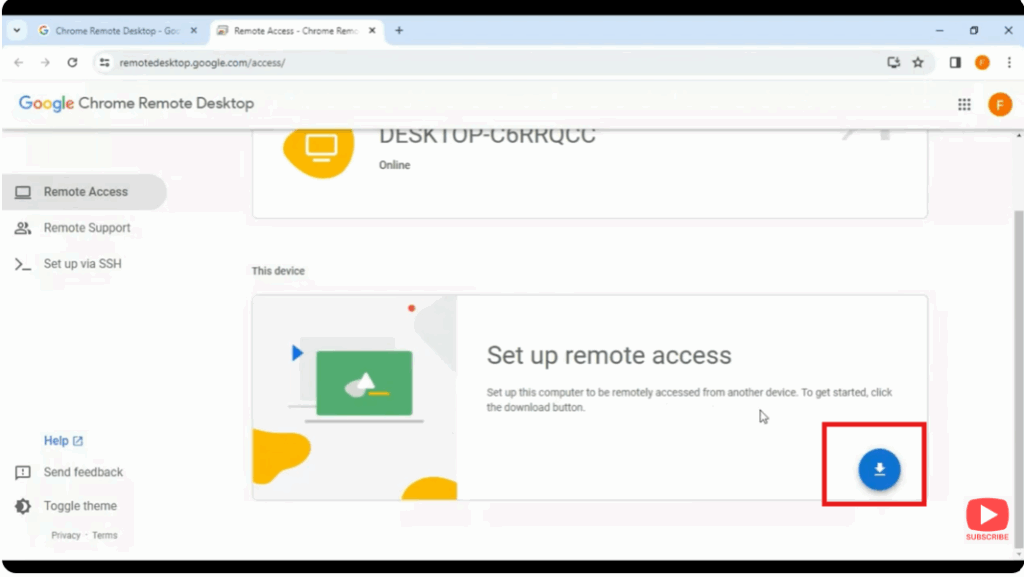
You will see a screen asking you to add the extension — click on Add to Chrome. A dialogue box will appear in front of you; click on Accept and Install to add the extension to your Chrome browser.
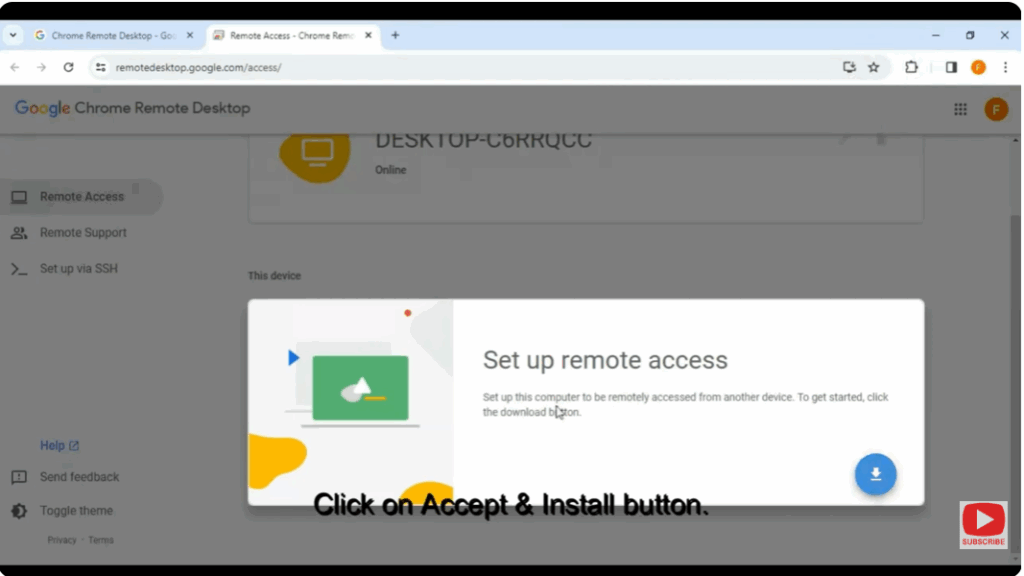
Device Setup
Enter your computer name and set a six-digit PIN, then retype it to confirm.
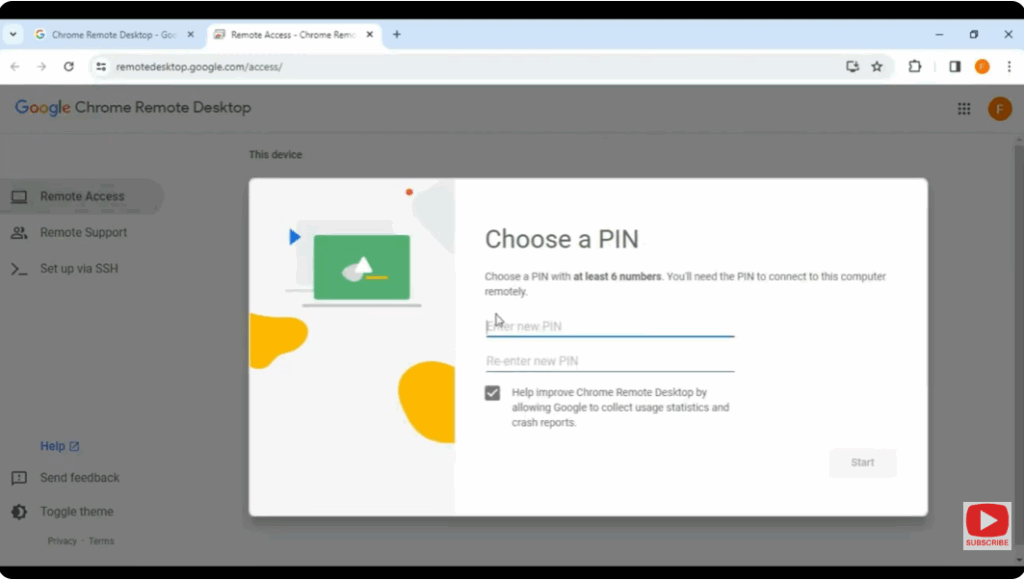
Now click on Start — your PC is completely set up and ready for remote access.
Install Chrome Remote Desktop App on Phone
Next, you’ll need to set it up on your phone. Go to the Play Store and install the Chrome Remote Desktop app.
Make sure you’re signed in on your mobile device with the same email address that is signed in on your PC.
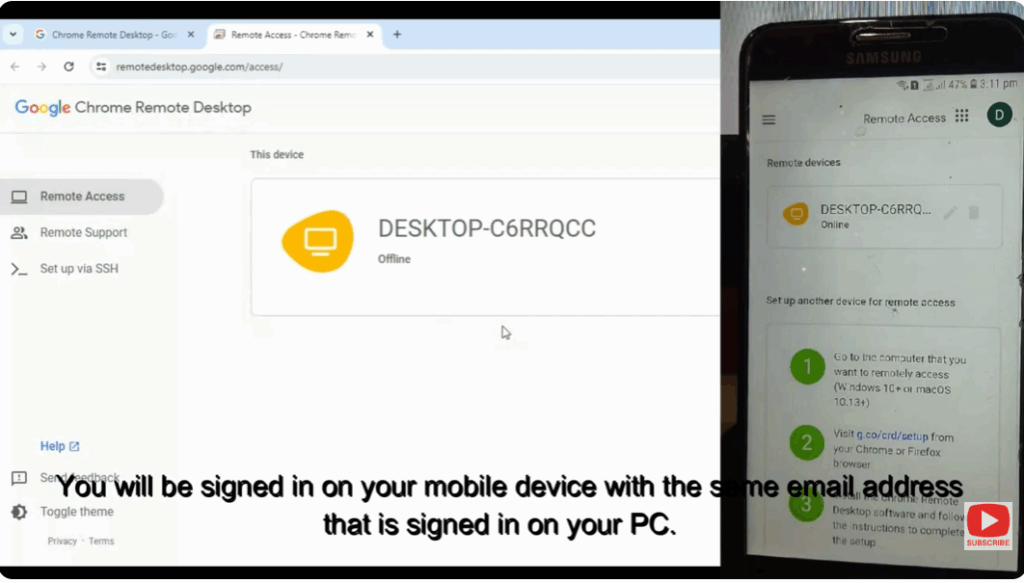
Your computer name will appear on your mobile screen. Tap on the computer name and input the PIN that you set earlier on your computer.
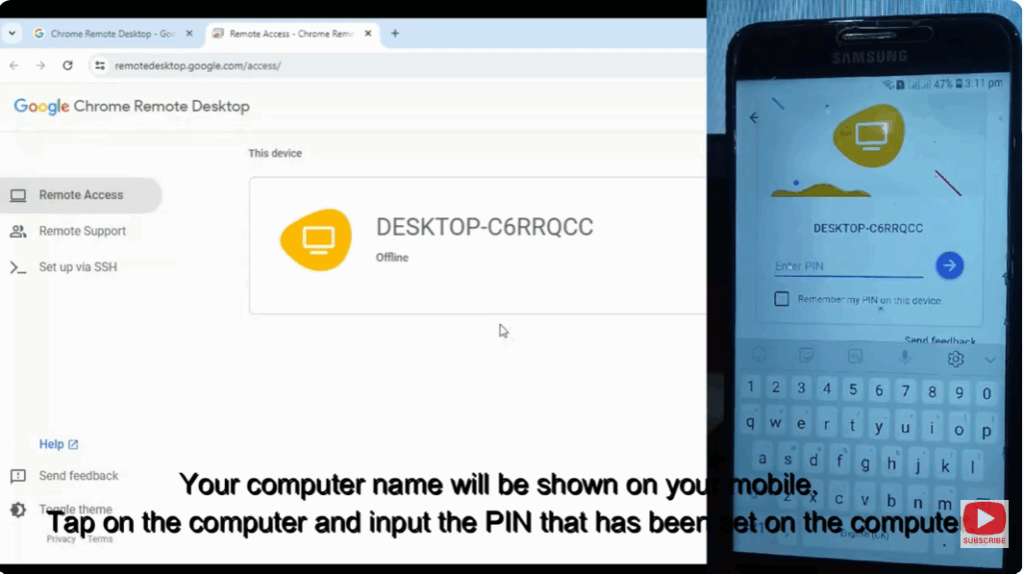
Now, you can access your computer screen remotely from your phone. You’ll have full mouse and keyboard functionality at the top of the screen, which allows you to control your computer seamlessly.






