

The Home tab in Microsoft Excel is where you find the most commonly used tools and commands to work with your spreadsheets quickly. It includes groups like Clipboard for copy-paste, Font for changing text style, Alignment for arranging content, Number for formatting numbers, and more. Learning the Home tab well helps you edit and format your Excel data easily and efficiently. In this blog, you will get a simple introduction to the Excel Home tab and its key groups to boost your spreadsheet skills.
🏠 Overview of the Home Tab Groups
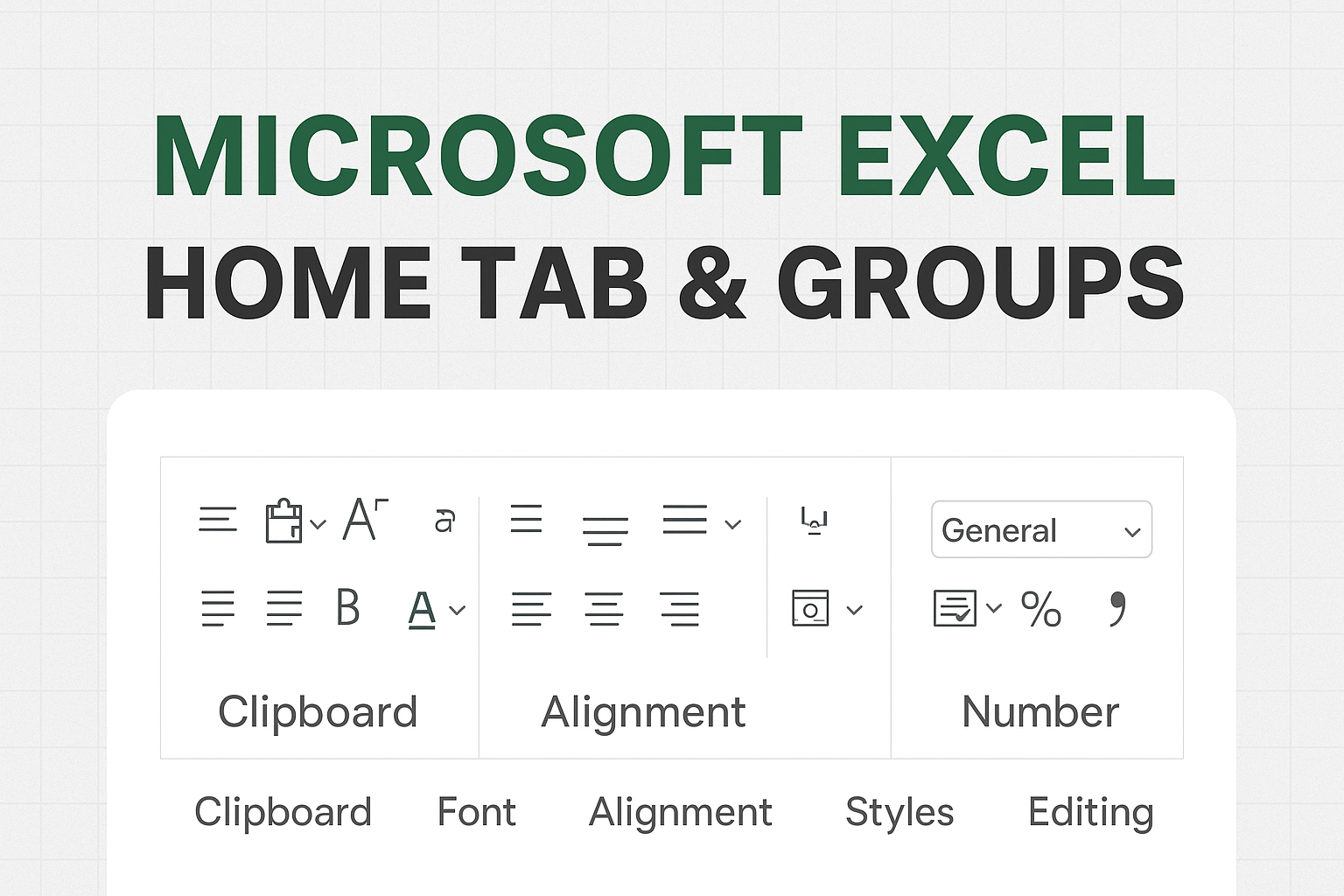
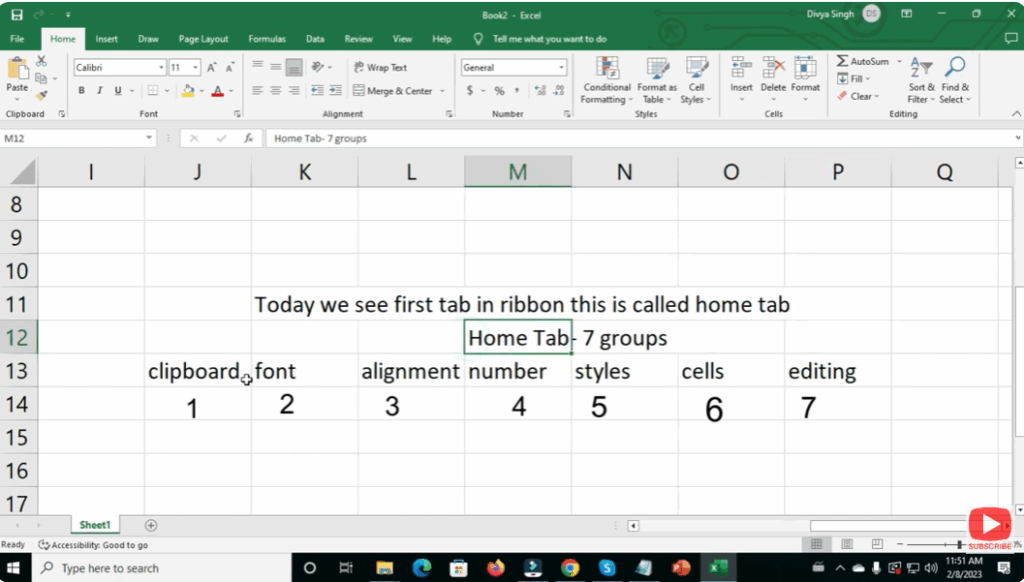
On the Home tab you’ll typically see the following groups: Clipboard, Font, Alignment, Number, Styles, Cells, and Editing. Here’s a breakdown of each.
1. Clipboard
This is where you manage copying and pasting of data.
- Commands: Cut (Ctrl+X), Copy (Ctrl+C), Paste (Ctrl+V), Format Painter.
- Use when you want to move data around or replicate formatting.
Tip: Use Format Painter to copy only formatting (not content) from one cell to another.
2. Font
Formatting your text and numbers lives here.
- Commands: Font face, size, bold/italic/underline, cell fill color, font color, cell borders.
- If you click the small arrow in the group, you can open the full Format Cells dialog for advanced options.
Tip: Use color fills to highlight important cells (e.g., totals, key data).
3. Alignment
Control the position and layout of cell content.
- Commands: Align left/center/right, top/middle/bottom, wrap text, merge cells.
- Also useful for changing text orientation (rotate) inside a cell.
Tip: Use “Wrap Text” when you have longer text but want to keep column width narrow.
4. Number
Formatting numbers, dates, currency, percentages etc.
- Commands: General format dropdown, increase/decrease decimals, number format types.
- Essential when working with financial data, dates, or needing precision.
Tip: Use “Accounting” or “Currency” number formats for financial worksheets.
5. Styles
Apply consistent visual styles to cells.
- Commands: Conditional Formatting (change cell style based on value), Format as Table, Cell Styles.
Tip: Use Conditional Formatting to highlight cells that meet criteria (e.g., values > 1000, duplicates, etc.).
6. Cells
Commands for inserting, deleting, formatting cells, rows, columns.
- Commands: Insert cells/rows/columns, Delete cells/rows/columns, Format (row height, column width, etc.).
Tip: Use “Format → AutoFit Column Width” to adjust column size automatically based on cell content.
7. Editing
Helpful for working with data itself rather than formatting.
- Commands: AutoSum, Fill, Clear, Sort & Filter, Find & Select.
Tip: Use “Sort & Filter” to quickly analyze your data (e.g., sort sales descending, filter for a specific region).
📝 Final Thoughts
The Home tab in Excel is your go-to location for the bulk of day-to-day tasks: data entry, formatting, layout, sorting, filtering, and more. By understanding each group and how to use it effectively, you’ll work faster, maintain consistency, and create professional spreadsheets with ease. Make sure you explore each group and experiment with commands—you’ll be surprised how much time you save!






