
Want to use Google Chrome on your computer but not sure how to get it? Don’t worry—it’s very simple! Chrome is one of the most popular web browsers because it’s fast, secure, and easy to use. Whether you’re setting up a new PC or just switching from another browser, downloading and installing Chrome only takes a few minutes. In this blog, we’ll guide you through the easy steps to download and install Google Chrome on your PC, so you can start browsing right away.
First of all, make sure your computer is connected to the internet.
Go to the search bar menu and search for Internet Explorer.
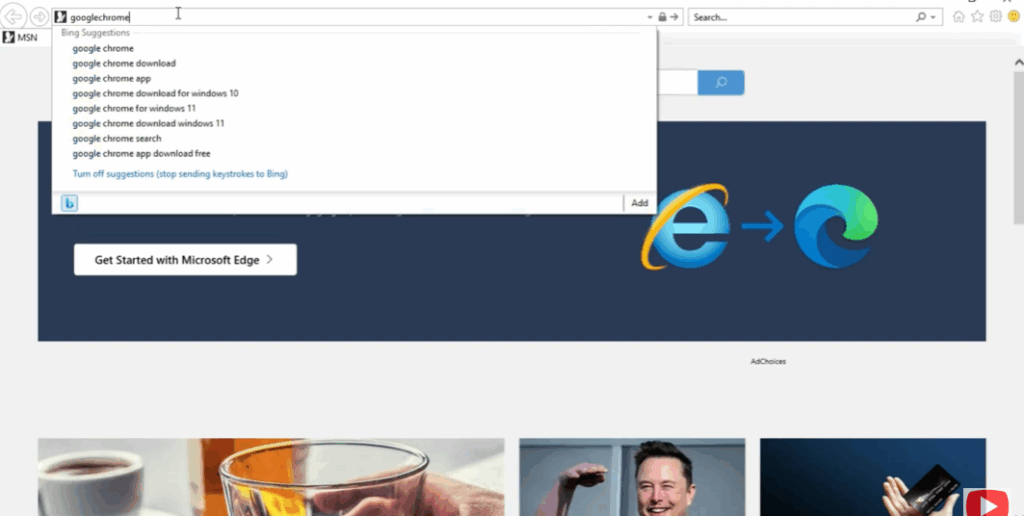
Once Internet Explorer opens, remove the above link and type Google Chrome in the search bar.
Open the first link that appears and click on the Download button.
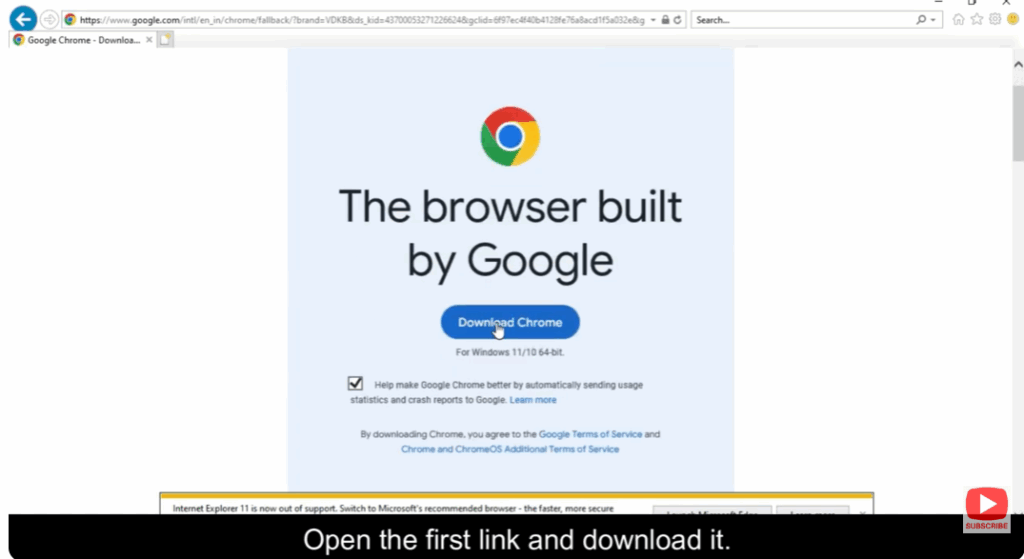
Wait for the download to complete — once Google Chrome has been downloaded, open it.
Now, sign in to your Google account if prompted.
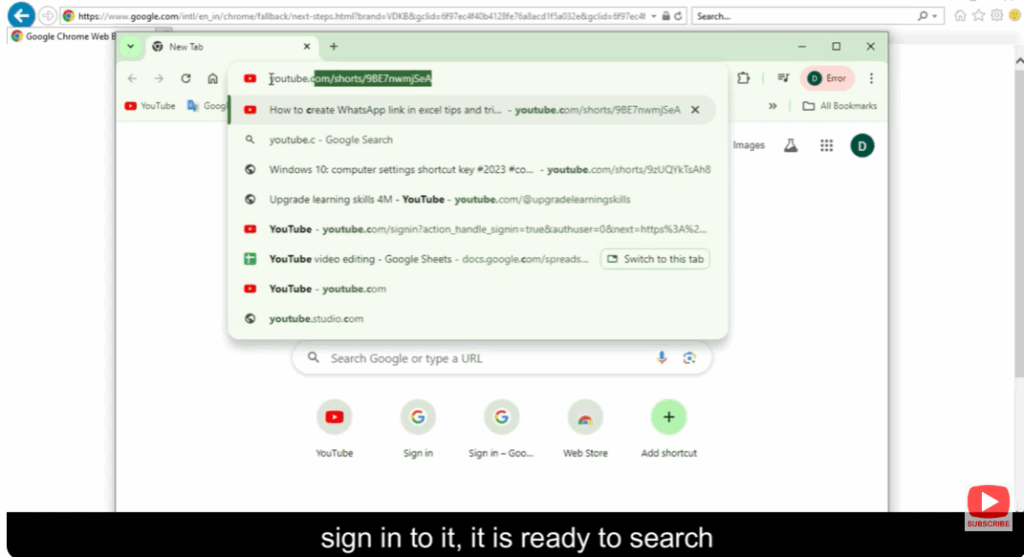
After signing in, Chrome is ready to use and you can start browsing instantly.






