

Numbering rows in Excel is a simple trick that helps you organize and keep track of your data easily. Whether you want to create a list, table, or just count items, numbering makes your spreadsheet clearer and more professional. In this blog, you will learn the easiest ways to number rows in Excel quickly using simple methods like dragging numbers or using the ROW function.
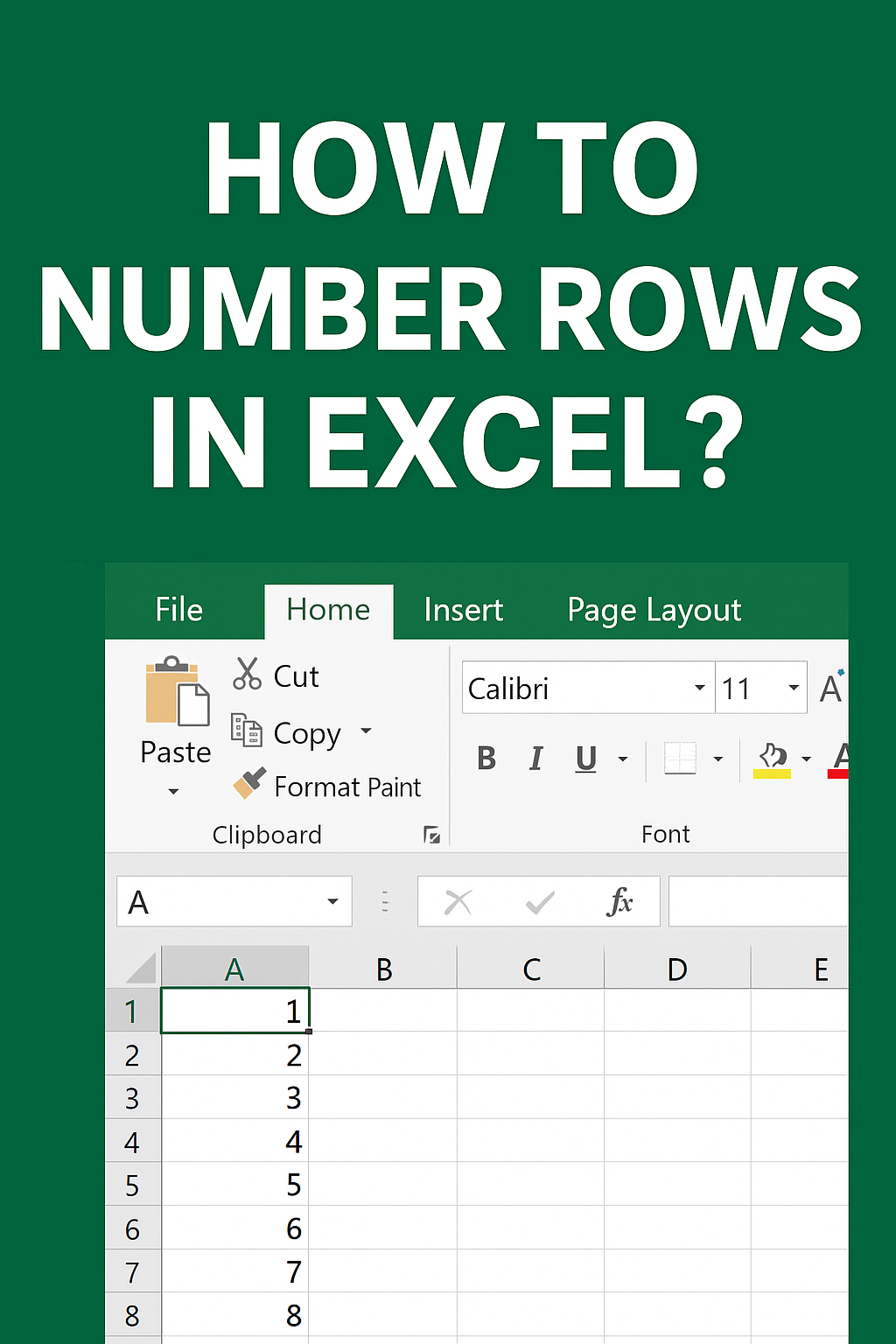
1. Using the Fill Handle
The Fill Handle is the simplest and most commonly used method to number rows in Excel.
Steps:
- Open your Excel sheet.
- In the first cell (e.g., A1), type 1.
- In the next cell below (A2), type 2.
- Select both cells (A1 and A2).
- Move your mouse to the bottom right corner until the Fill Handle (a small square) appears.
- Drag it down to fill the rest of the cells — Excel will automatically number them in sequence.
Tip: This works great for small to medium datasets.
2. Using the ROW Function
If you want automatic numbering that updates when you insert or delete rows, use the ROW() function.
Steps:
- Click the first cell where you want numbering (e.g., A2).
- Type the formula:
=ROW()-1(Subtracting 1 because the first row is usually the header.) - Press Enter and then drag the fill handle down to apply the formula to other rows.
Result: Excel automatically adjusts numbers even when rows are inserted or deleted.
3. Using the SEQUENCE Function (Excel 365/Excel 2021)
For newer versions of Excel, you can use the SEQUENCE function to fill numbers instantly.
Steps:
- Click the first cell where you want the numbering to start.
- Enter the formula:
=SEQUENCE(10,1,1,1)- The first argument (10) is the number of rows.
- The second (1) indicates one column.
- The third (1) is the starting number.
- The fourth (1) is the step value.
Result: Excel fills the numbers automatically from 1 to 10.
4. Using Excel Table with AutoNumber
If you convert your range into a Table, Excel can automatically handle numbering dynamically.
Steps:
- Select your data range.
- Press Ctrl + T to create a table.
- Add a new column and use the ROW() formula.
- The table will automatically expand, and the numbering will continue as you add new rows.
Final Tip
For the most flexibility and automation, use formulas like ROW() or SEQUENCE(). If you just need quick numbering, the Fill Handle is the fastest method.
Conclusion
Numbering rows in Excel is easy once you know the right tools. Whether you prefer using simple drag-and-fill methods or smart formulas like ROW() and SEQUENCE(), Excel makes it quick and efficient to keep your data organized.






