
Converting Excel files to CSV format without using any software is easy and useful when you don’t want to install extra programs. You can simply use Excel’s built-in “Save As” feature or free online tools that work directly from your browser to change your Excel file into a CSV file. In this blog, you will learn the easiest ways to convert Excel files to CSV quickly and safely without downloading any software.
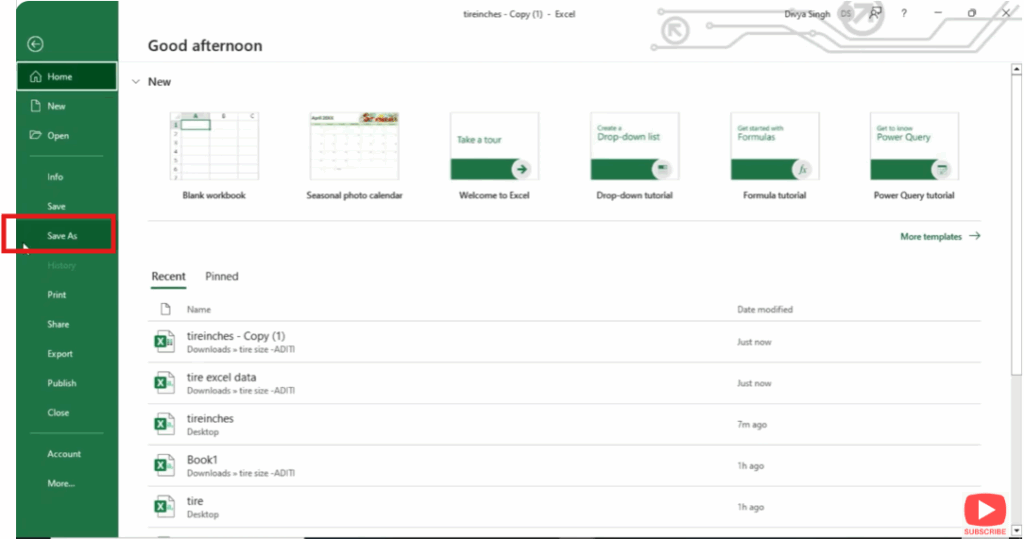
Open excel sheet. Click on file option here you have to “save as” option will appear click on it.
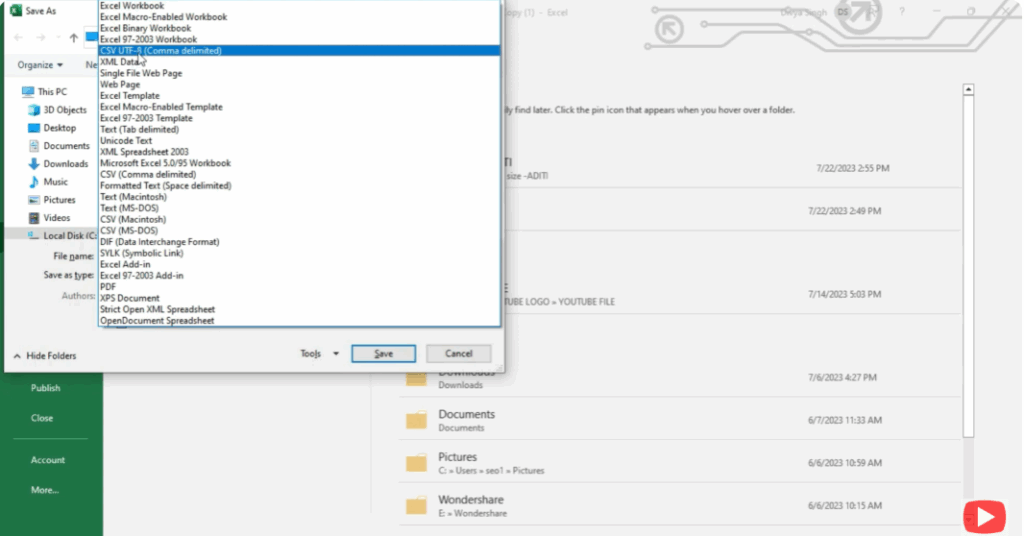
Here you can select the location where you want to save the file. Click “Save As Type” and select “CSV (comma delimited)”. Type in your file name in “File name”.
Right click on excel file or go to properties here you can also see the name of file it is saved in csv format. Right click on the excel file, and click on “Notepad” here. Here you will see your excel data file is saved in csv file.

Conclusion
Converting Excel files to CSV format without using any additional software is quick, easy, and efficient. By using the built-in “Save As” feature in Excel, you can convert your data into a universally compatible format within seconds. Whether you’re preparing files for upload, data processing, or sharing, the CSV format ensures smooth accessibility across different platforms and applications.






