
Inserting pictures in PowerPoint is a great way to make your presentations more engaging and visually appealing. You can add images saved on your computer or find pictures online directly from PowerPoint. In this blog, you will learn easy step-by-step instructions to insert pictures in your PowerPoint slides, adjust their size, and position them perfectly to enhance your presentation.
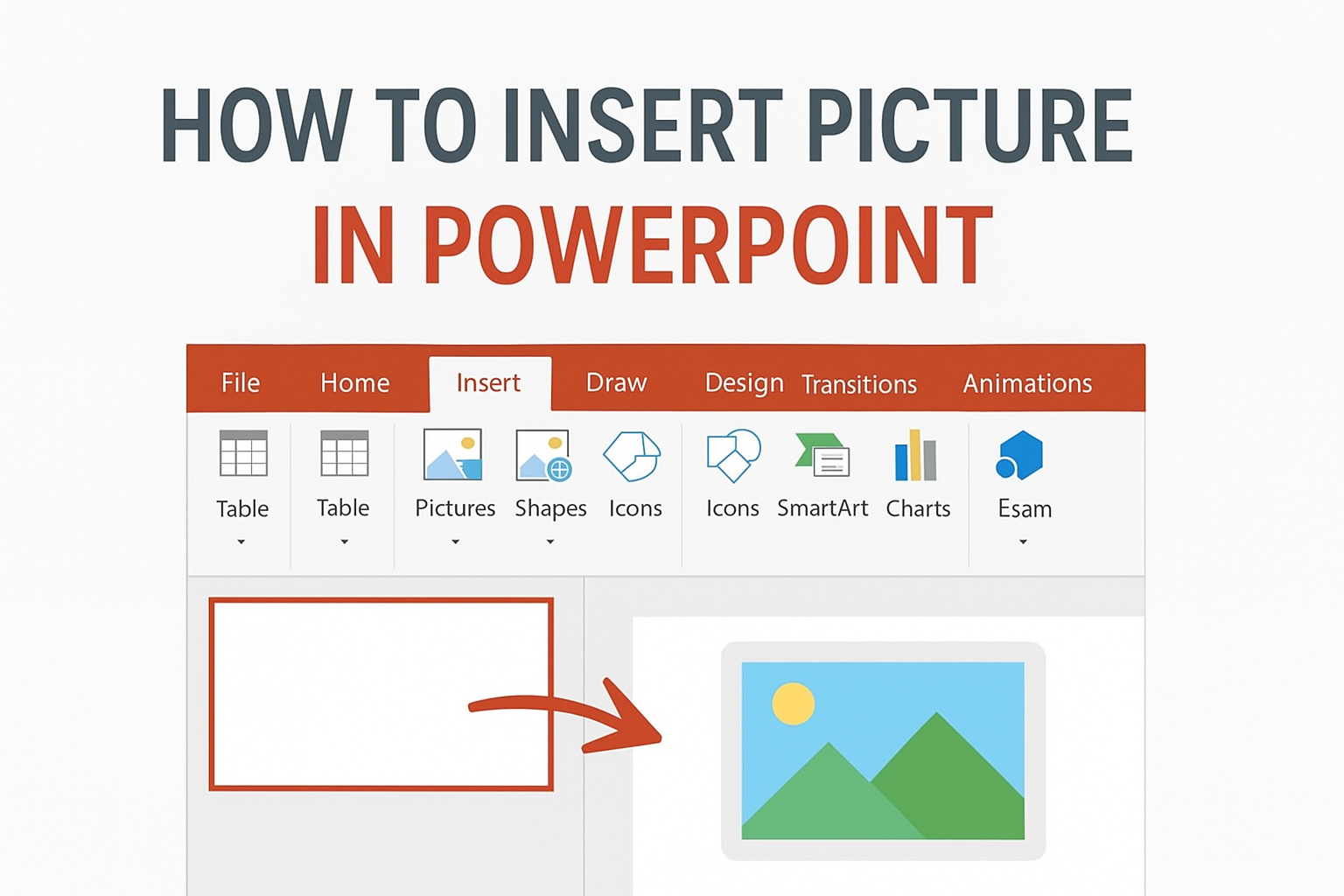
🛠 Step-by-Step Guide to Insert a Picture
1. Open Your PowerPoint Presentation
- Start PowerPoint and open the presentation in which you want to add a picture.
- Go to the slide where you want the image to appear.
2. Navigate to the “Insert” Tab
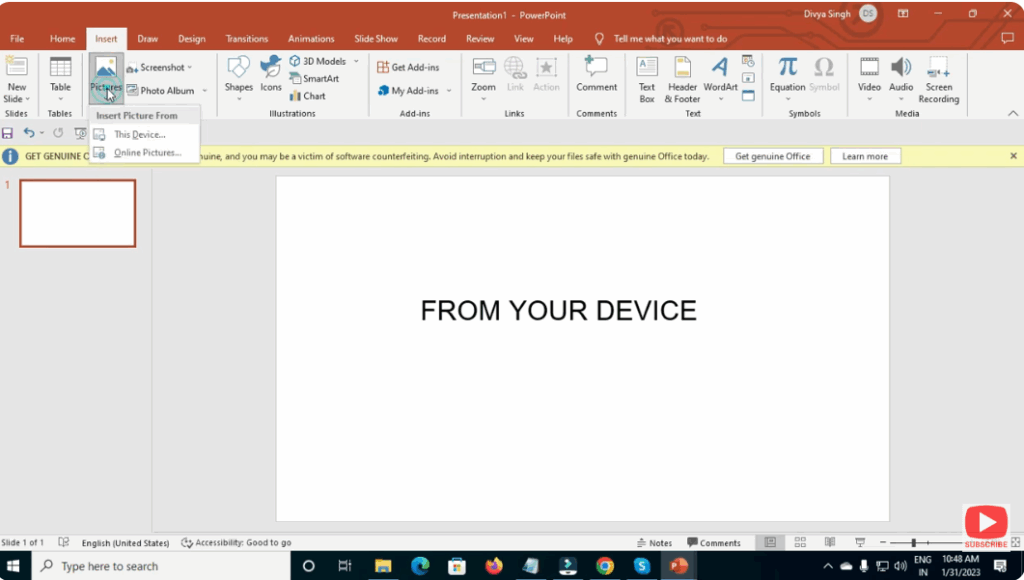
- On the top ribbon, click Insert.
- You’ll see various options: Table, Pictures, Shapes, Icons, etc.
3. Choose “Pictures” → Select Source
When you click Pictures, you’ll often have a few choices depending on your PowerPoint version:
- This Device (or From File): Insert an image stored on your computer.
- Stock Images / Online Pictures: Insert free images licensed by Microsoft or search the web.
4. Select and Insert the Picture
- If you chose This Device, a file explorer window will open. Navigate to where your image is saved, select it, and click Insert.
- If you chose Online Pictures, search your image, select one, and then click Insert.
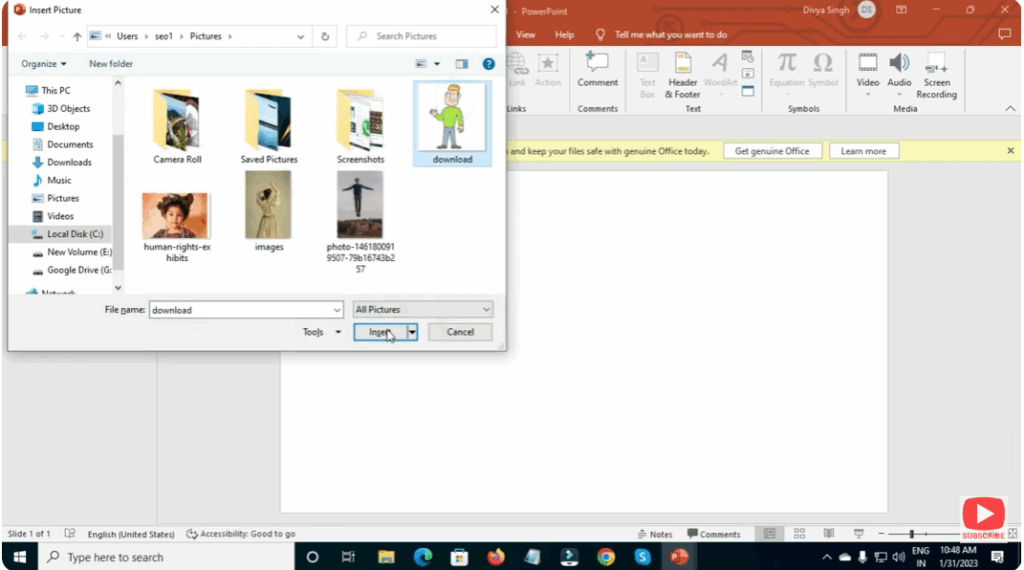
The picture will now appear on your slide.
5. Resize and Position the Picture
- Click on the image: you’ll see handles (small circles) on the corners and sides.
- Drag a corner handle to resize the image while keeping the aspect ratio (to prevent distortion).
- Drag the image to the exact spot on the slide where you want it placed.
- Use the Picture Format tab in the ribbon for more options (crop, rotate, align).
6. Format and Style the Picture
On the Picture Format tab, you can:
- Apply Picture Styles (frames, effects, borders)
- Crop or Change Picture (swap it out without re-inserting)
- Use Reset Picture to remove any changes and revert to the original version
- Use Corrections or Color tools to adjust brightness, contrast, or tone
7. Add Alternative Text (for Accessibility)
- Right-click on the picture → choose Edit Alt Text
- Enter a description of the image (why it’s there or what it shows). This helps people using screen readers.






