
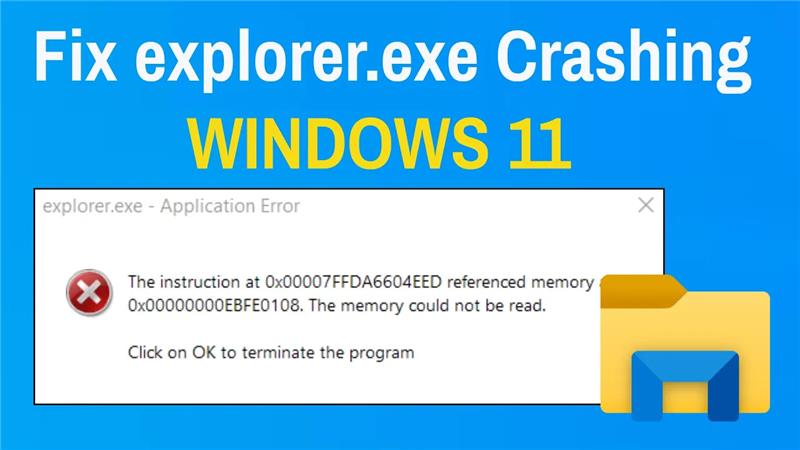
If explorer.exe keeps crashing in Windows 11, it can make your PC hard to use and disrupt your work. This problem is usually caused by system glitches, corrupt files, buggy drivers, or bad updates. The good news is there are simple ways to fix it, like clearing Explorer’s cache, updating drivers, running system scans, and restarting the Explorer process. In this blog, you’ll learn easy step-by-step methods to solve explorer.exe crashing issues and get your Windows 11 system working properly again.
🛠 Step-by-Step Fixes for explorer.exe Crashing
1. Restart the Explorer Process
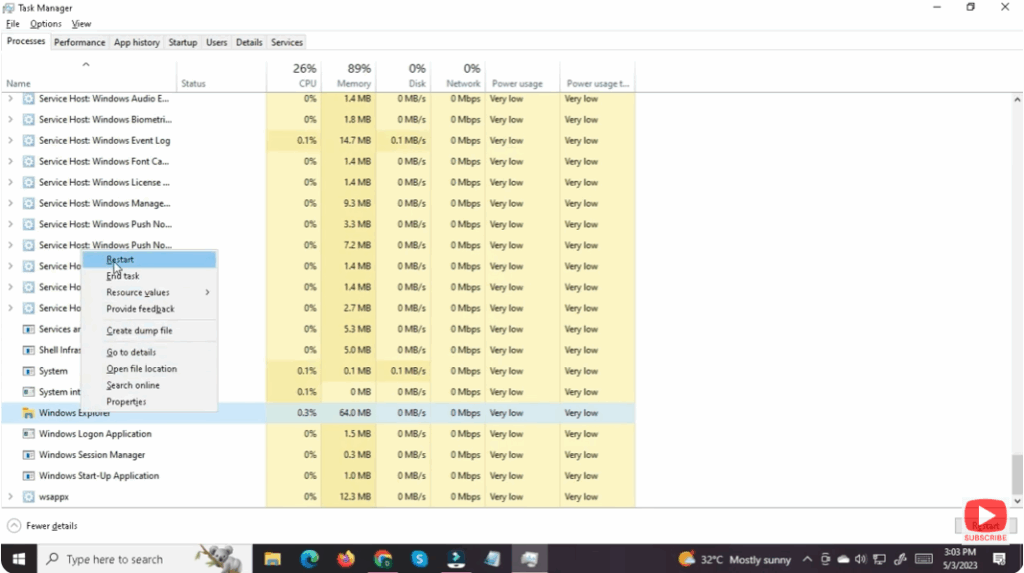
- Press Ctrl + Shift + Esc to open Task Manager.
- Under the Processes tab, find Windows Explorer.
- Right-click it → Restart.
- This reloads the desktop, taskbar, and File Explorer without restarting your PC.
2. Run System File Checker (SFC) + DISM
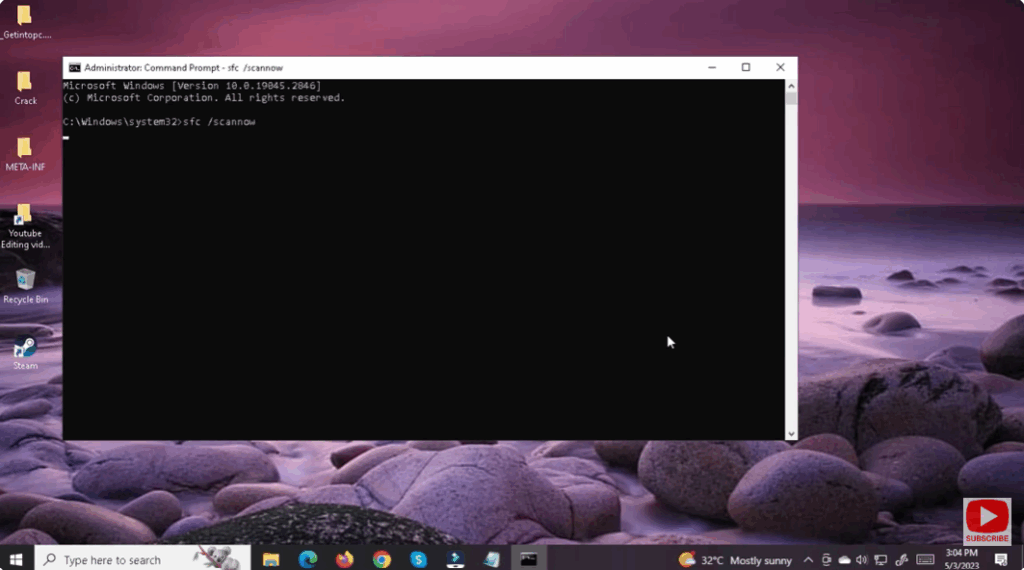
These built-in tools repair corrupted Windows system files:
- Open Command Prompt as administrator.
- Run:
sfc /scannow - Wait for the process to complete.
✅ Final Thoughts
explorer.exe crashes in Windows 11 are annoying but usually fixable. By restarting Explorer, clearing its cache, repairing system files, disabling suspect extensions, updating graphics drivers, and isolating conflicting programs, you can restore stability.
If explorer keeps crashing even after all troubleshooting, it could be a deeper system issue. In that case, back up your data and consider doing a system repair or fresh install.






