

If you want to play your favorite Android games on a bigger screen, then BlueStacks 5 is the perfect solution. 🎮💻 It’s a free Android emulator that lets you run mobile apps and games smoothly on your Windows 10 computer. The best part is, downloading and installing BlueStacks 5 is very simple and doesn’t require any technical skills. In this blog, we’ll guide you step by step on how to download and install BlueStacks 5 on Windows 10, so you can enjoy all your Android games right on your PC.
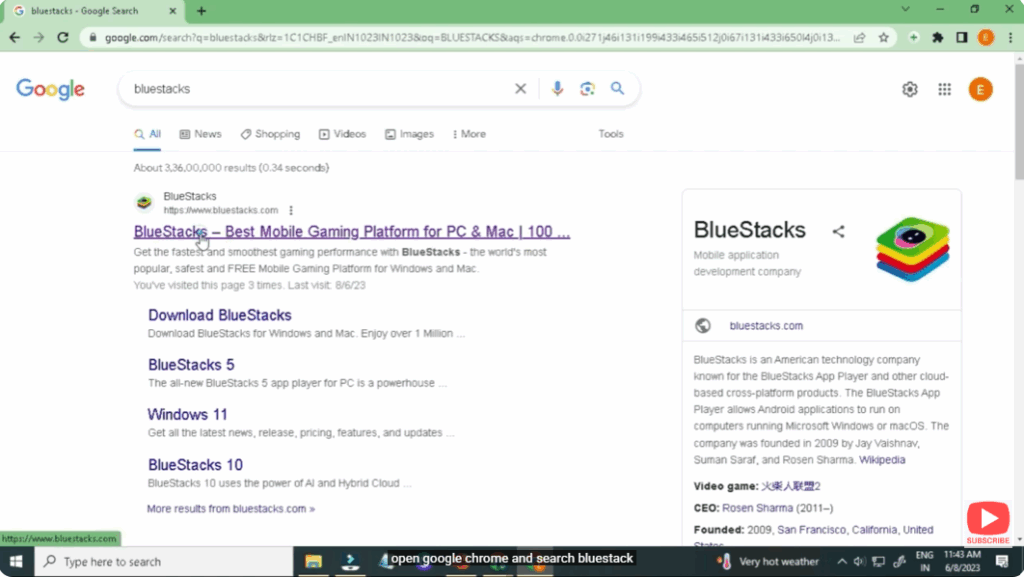
First, open Google Chrome and search Bluestack.
After the website opens, simply click on the install button.
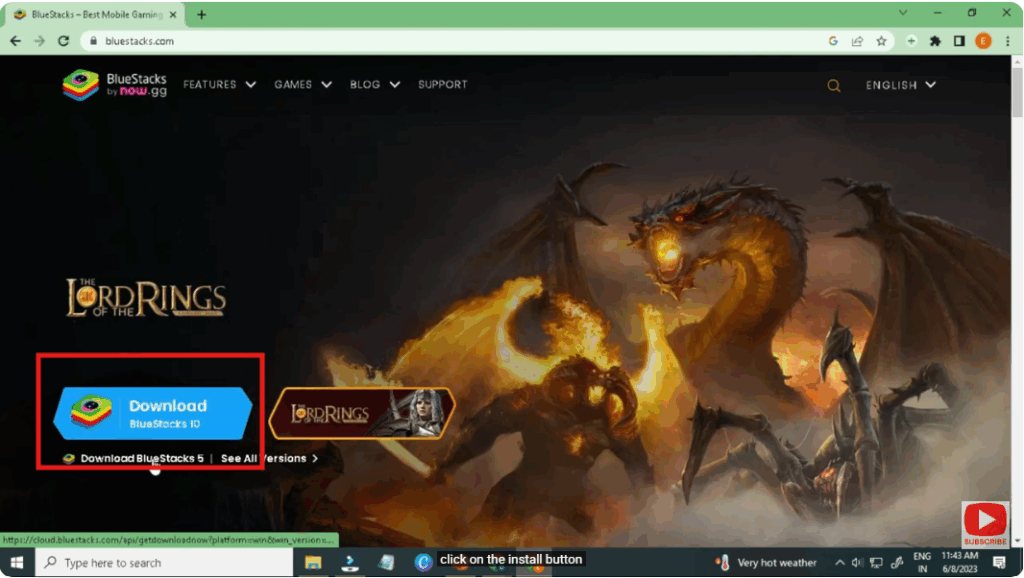
That’s it! Now Bluestack will start downloading on your system.
Conclusion
Installing BlueStacks 5 on Windows 10 is a simple way to bring all your favorite Android games and apps to your computer. With just a few easy steps, you can enjoy smooth gameplay, better performance, and the comfort of a bigger screen. Whether you’re a gamer or just want to use mobile apps on PC, BlueStacks 5 makes it possible without any hassle. Try it today and turn your computer into the ultimate Android gaming machine.






