
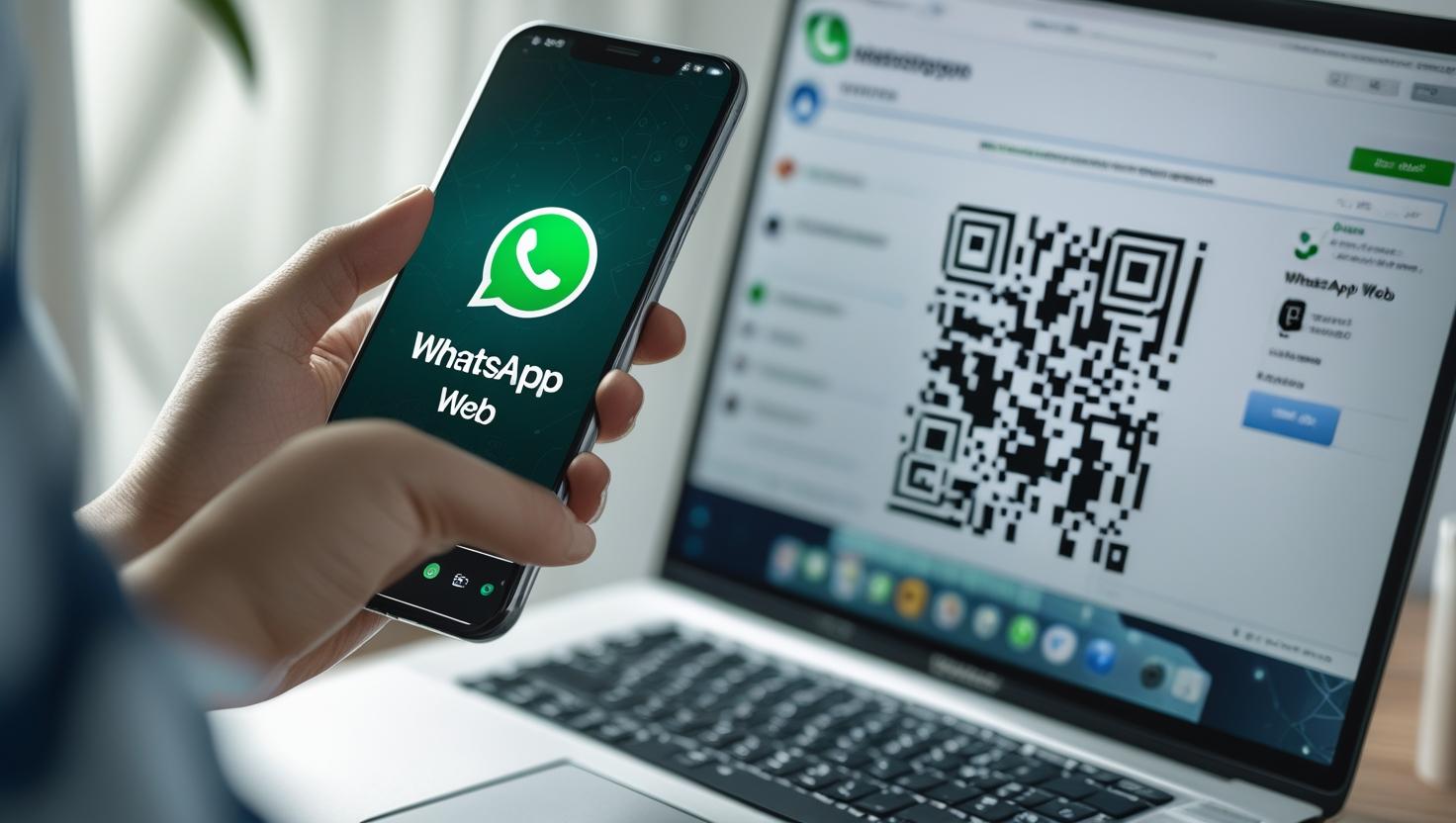
WhatsApp Web is a quick and convenient way to use WhatsApp directly on your laptop or desktop without needing to install any software. Whether you’re working, typing long messages, or want to access WhatsApp on a bigger screen, this guide will help you connect WhatsApp to your PC in just a few steps.
What is WhatsApp Web?
WhatsApp Web is the browser-based version of the WhatsApp messaging app. It syncs with your mobile app in real-time, letting you send and receive messages directly from your laptop or PC.
Steps to Connect WhatsApp Web on Laptop or PC:
Step 1: Open WhatsApp on Your Mobile Phone
- Make sure you have WhatsApp installed on your smartphone (Android or iPhone).
- Connect your phone to the internet (Wi-Fi or mobile data).
Step 2: Go to WhatsApp Web on Your PC
- Open any web browser (Google Chrome, Edge, Firefox, etc.)
- Go to: https://web.whatsapp.com
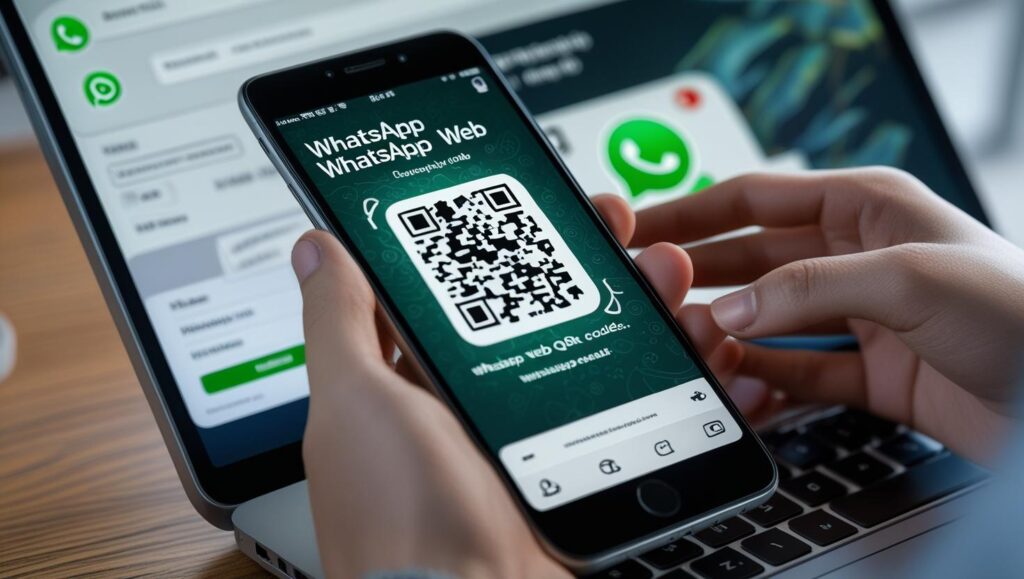
You’ll see a QR code on the screen.
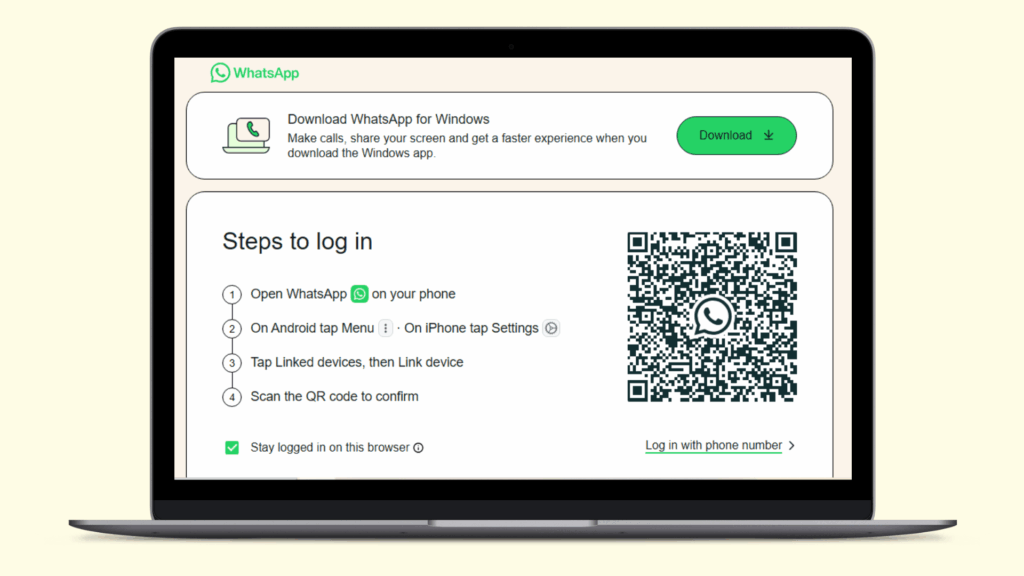
Step 3: Scan the QR Code with Your Phone
For Android:
- Open WhatsApp
- Tap the three dots (⋮) in the top right corner
- Tap “Linked devices”
- Tap “Link a device”
- Scan the QR code shown on your computer screen
For iPhone:
- Open WhatsApp
- Go to Settings > Linked Devices
- Tap “Link a Device”
- Scan the QR code shown in your browser
Step 4: Wait for Syncing
- Once scanned, WhatsApp will automatically log in on your PC browser.
- All your chats will load instantly.
Now you can chat, send files, images, voice notes, and more — right from your desktop!
Is WhatsApp Web Safe to Use?
Yes! WhatsApp Web is encrypted just like the mobile app. However, don’t forget to log out after use, especially on public or shared computers.
To log out:
- On your PC: Click the three dots (⋮) at the top of WhatsApp Web → Select Log out
- Or on your phone: Go to Linked Devices → Tap the active session → Tap Log out
Tips for Better WhatsApp Web Experience
- Use Google Chrome or Microsoft Edge for best performance
- Your phone must stay connected to the internet
- Enable desktop notifications to stay updated with messages
- You can link multiple devices in newer versions of WhatsApp (no need to keep phone always online)
Conclusion
That’s it! You’ve now learned how to connect WhatsApp Web to your laptop or PC quickly and safely. This is a great way to stay productive and respond to chats more efficiently, especially when working or studying.
For more tutorials like this, don’t forget to subscribe to our YouTube channel Tech Gitter Official or bookmark our blog for daily tech guides.






