
If you see Microsoft Store error code 0xC002001B on your Windows 10 or 11 PC, it means there is a problem with the Store app or its cache. This error can stop you from downloading or updating apps. But don’t worry — there are easy ways to fix it, such as resetting the Store cache, running the troubleshooter, restarting essential services, or reinstalling the Microsoft Store. In this blog, you will learn simple steps to fix error 0xC002001B and get your Microsoft Store working again smoothly.
We will fix Microsoft Store error 0xC002001B. Follow the steps below:
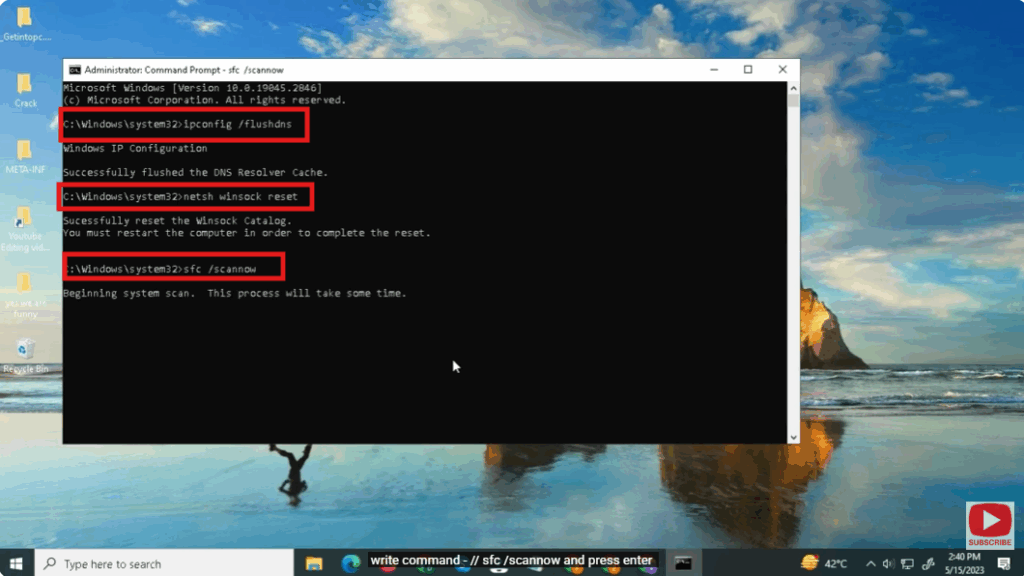
- open command prompt
- write command –
ipconfig /flushdns
and press enter - write command –
netsh winsock reset
and press enter - write command –
sfc /scannow
and press enter - restart your pc
- open windows powershell
Final Words
Fixing the Microsoft Store Error 0xC002001B becomes simple when you follow the right troubleshooting steps. By resetting network configurations, repairing system files, and using PowerShell commands, you can easily restore the Microsoft Store to normal working condition. I hope this guide helped you resolve the issue quickly.






