
Sometimes on Windows 10 or Windows 11, you may click on an app and nothing happens—it just won’t open. This can be really frustrating, especially if it’s an app you use every day for work, study, or entertainment. The good news is, this problem is very common and usually caused by simple issues like updates, corrupted files, or wrong settings. In this blog, we’ll explain in easy language the real fixes for Windows apps not opening in 2026, so you can get your apps running smoothly again without stress.
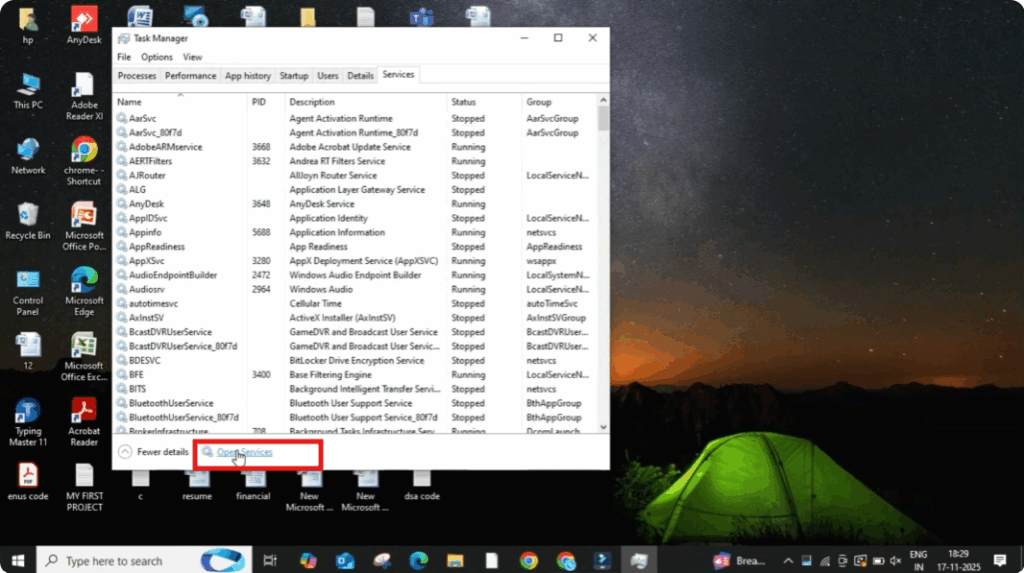
Firstly, right click on your taskbar and then click on Task Manager. After Task Manager opens, go to the Services tab. Here you will see an option called Open Services at the bottom. Click on it.
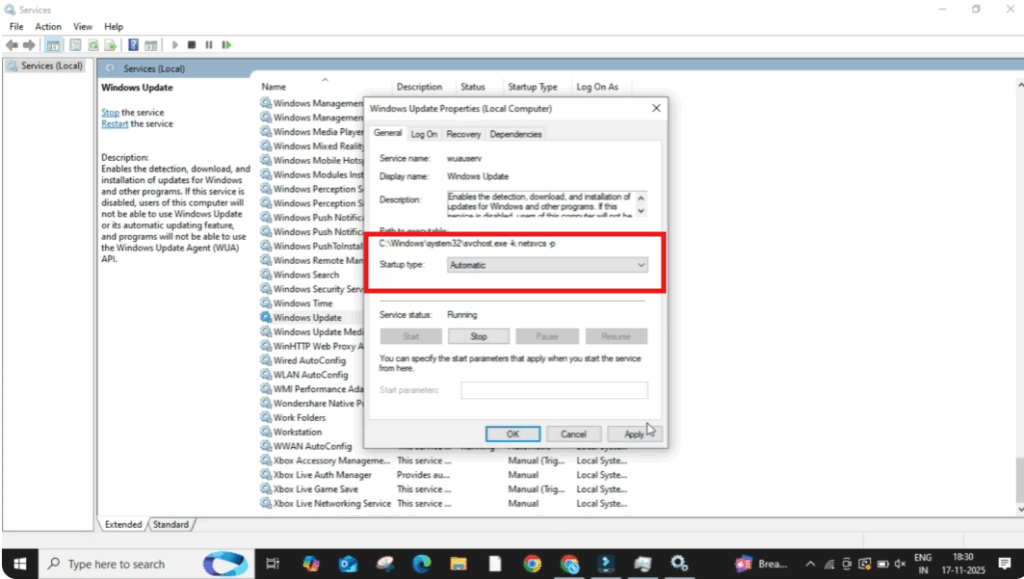
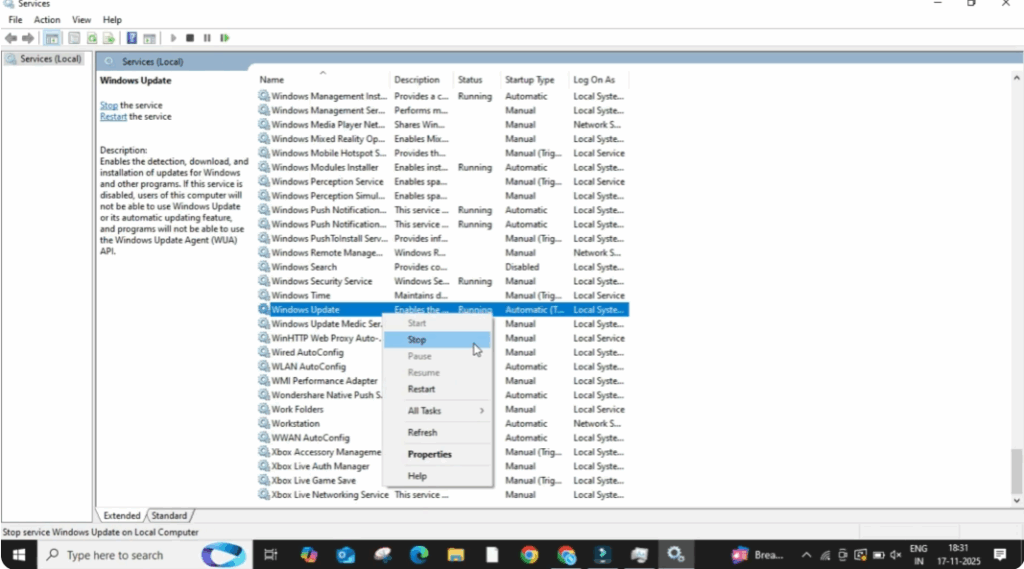
Now a new window will appear with a long list of Windows services. Scroll down and find Windows Update. Once you find it, double click on it.
Now a small settings window will open. Here change the Startup type to Automatic. Then click on Apply and then OK.
After that, right click on Windows Update again and select Stop. This will temporarily stop the update service so we can clear the old files. Once it stops, close the window.
Now right click on the empty desktop and click on Refresh once. After refreshing, open File Explorer. Then click on This PC.
Now open your C Drive, and inside this scroll down until you find the Windows folder. Open it.
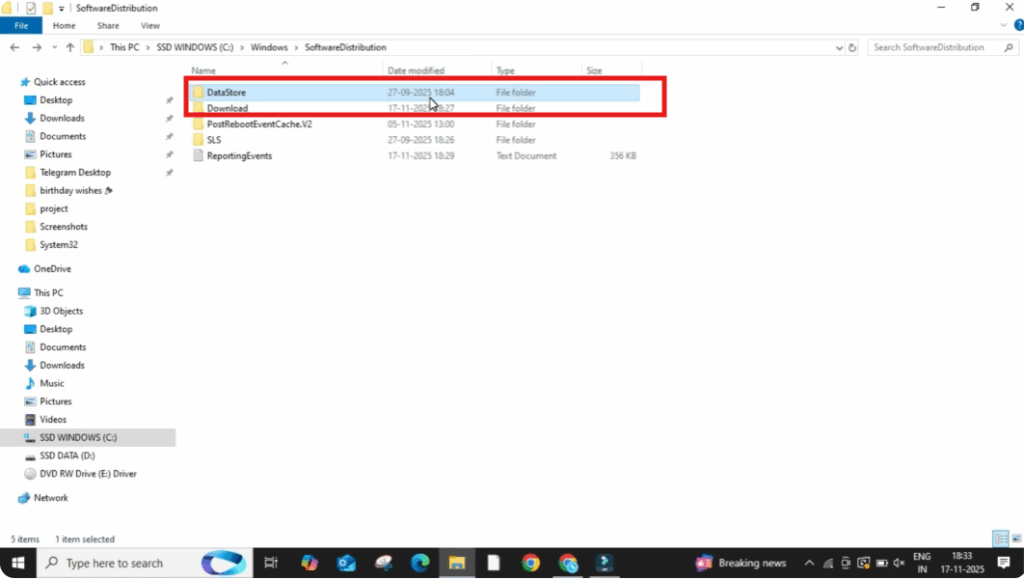
Under the Windows folder, scroll down and look for a folder named Software Distribution. Open it, and inside you will see two folders: DataStore and Download. Select both of them and delete them. These are temporary update files and completely safe to remove.
Once done, close File Explorer.
Now click on the Windows icon, open the Power button and select Restart. Your system will restart and refresh all the necessary files.
After the restart, try opening the app again. In most cases, the app will start working normally without any errors.






