
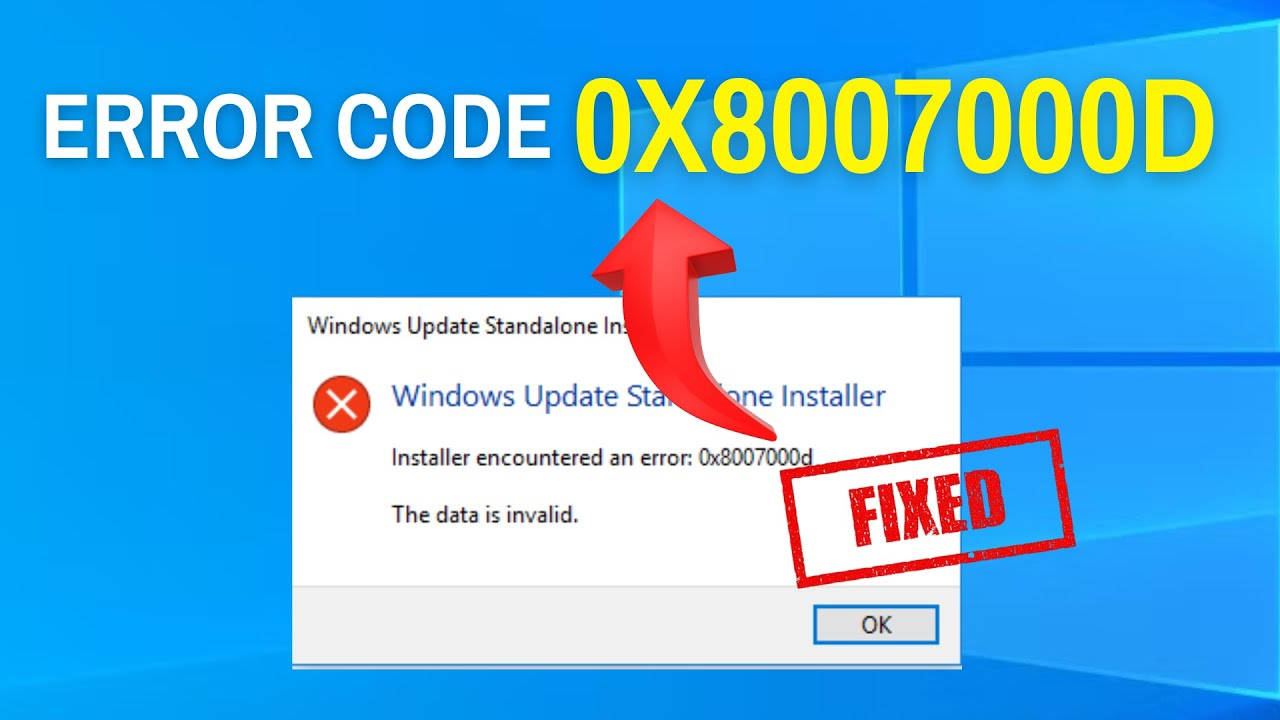
Error code 0x8007000d usually means that some important system files needed by Windows updates are missing or damaged. When you see this error, it stops your updates from installing properly, which can cause issues with your computer. In this blog, you will learn easy and effective methods to fix the 0x8007000d error, like running the Windows Update troubleshooter, checking and repairing system files, and using the media creation tool to update Windows safely. These steps will help you get your PC back on track smoothly.
Method One: Use Windows Update Troubleshooter
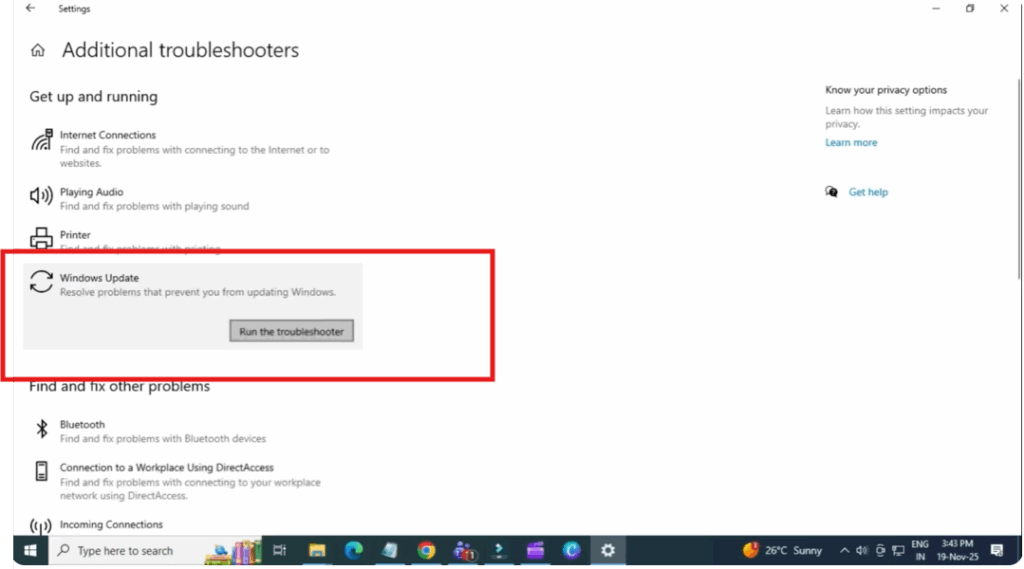
First, click on the start button and open settings. Now go to update and security. On the left side, click troubleshoot and then select additional troubleshooters. Here choose Windows update and click run the troubleshooter. This built-in tool automatically detects the issue and applies the fix for you. Once it completes, restart your PC.
Method Two: Repair System Files
Now, if the first method doesn’t work, don’t worry. Click the search bar and type cmd. Right-click command prompt and select run as administrator. Now type this command sfc/scannow and press enter. This will scan and repair corrupted system files. After that, type:
dism.exe /online /cleanup-image /restorehealth
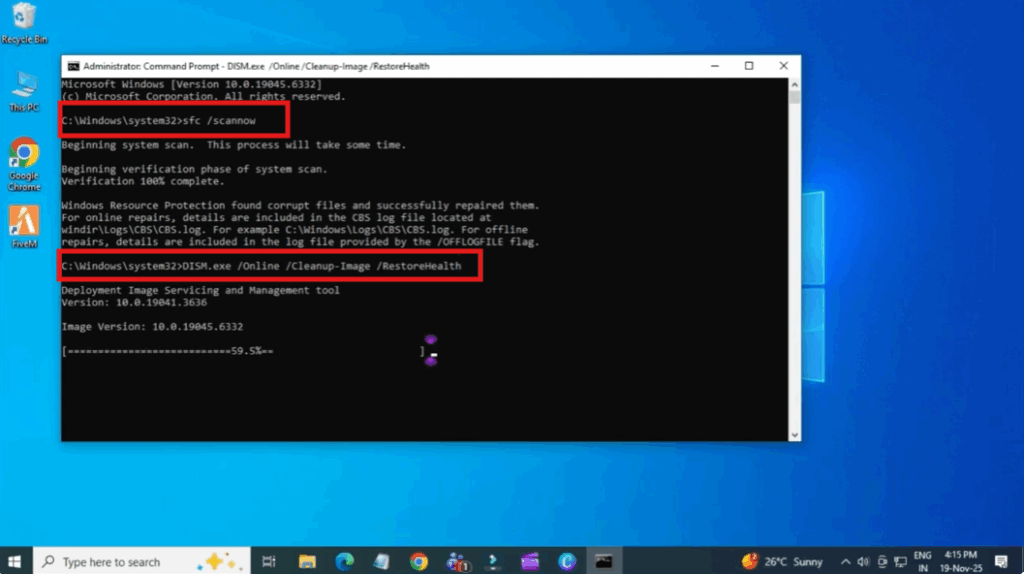
This command repairs the Windows update components. Once everything is done, restart your system.
Method Three: Update Windows Using the Official Update Assistant
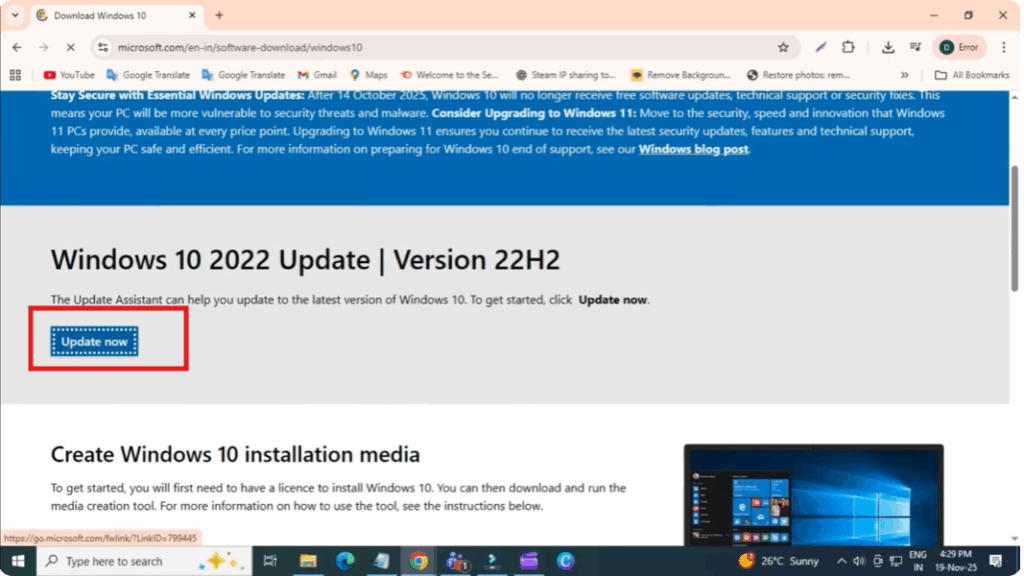
Open any browser now. Open the link shown on the screen. You can also copy and paste the link in the video description. Scroll down and click update. Now a small tool will download. Once the download complete, open it and follow the steps to update Windows to the latest version without errors.
Method Four: Use Media Creation Tool
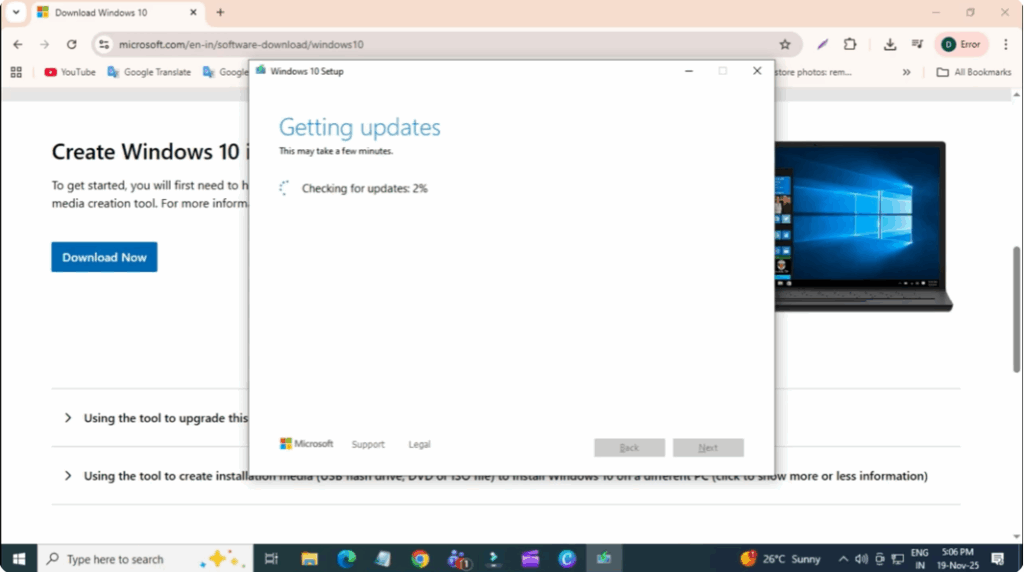
If your update still fails, then use the media creation tool. Open the browser and type media creation tool in the search bar. Click on download Windows 10 disk image ISO file from Microsoft’s official website. Click download tool now. Open the tool. Click accept. Then click next and again click accept. Make sure the option install Windows 10 and keep personal files and apps is selected. This will reinstall Windows without deleting your data and fix the update error completely.






