
Sometimes on Windows 10 or Windows 11, you may notice that Windows Defender (the built-in antivirus) won’t turn on. This can be worrying because it leaves your computer unprotected from viruses and threats. The good news is, this is a common issue and can usually be fixed with a few simple steps. In this blog, we’ll explain in easy language the real and permanent fixes for Windows Defender not turning on in 2026, so you can keep your PC safe and running smoothly.
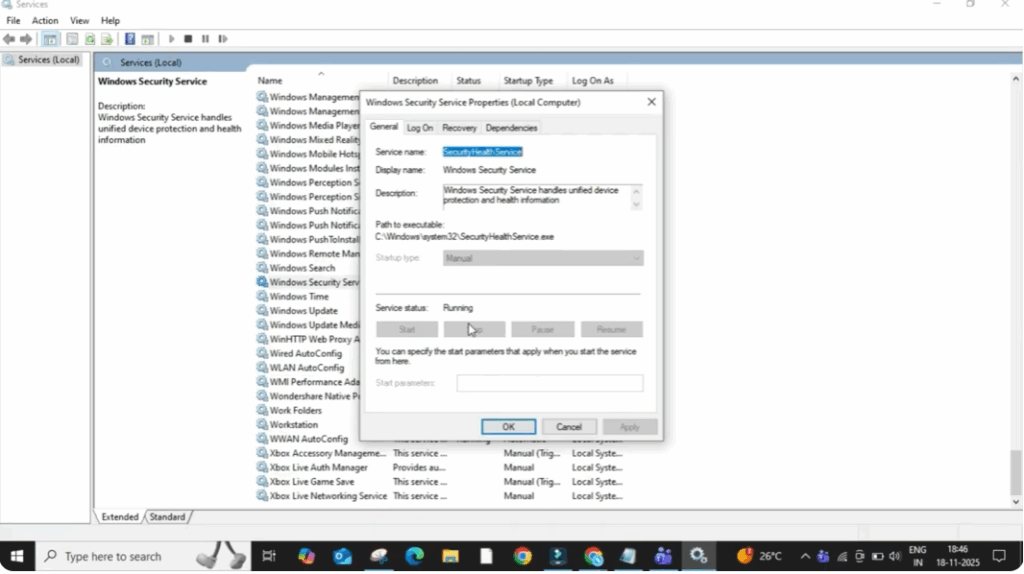
Firstly, click on the search bar on your home screen and type services and then click on it. A new window will open showing a long list of system services.
Now, scroll down and try to find Windows Security Service. Click on it and check the blue line where the status is written. If it is off, simply double-click on the service and turn it on. This usually activates the basic protection immediately.
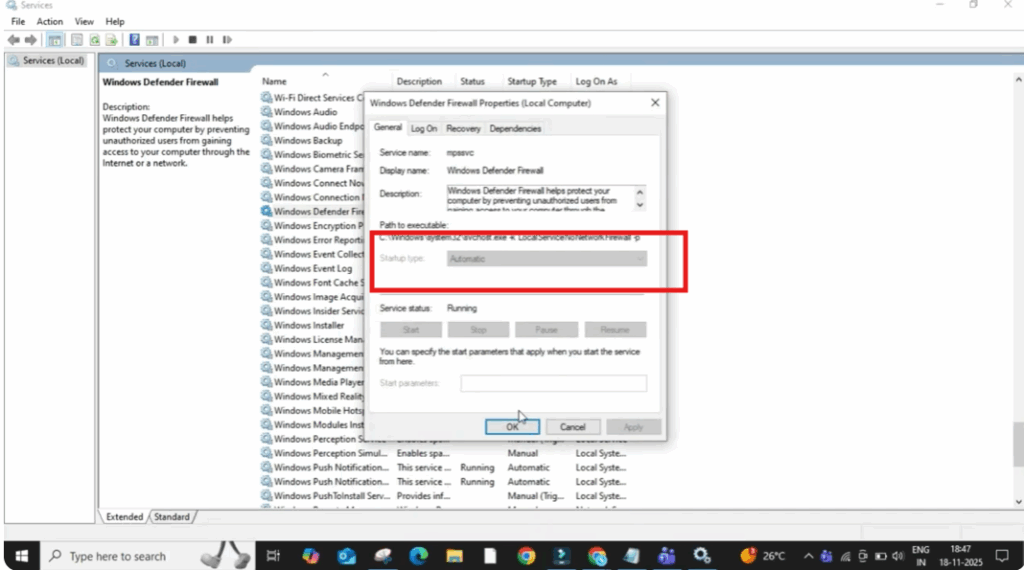
After that, scroll again and open Windows Defender Firewall. Here, check the startup type. It must be set to automatic. If it is not, change it to automatic and then close the window. This ensures Defender starts automatically every time you boot your system.
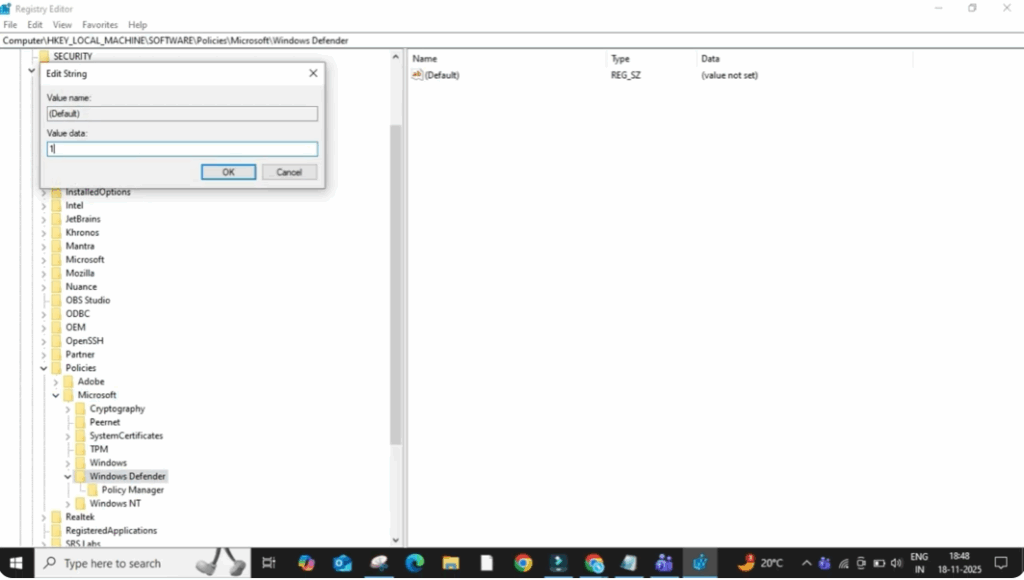
Now again click on the search bar and type regedit. You will see Registry Editor. Click on it. If a permission pop-up appears, press Yes.
Inside the registry editor, click on HK Local_Machine. Then click on Software. Then open Policies and finally click on Microsoft. Inside this folder, you will see a Default value. Double-click on it and set the value to 1. Once changed, close the registry editor completely.
Now click on the Windows icon, open Power Options, and select Restart. In most cases after restarting the system, Windows Defender starts working normally.






