
If you want to keep all your games in one place, you can easily add non-Steam games to your Steam library. This means you can launch games bought from other stores or installed from CDs right through Steam. In this blog, you’ll learn simple steps to add any non-Steam game by selecting the game’s file and adding it to Steam, so you can enjoy your favorite games with all the Steam features like easy access and friends list.
How to Add Non-Steam Games to Steam – Step by Step
The game will now appear in your Steam Library under “Non-Steam” entries.
- Open Steam
- Launch the Steam client on your PC and log in to your account.
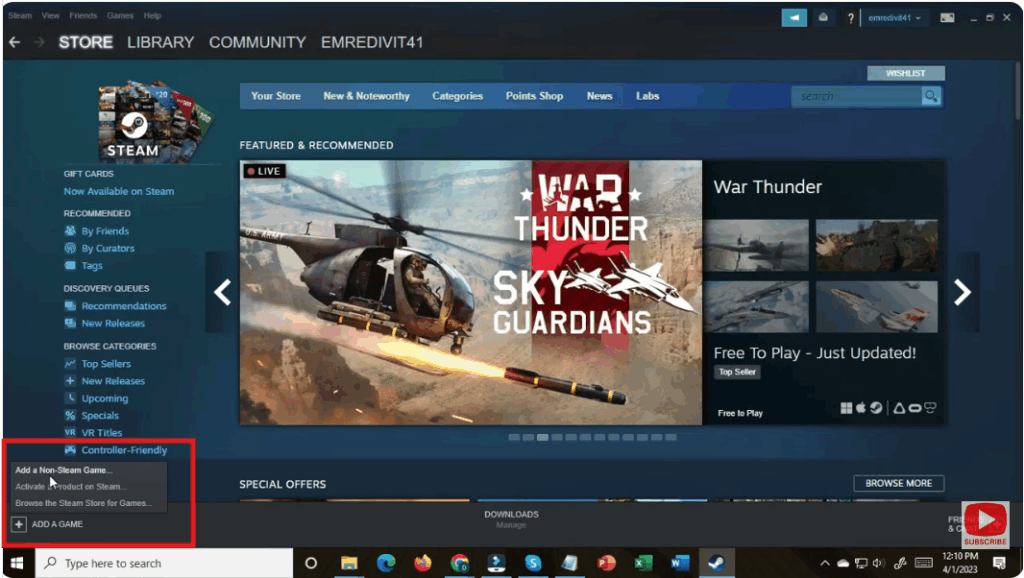
- Go to “Add a Game”
- In Steam, click on the Games menu on the top bar.
- Choose “Add a Non-Steam Game to My Library” from the dropdown.
- Select the Game / Browse for It
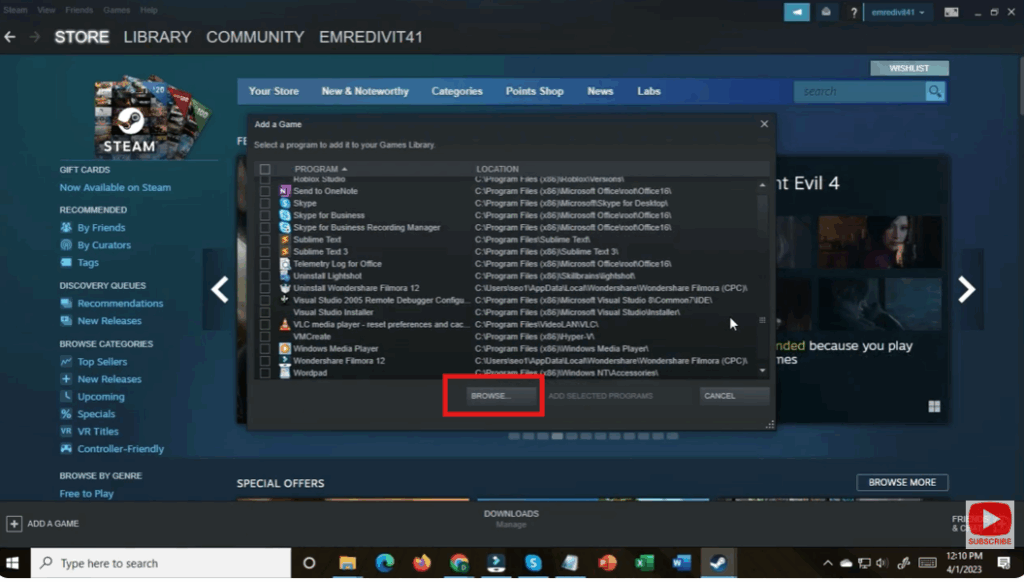
- A window will pop up listing installed applications. Browse through the list to check the game you want to add.
- If the game isn’t listed, hit the Browse button and navigate to the location of the game’s
.exefile.
- Add the Game
- After selecting the game (or games), click “Add Selected Programs”.
Conclusion
Adding non-Steam games to your Steam library is a simple and effective way to unify your game collection. Even though these titles won’t get full Steam integration (like achievements), you can still launch them via Steam, use its overlay, and enjoy a cleaner, more organized gaming setup. Give it a try — within minutes, you’ll have more control over all your PC games.






