
The STOP Error 0xc0000005 is one of the most common problems that Windows 10 and Windows 11 users face. It usually appears when you try to open a program or game, and instead of starting, it shows this error message. This can be very frustrating, but the good news is that it’s often caused by simple issues like corrupted files, wrong settings, or missing system components. In this blog, we’ll explain in easy language how to fix the 0xc0000005 error step by step with 100% working solutions, so you can get your computer running smoothly again.
Step One: Enable .NET Framework
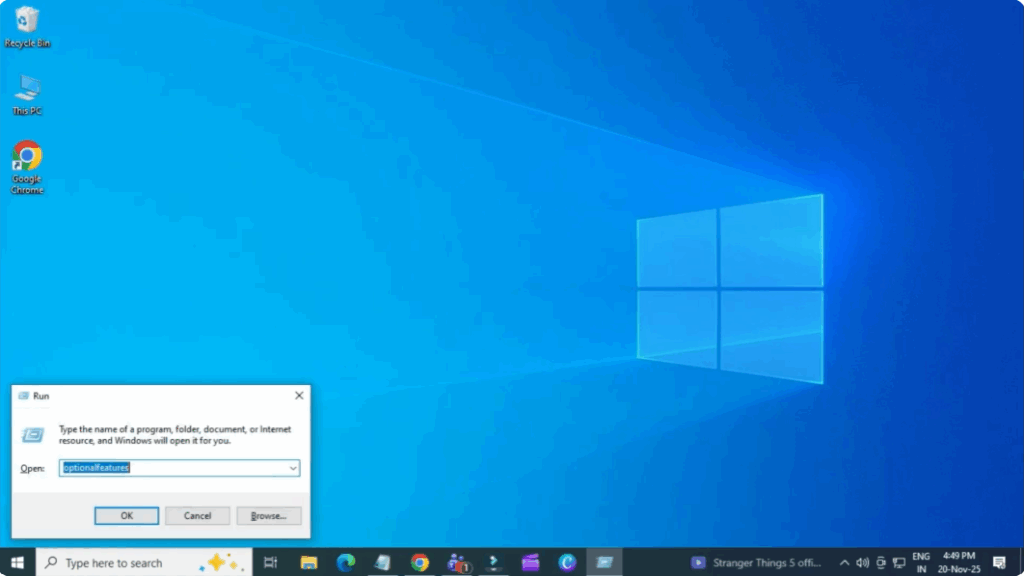
First, press Windows + R on your keyboard.
In the Run box, type optionalfeatures and click OK.
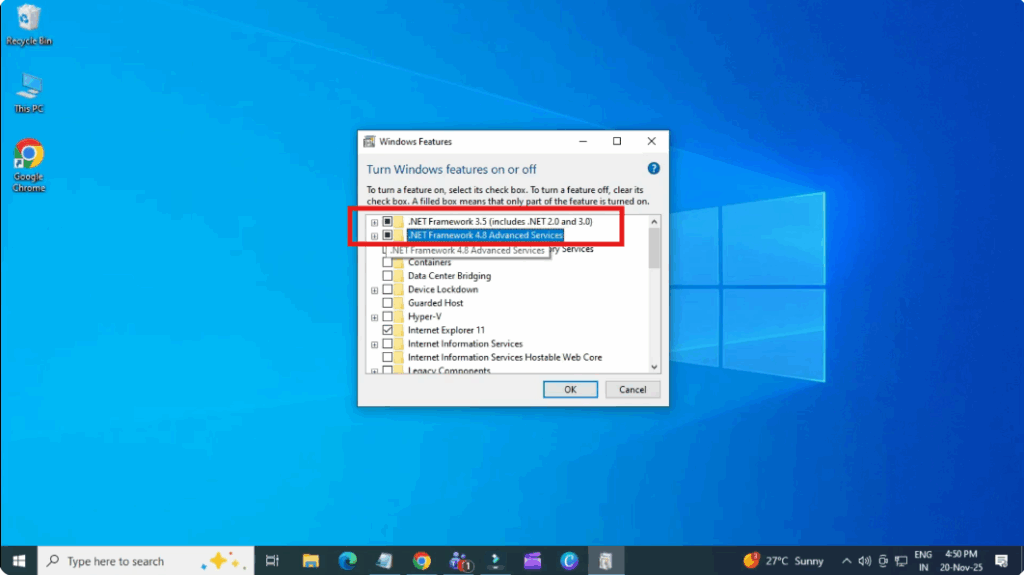
A new window will appear called Windows Features.
Here enable these two options:
- .NET Framework 3.5
- .NET Framework 4.7/4.8 Advanced Services (whichever version your PC shows)
Now click OK. Windows will automatically download the required files and install .NET Framework on your PC.
This step is important because many apps rely on .NET to run properly.
Wait for the installation to finish and then click Close.
Step Two: Fix System Issues Using CMD
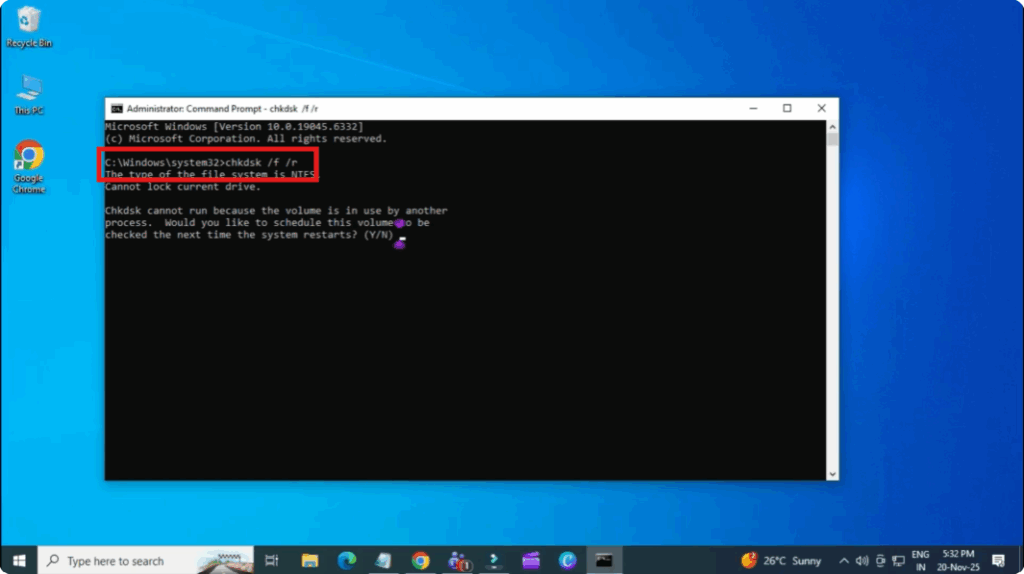
Now open the Start menu and type cmd.
Right-click Command Prompt and select Run as administrator.
Click Yes when prompted.
In the command prompt, type this command:
chkdsk /f /r
and press Enter.
This command checks your disk for errors and fixes corrupted system files that may be causing error 0xc000000005.
After the scan is complete, close Command Prompt and restart your computer.
Step Three: Try Opening the Application Again
After your system restarts, try opening the same application again.
In most cases, the error 0xc0000005 should now be completely fixed and the app will launch normally without any problem.






