
If your Windows update gets stuck and shows error code 0x800f081f, it means some important system files needed for the update are missing or corrupted. This can stop your PC from updating properly, which might cause problems later. In this blog, you will learn simple and powerful methods to fix the 0x800f081f error, like running built-in troubleshooters, using commands to repair system files, resetting update services, and even doing an in-place Windows 11 repair to get your updates working smoothly again.
Method One: Use Windows Update Troubleshooter
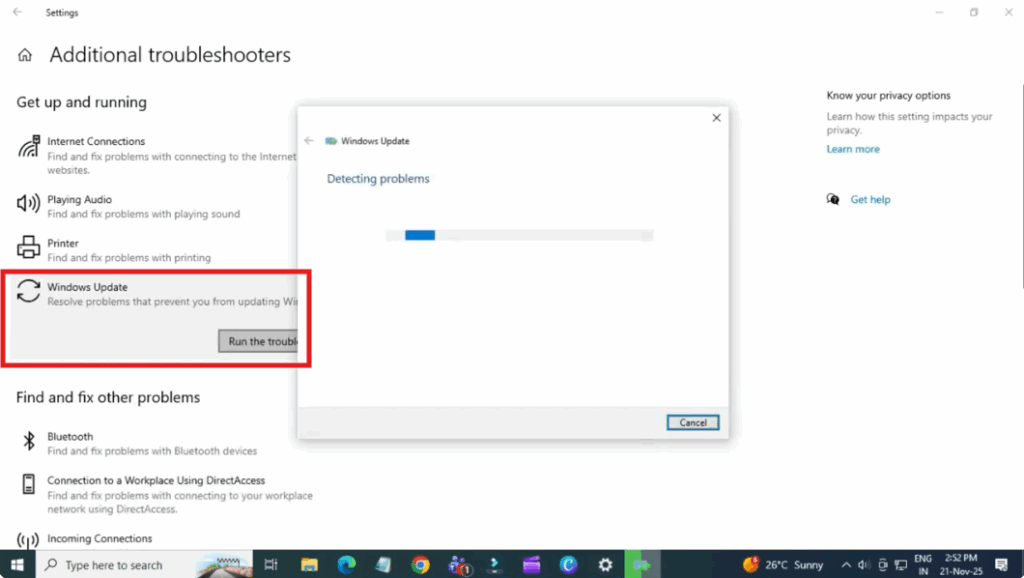
First click on the start button and open settings. Now go to update and security on the left side. Click troubleshoot and then select additional troubleshooters. Here choose Windows update and click run the troubleshooter. Windows will now automatically scan your system and fix update issues like missing components or blocked services. Once done, restart your PC and check again.
Method Two: Enable and Repair .NET Framework
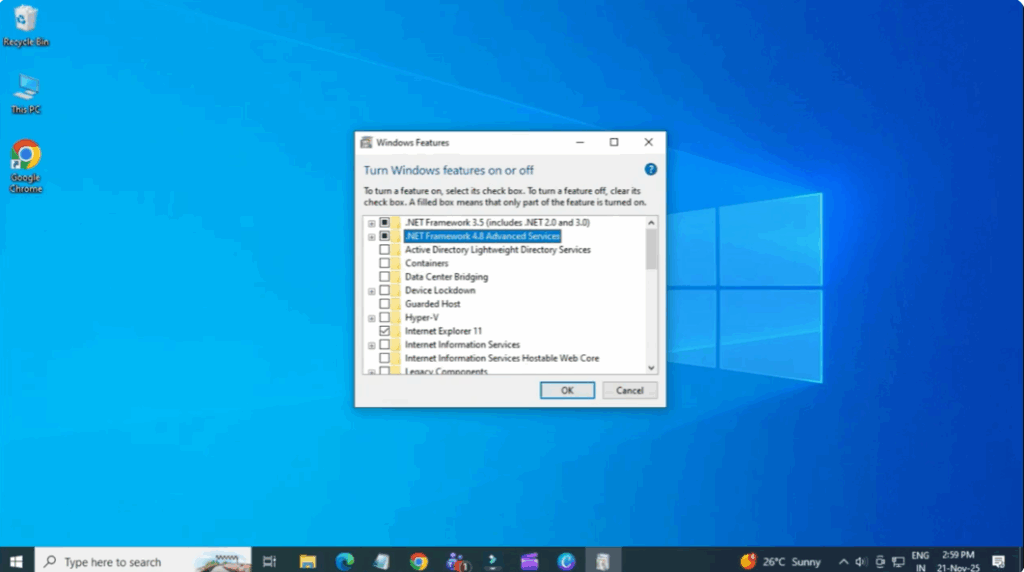
This error code is often linked to .NET framework missing or corrupt. So follow this. Press Windows plus R key. Here type optional features.exe and hit enter. A new window will appear called Windows features. Here enable these two options. Net framework 3.5 includes .NET 2.0 and 3.0.NET Framework 4.8 advanced services. Now click okay. If Windows needs additional files, click let Windows update download files for you. Wait for it to complete, then restart your PC.
Method Three: Use SFC and DISM Commands (Repair System Files)
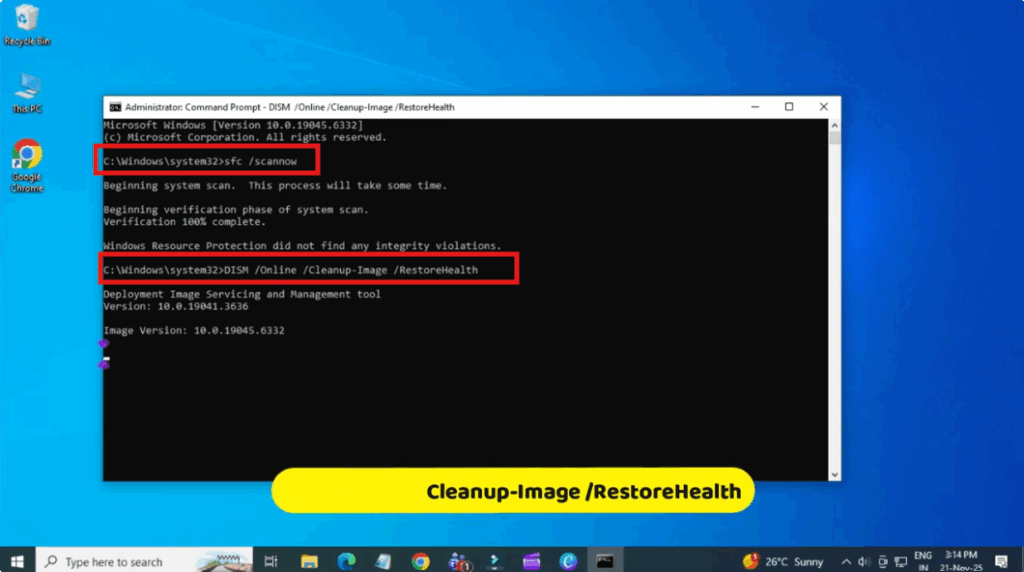
Now open the start menu and type cmd. Right-click command prompt and select run as administrator. Click yes when prompted. Now type these commands sfc/scan now and hit enter. Wait for the scan to reach 100%. Now type next command dsm/online/cleanup image/restorehealth and hit enter. This command repairs the component store. The main cause of this error. After it’s done, restart your computer.
Method Four: Download Update Manually Using the Microsoft Update Catalog
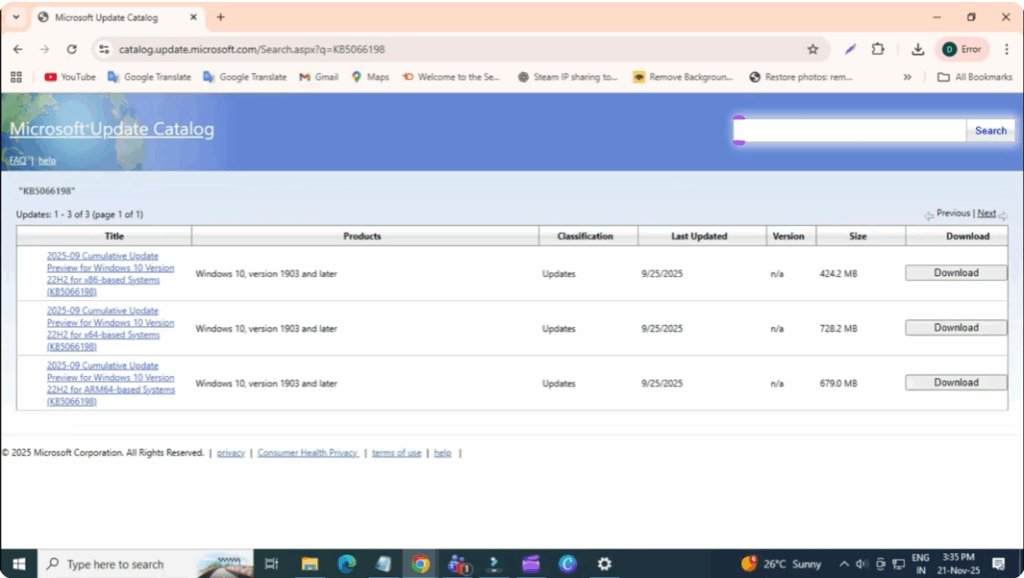
Open any browser. Visit the link catalog.update.microsoft.com. Here in the search box, type your update code. For example, download the correct version for your system. Install it manually. This bypasses Windows update and installs the update directly.
Conclusion
The 0x800f081f Windows Update error may look complicated at first, but in reality, it can be fixed with a few simple steps. ⚡ Most of the time, it happens because of missing files, corrupted system components, or update settings that need a quick reset. By following the easy methods we discussed, you can repair the error and get your updates working again.






