

If Windows shows the message “Need a new app to open this .EXE,” it means your PC doesn’t recognize how to run executable program files. This can happen if the file associations for .EXE files are broken or your system files are damaged. In this blog, you will learn easy methods to fix this problem by restoring the correct file associations, running system file checks, and resetting your PC if needed, so you can open and run your programs smoothly again.

Firstly, click on the search bar and type cmd. When Command Prompt appears, select Run as Administrator and open it. After it opens, copy this entire command and paste it into the CMD window:
Get-AppXPackage -AllUsers | Foreach {Add-AppxPackage -DisableDevelopmentMode -Register “$(_.InstallLocation)\AppXManifest.xml”}
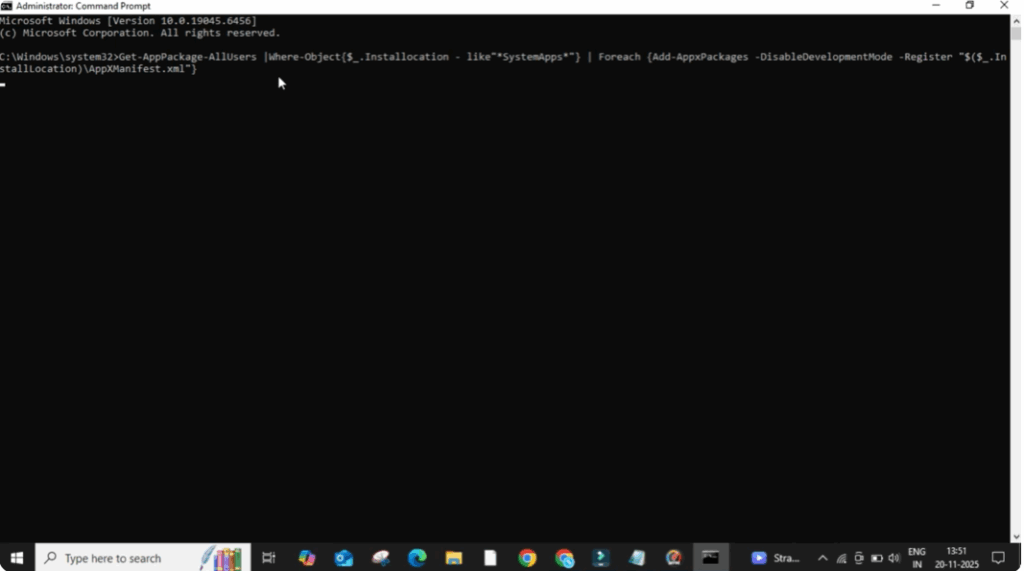
Once you paste it, press Enter. If CMD completes the process smoothly, try opening your EXE file again.
But if CMD shows errors or the issue is still not fixed, then move on to the next method.
Now go back to the search bar and type regedit. Click on Registry Editor and allow the permission popup. Inside the Registry Editor, click on HKEY_CLASSES_ROOT. From the list below, find .exe and click on it.
On the right side, select the Default value and make sure the value data is exefile. If it is correct, click OK.
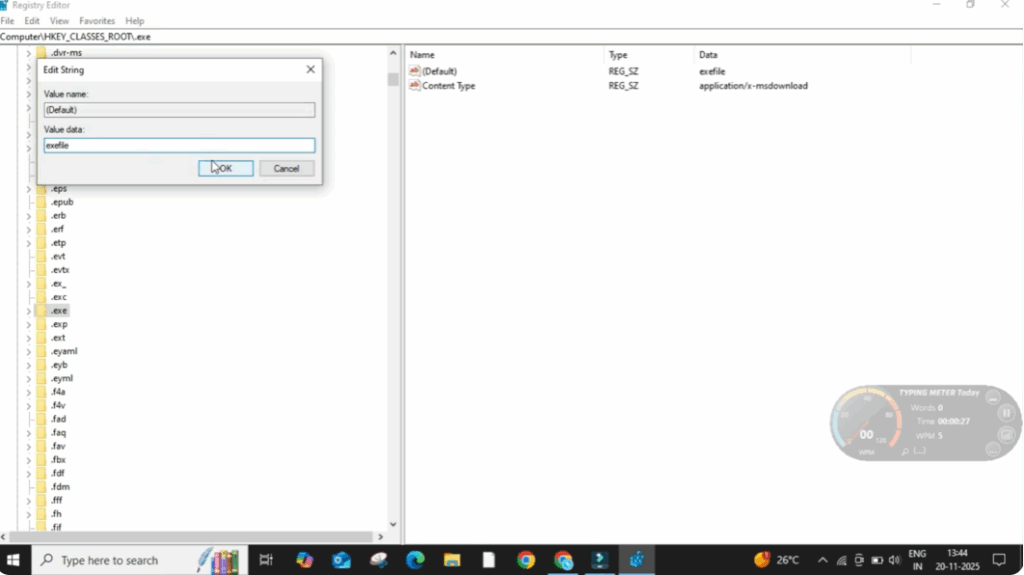
Next, scroll down in the same list and find exefile. Click on it. Then open the folder named shell and then click on open. Inside open, double-click on command.
Now look at the right panel and double-click on the Default entry. The value data should be:
“%1” %*
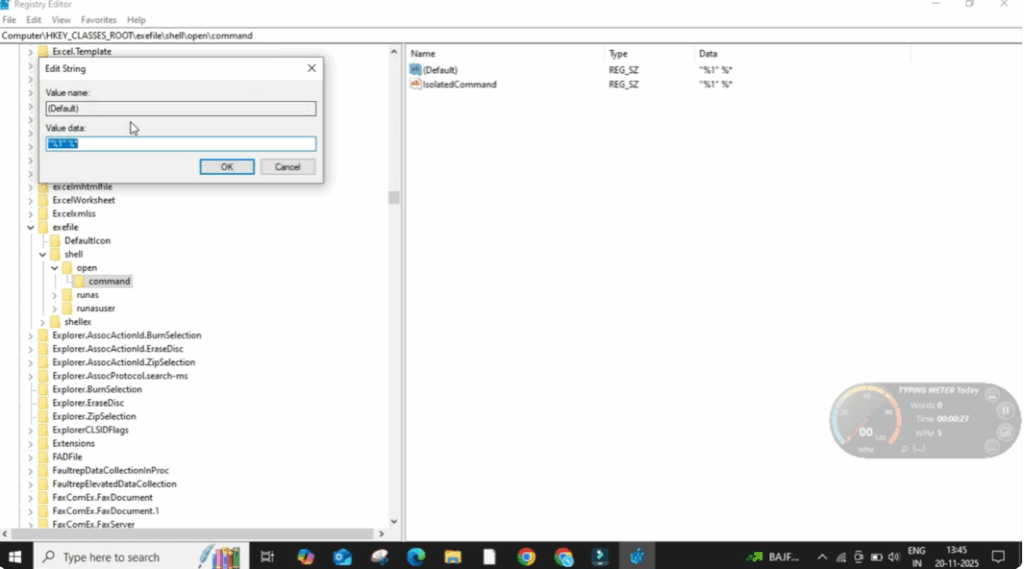
If this value is different, correct it and click OK.
Once all settings are done, close the Registry Editor.
Finally, click on the Windows icon. Go to Power Options and select Restart. After the restart, try opening your .exe file again. In most cases, this solves the problem completely.






