
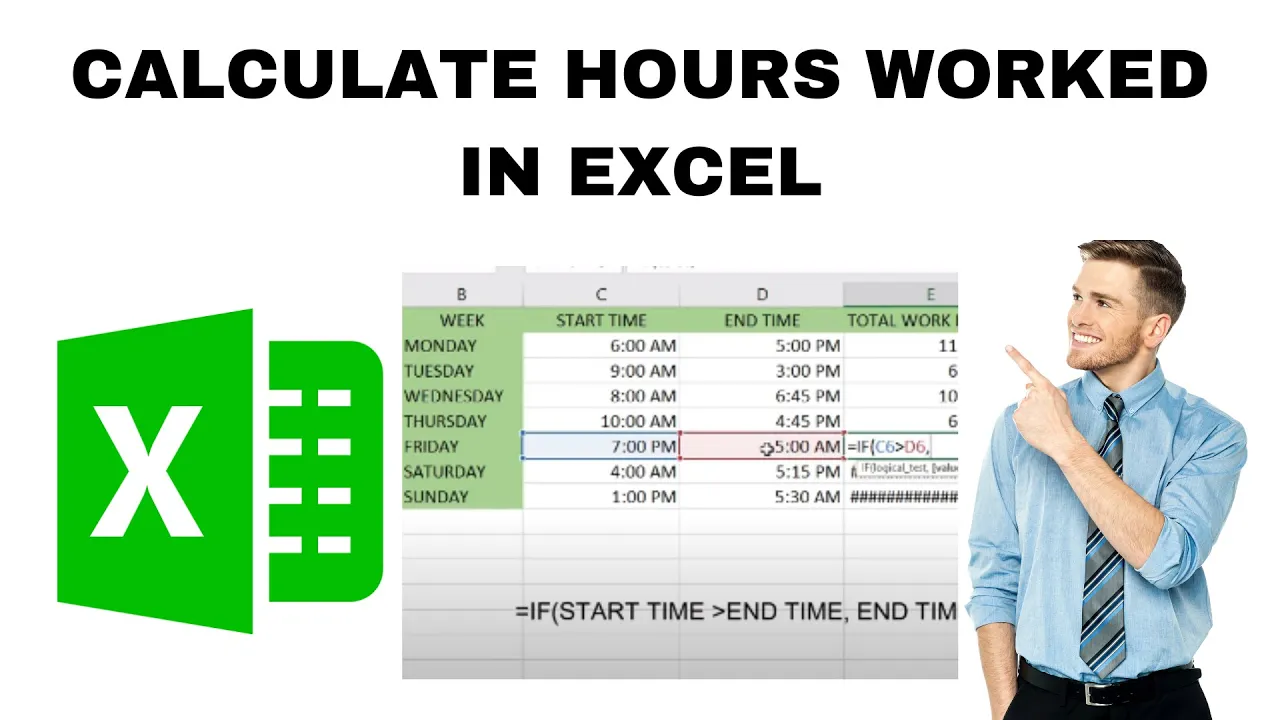
Calculating hours worked in Excel when the time goes past midnight can be tricky, but it’s easy with the right formula. This happens when someone starts work one day and finishes after midnight the next day. In this blog, you will learn simple ways to calculate time spans that cross midnight using Excel formulas, so you always get the correct number of hours worked, even overnight.
How to Calculate Hours Worked in Excel (Including Midnight Time Span)
Step 1: Start with Basic Time Format
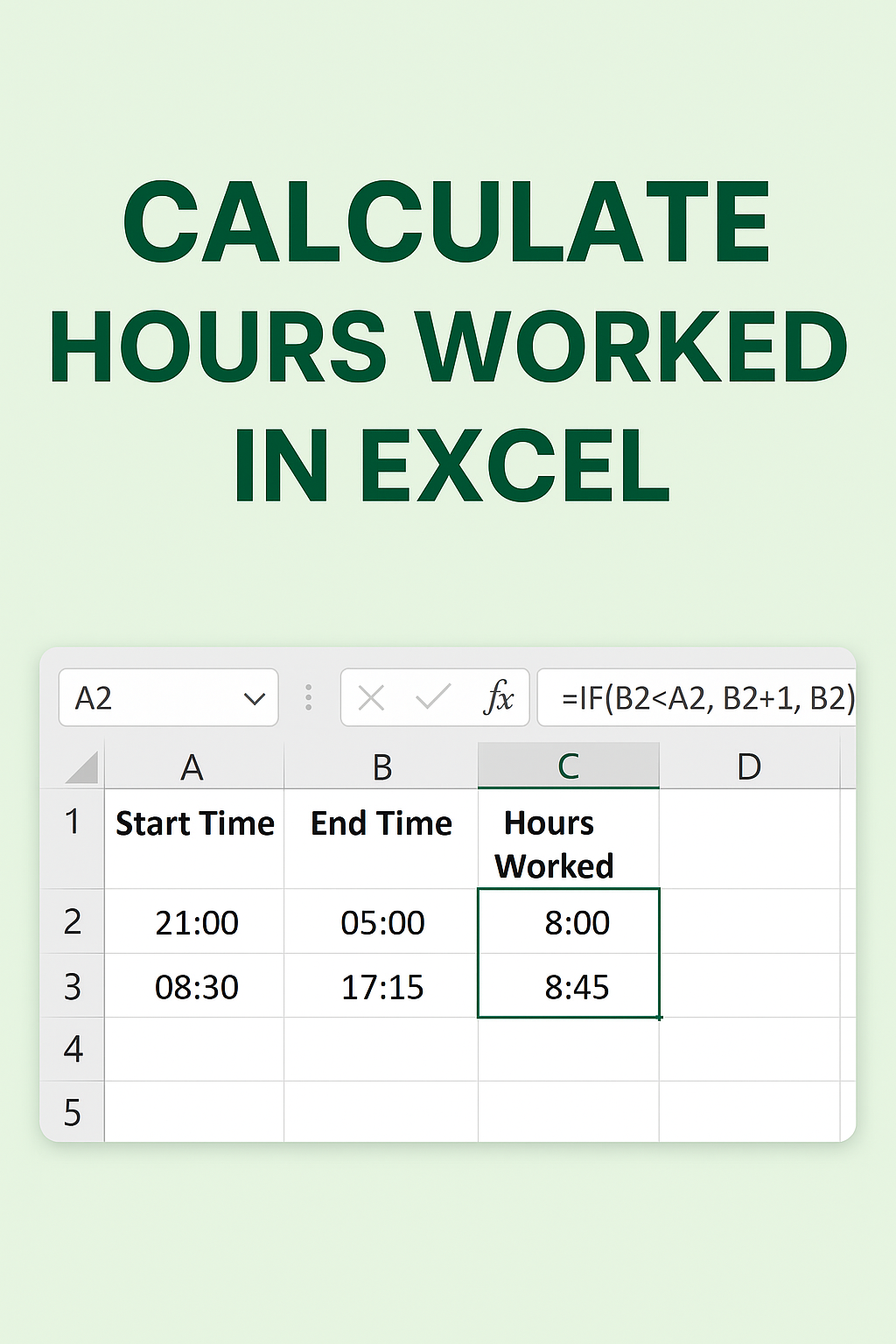
- In one column, enter the Start Time (e.g., 21:00 for 9 PM) in cell A2.
- In the next column, enter the End Time (e.g., 05:00 for 5 AM next day) in cell B2.
- Format these cells as time: select the cells → right-click → Format Cells → choose Time (for example “13:30” format).
Step 2: Use a Formula That Handles Midnight Span
Because the end time might be technically “less” than the start time (in a 24-hour clock), we need to adjust the formula to add a full day when the shift crosses midnight. A proven formula:
=IF(B2 < A2, B2 + 1, B2) - A2
Here:
A2= start timeB2= end time- If
B2 < A2, that means the end time is after midnight, so we add1(one full day) toB2. - Then we subtract the start time
A2.
This gives the correct time-difference as a decimal of a day.
If you want the result in hours rather than a time format, use:
=(IF(B2 < A2, B2 + 1, B2) - A2) * 24
This multiplies the result by 24 (hours in a day) to get the number of hours worked.
Step 3: Apply Correct Formatting
- If you want the result to show as hours and minutes, format the result cell using Format Cells → Custom → [h]:mm.
- If you used the decimal hours approach (multiplying by 24), format the cell as Number (with 1 or 2 decimals) or General.
- For ease, label the column as Hours Worked and place the formula there.
Step 4: Copy Formula Down for Many Rows
Once your formula works for one row, you can drag the fill handle down the column to apply the same logic to all rows (for multiple employees or shifts). Make sure the cell references update correctly (if using relative references) or lock them if needed.
Step 5: Check & Handle Edge Cases
- If someone starts just before midnight and ends just after midnight (e.g., 23:50 to 00:30), the formula handles it, giving ~0.67 hours.
- If shifts could span more than one day (more than 24 hours), you might need to include full date & time stamps rather than only times.
- If a cell is blank or invalid, wrap the formula in an
IFto avoid error messages. For example:=IF(OR(A2="", B2=""), "", (IF(B2 < A2, B2+1, B2)-A2)*24)This prevents calculation when one of the times is missing.
Conclusion
Calculating hours worked in Excel is easy when the start and end times fall within the same day. But when shifts cross midnight, you need a formula that accounts for the day rollover. Using the formula =IF(end < start, end+1, end) - start (and multiplying by 24 for hours) ensures accuracy even when someone works from night into the next morning. With correct formatting and structured input, Excel becomes a powerful tool for tracking work hours across any shift span.






