

Creating an attendance sheet in Excel helps track employee or student presence easily without paper records. With simple tables, formulas like COUNTIF, and dropdown lists for Present/Absent, you can automate totals and summaries automatically. In this blog, you’ll learn step-by-step how to make a professional attendance sheet in Excel with conditional formatting, date headers, and monthly summaries that update instantly.
📋 Step-by-Step: How to Create an Attendance Sheet in Excel
Here’s a typical structure and process to build an attendance tracker manually:
1. Setup the Basic Structure
- Open a new Excel workbook.
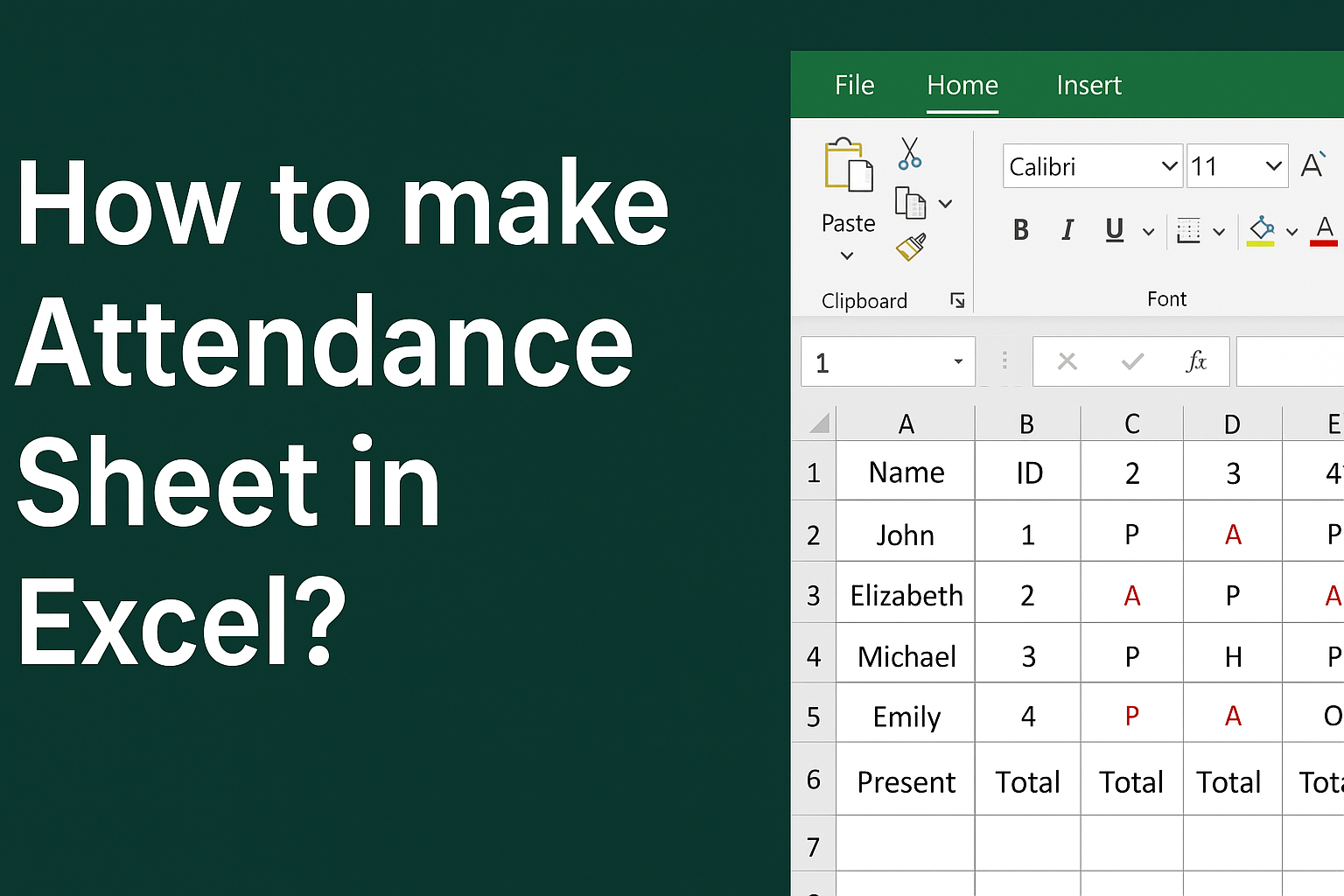
- In row 1 (or 2), add your header columns for Name, ID (if needed), and then columns for each day of the month (1, 2, 3… up to 28/29/30/31 depending on month).
- After the day-columns, add columns for Total Present, Total Absent, and optionally Leave / Holiday / Other Status depending on what you track.
Example header layout:
| Name | ID (optional) | 1 | 2 | 3 | … | 31 | Total Present | Total Absent | % Present |
2. Enter Names / Details
- Under the “Name” column, list all students / employees / attendees. Optionally fill “ID” or “Department” columns if needed.
3. Mark Attendance Daily
- For each date column, mark attendance status. Common codes:
- P = Present
- A = Absent
- L = Leave
- H = Holiday / Off
- Alternatively, you can use check-marks, “Yes/No”, “1/0”, or dropdown lists for standardized input.
4. Automate Totals with Formulas
- To count total days present for a person (say row 5 with date columns from C to AF):
=COUNTIF(C5:AF5, "P") - Similarly, count absences:
=COUNTIF(C5:AF5, "A") - If you have more statuses (Leave, Holidays), you can add separate counts or combine as needed.
- For attendance percentage:
=COUNTIF(C5:AF5, "P") / COUNTA(C5:AF5)(then format as percentage)
5. Optional: Use Data Validation / Dropdowns for Consistency
To avoid inconsistent entries (misspelling “Present”, “Prsent”, “P”, etc.), you can use Data Validation:
- Select the attendance-marking cells → go to Data → Data Validation → List → set allowed values (e.g. P, A, L, H) → click OK.
This ensures everyone uses the same codes, which makes counting via formulas accurate.
6. (Optional) Format for Readability & Usability
- Freeze the header row (View → Freeze Panes) — so when you scroll, names stay visible.
- Apply borders, alternate row shading, or text alignment for better clarity.
- Use conditional formatting to highlight weekends, holidays, or absence marks for visual clarity.
🎯 Conclusion
Creating an attendance sheet in Excel is easy — but making a useful, reliable, and error-proof one needs a bit of planning: good structure, consistent marking, formulas, and formatting. Once set up, such a sheet makes tracking attendance fast and accurate, whether you manage a classroom, a team, or an event.






