
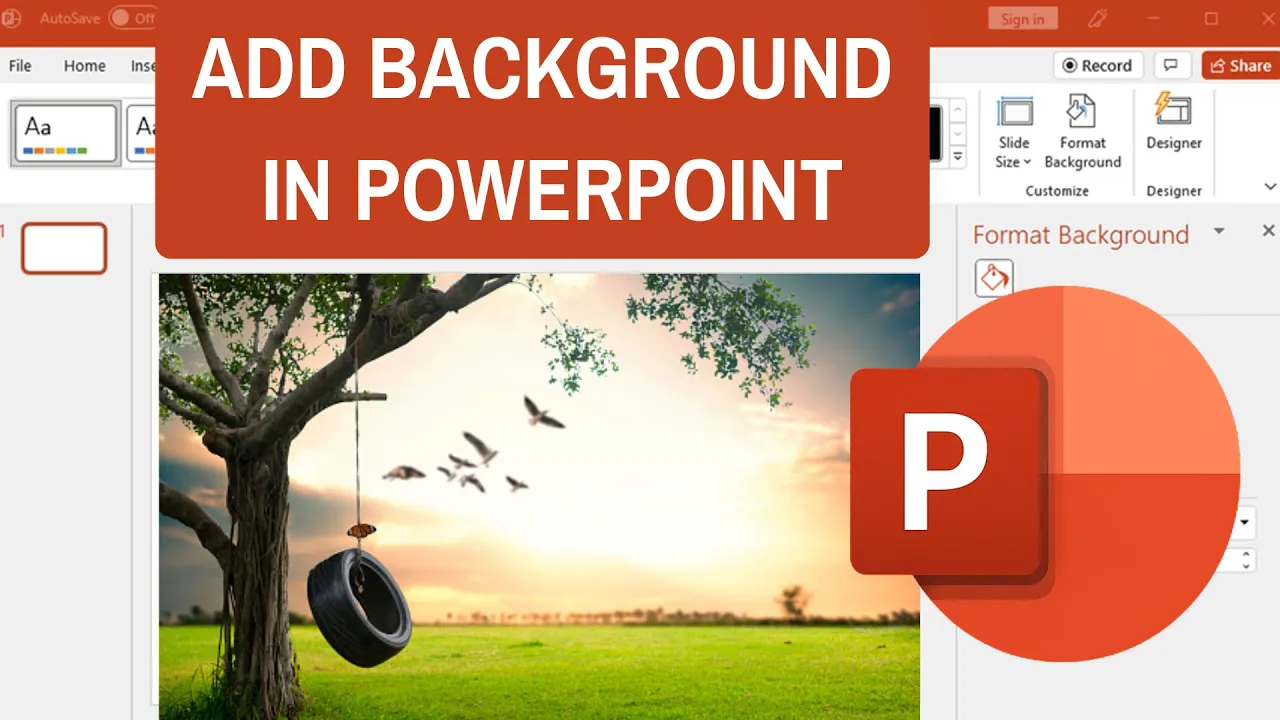
Adding a background in PowerPoint makes your slides look professional and visually appealing for presentations. You can use solid colors, gradients, patterns, or insert pictures from your computer or online stock images easily. In this blog, you’ll learn simple step-by-step methods to add and customize backgrounds using Format Background pane, adjust transparency, and apply to all slides for stunning presentation designs.
📝 Step-by-Step: How to Add a Background in PowerPoint
Follow these simple instructions:
### Step 1: Open Your PowerPoint Slide
- Launch PowerPoint on your PC.
- Open the presentation where you want to add a background.
- Select the specific slide to apply the background.
### Step 2: Go to the ‘Design’ Tab
- On the top menu bar, click the Design tab.
- You will see various theme and background options.
### Step 3: Click on ‘Format Background’
- On the right side of the Design tab, click Format Background.
- A panel will open on the right side of the screen with different background settings.
🎨 Step 4: Choose Your Background Type
PowerPoint allows several types of backgrounds. Choose the one you prefer:
1. Solid Fill Background
- Select Solid fill.
- Choose any color from the palette.
- Use the Transparency slider if needed.
2. Gradient Fill Background
- Choose Gradient fill.
- Select a preset or create your own gradient.
- Adjust:
- Colors
- Gradient type
- Direction
- Angle
- Transparency
3. Picture or Texture Fill
Use this option to add photos, textures, or downloaded images.
To apply a picture background:
- Choose Picture or texture fill.
- Click Insert → choose:
- From a File (your PC)
- Stock Images
- Online Pictures
Once selected, the image will appear as the slide background.
4. Pattern Fill Background
- Choose Pattern fill.
- Select any two-color pattern from the list.
- Customize foreground and background colors.
✔ Step 5: Apply to One Slide or All Slides
- After customizing the background, click:
- Apply to All → To set the background on every slide.
- Or simply close the panel → If applying to only one slide.
🧹 Step 6: How to Remove or Reset Background
If you want to remove the background:
- Go to Format Background.
- Click Reset Background.
This restores the default theme background.
🎯 Final Thoughts
Adding a background in PowerPoint is a simple yet powerful way to enhance your presentation. With options like solid colors, gradients, textures, and images, you can design slides that reflect your style or brand identity.






