
---Advertisement---

How to Wrap Text in Excel? Fit Longer Text

Published On: December 2, 2025
How to Wrap Text in Excel? Fit Longer Text
---Advertisement---

Wrapping text in Excel helps fit longer text into a cell by displaying it on multiple lines, so nothing gets cut off or hidden. This makes your spreadsheets look neat and easier to read. In this blog, you’ll learn easy ways to wrap text using the Ribbon button, the Format Cells dialog, and keyboard shortcuts, so your data always fits perfectly inside cells without extra effort.
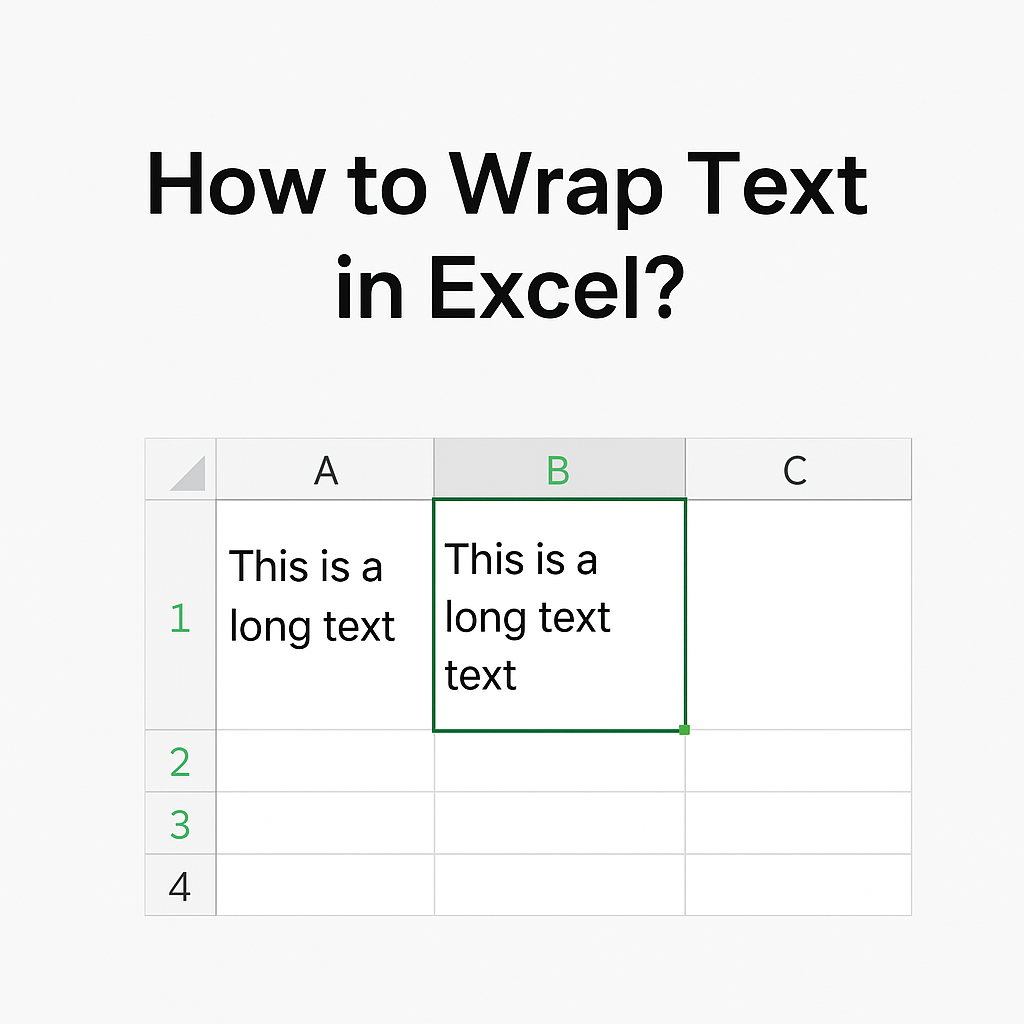
Wrap Text in Excel

✔ Method 1: Use the Wrap Text Button in the Ribbon

  1. Select the cell or range of cells containing long text.
  2. Go to the Home tab.
  3. In the Alignment group, click on Wrap Text.
  4. Excel will automatically adjust the row height and place the text on multiple lines.
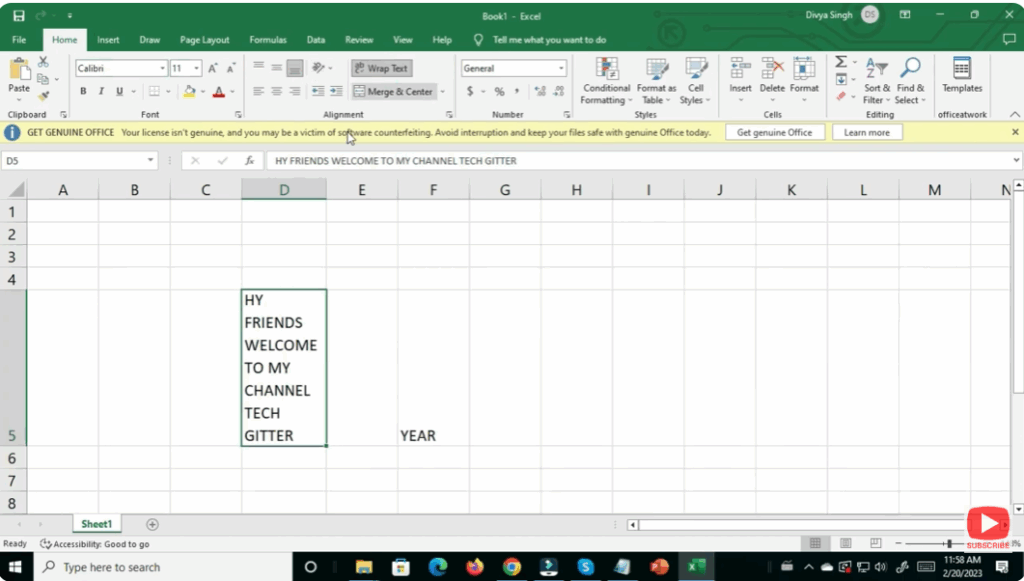
Use the Wrap Text Button in the Ribbon

This is the simplest and most commonly used method.

---Advertisement---

Related Post

Enable New Windows 11 25H2 Features After December Update (KB5070311)
Enable/Disable Steam Networking IP Sharing – Step-by-Step Guide
Valorant Stuck on Loading Screen? Fix It Now!
Tips

Valorant Stuck on Loading Screen? Fix It Now!

By Tech Gitter
|
December 31, 2025
How to Increase or Decrease Font Size in Google Chrome
Solutions

How to Increase or Decrease Font Size in Google Chrome

By Tech Gitter
|
December 29, 2025

Leave a Comment

Join WhatsApp Join Telegram





